Feature Summary
The WPS Art layout feature is used to set the layout of sub-items for the current item. You can choose from layout styles such as Right to Left, Standard, Both, Left Hanging, and Right Hanging.
Feature Description
| Feature Dimension | Description |
|---|---|
| Membership Restriction | No membership restriction |
| Version Restriction | No version restriction |
Steps
Set Layout
Feature Entry
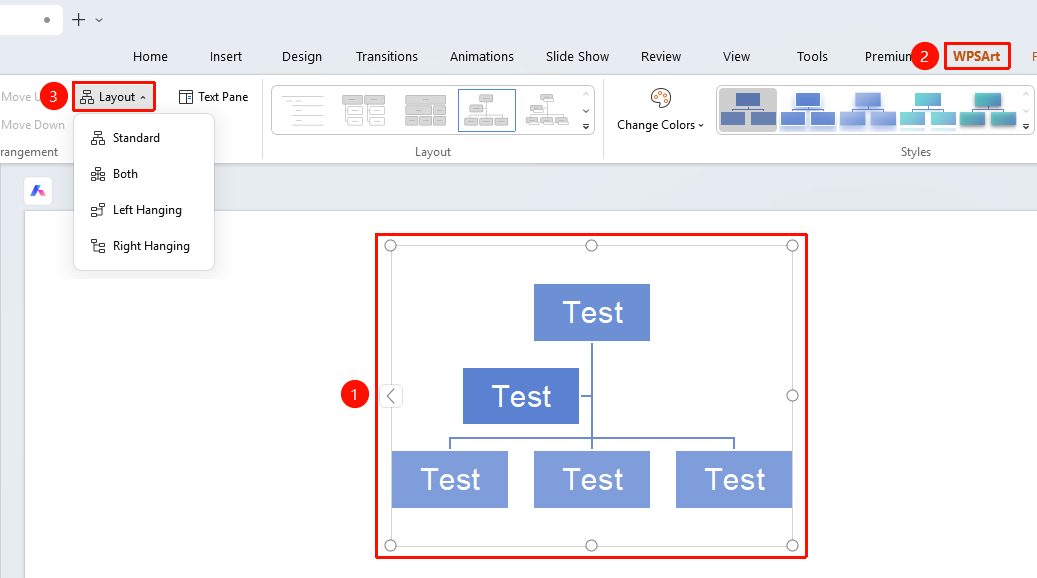
"Design" tab → "Layout"
- Select the item for which you want to set the layout
- Click the "Design" tab at the top
- Find and click the "Layout" button to expand and set the following options
- "Right to Left": Sub-items are arranged from right to left
- "Standard": Sub-items are arranged in the standard layout
- "Both": Sub-items are arranged on both the left and right sides
- "Left Hanging": Sub-items hang on the left side
- "Right Hanging": Sub-items hang on the right side
- Click the desired layout style to apply it
Floating Toolbar Settings
Feature Entry
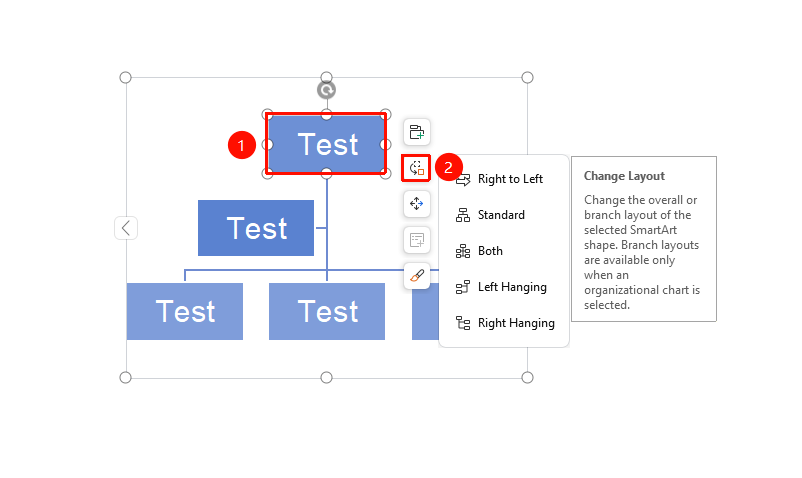
Floating Toolbar → "Change Layout"
- Select the item for which you want to set the layout
- Click the "Change Layout" button in the floating toolbar
- Select the desired layout style
FAQ
Q1: What should I do if the layout options are grayed out?
- Solution: The layout options are only available when the item contains sub-items.
Q2: Does the layout only affect the sub-items of the current item?
- Solution: Yes, the layout setting only affects the arrangement of sub-items for the currently selected item and does not affect other parts.
Notes
- Layout settings are only effective for levels that contain sub-items
- Different layout styles will affect the overall visual effect of the graphic