Feature Summary
The WPS Art Text Pane feature is used to open or close the WPS Art text editing pane, making it convenient to edit graphic content via a text outline. It supports quickly adding, deleting, and adjusting item levels in the pane.
Feature Description
| Feature Dimension | Description |
|---|---|
| Membership Restriction | No membership restriction |
| Version Restriction | No version restriction |
Steps
Open Text Pane
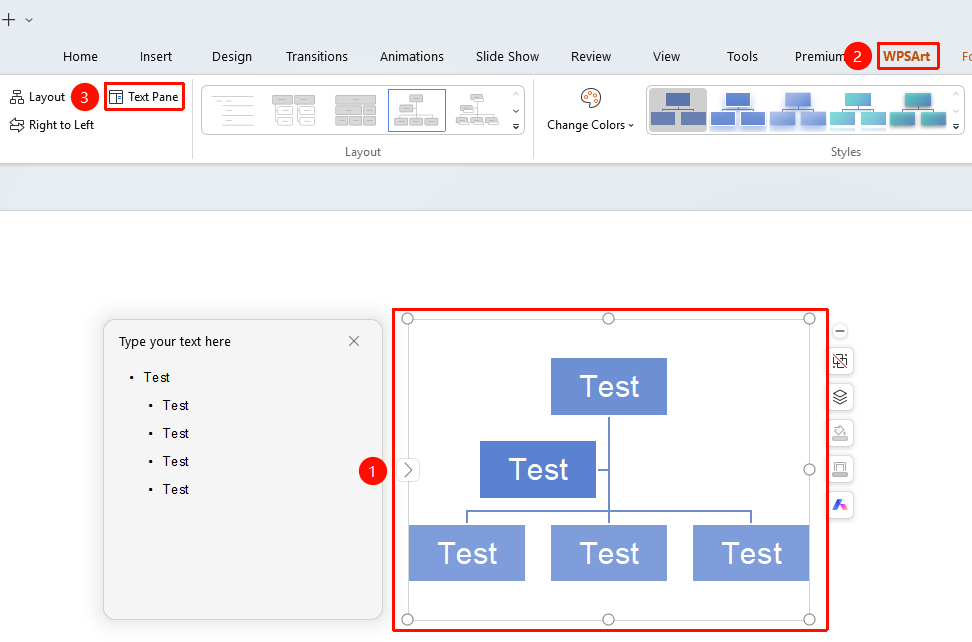
Feature Entry ①
"Design" tab → "Text Pane"
- Select the WPS Art graphic
- Click the top "Design" tab
- Find and click the "Text Pane" button
- The text editing pane will open on the left
- The expanded text pane displays the following:
- "Type your text here": Pane title
- Item list: Displays all items in outline form with hierarchical indentation
- Each item is preceded by a "•" symbol indicating the level
- Operations that can be performed in the text pane:
- Press Enter: Add a new item at the same level
- Press Tab: Demote the current item (make it a sub-level)
- Press Shift+Tab: Promote the current item (make it a higher level)
- Press Delete: Delete the current item
- Type directly: Edit item content
Quickly Expand Text Pane
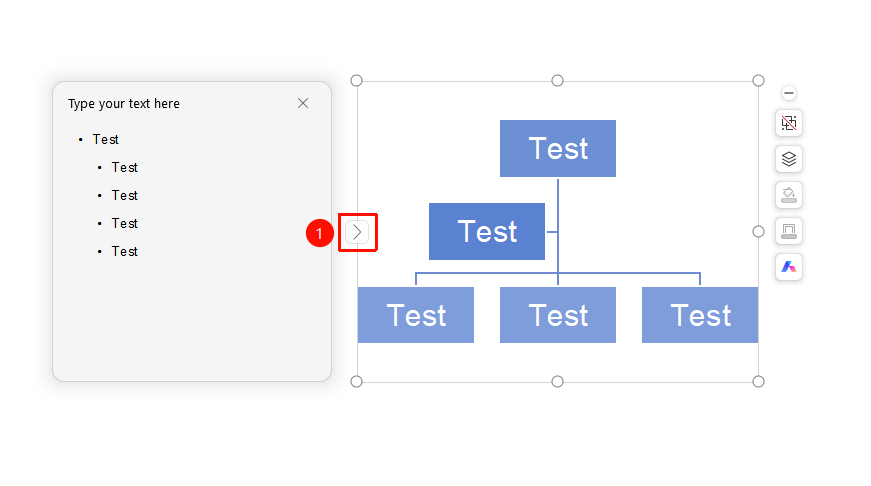
WPS Art graphic left frame line → Expand button
- Select the WPS Art graphic
- Find the ">" button on the left frame line of the graphic
- Click this button to quickly expand the text pane
FAQ
Q1: What is the purpose of the text pane?
- Solution: The text pane displays graphic content in outline form, allowing you to quickly edit, add, and delete items, as well as adjust the hierarchical structure, which is more efficient than editing directly in the graphic.
Q2: How to adjust item levels in the text pane?
- Solution: In the text pane, press Tab to demote, press Shift+Tab to promote, or select the item and use the promote/demote options in the right-click menu.
Q3: The content in the text pane is not synchronized with the graphic.
- Solution: After editing in the text pane, the graphic will update automatically. If it does not sync, try reopening the text pane or clicking another area of the graphic.
Q4: How to close the text pane?
- Solution: Click the "×" close button in the upper right corner of the text pane, or click the "Text Pane" button in the "Design" tab again.
Notes
- The text pane only displays text content, not graphic styles
- Edits in the text pane are reflected in the graphic in real time
- The left frame line button is a convenient entry point for quickly expanding the text pane