Feature Summary
The WPS Art Direction feature is used to set the overall arrangement direction of WPS Art graphics, allowing you to adjust the flow direction and layout orientation of the graphics.
Feature Description
| Feature Dimension | Description |
|---|---|
| Membership Restriction | No membership restriction |
| Version Restriction | No version restriction |
Operation Steps
Set Direction
Feature Entry
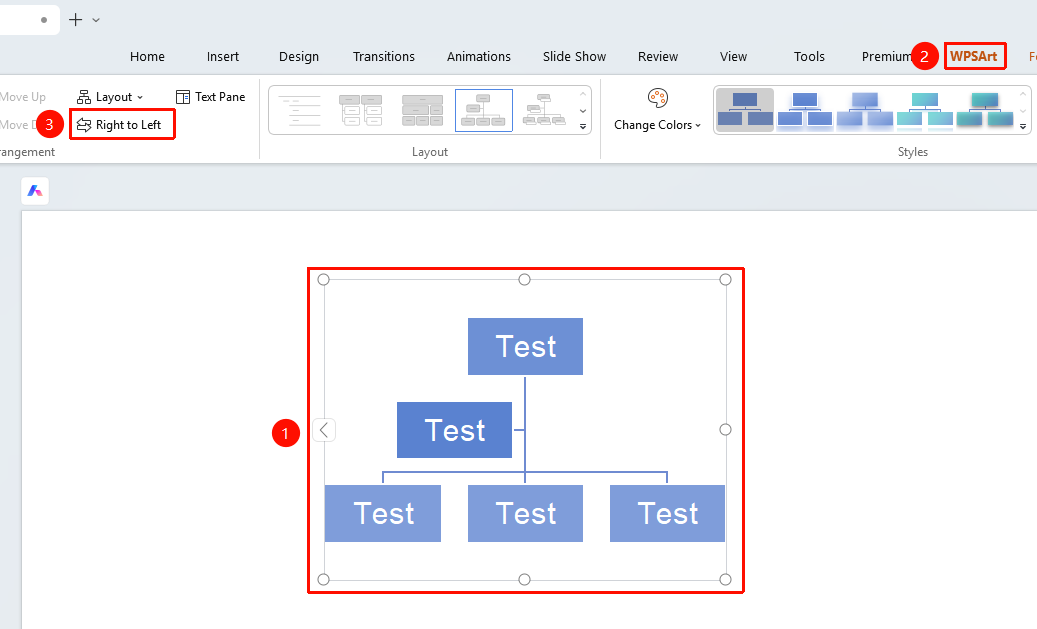
"Design" tab → "Right to Left"
- Select the WPS Art graphic
- Click the top "Design" tab
- Find and click the "Right to Left" button
- The graphic direction will change from the default left-to-right to right-to-left
- Click again to switch the left-right direction again
Floating Edit Bar Setting
Feature Entry
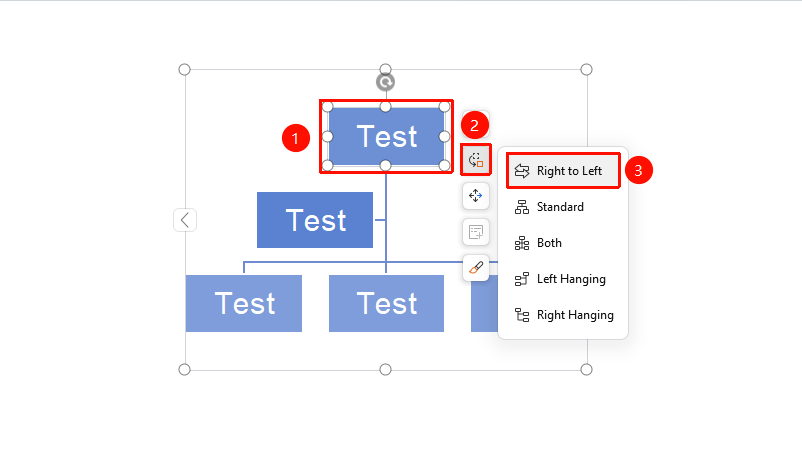
Floating Edit Bar → "Change Layout" → "Right to Left"
- Select the WPS Art graphic
- In the floating edit bar, click "Change Layout" and select "Right to Left"
- The graphic direction will change from the default left-to-right to right-to-left. Click again to switch the left-right direction again
Frequently Asked Questions
Question 1: What is the use of the direction setting?
- Solution: The direction setting can change the overall flow direction of the graphic, suitable for right-to-left layout scenarios or when special layout effects are needed.
Question 2: Does the direction affect the text position?
- Solution: Yes, after the graphic direction changes, the positions of text and shapes will be adjusted accordingly.
Notes
- The direction setting affects the layout of the entire WPS Art graphic
- Some layouts may not support direction adjustment