Feature Summary
The WPS Art Change Color feature is used to quickly change the color theme of WPS Art graphics, offering a variety of preset color combinations to beautify the graphic appearance with one click.
Feature Description
| Feature Dimension | Description |
|---|---|
| Membership Restriction | No membership restriction |
| Version Restriction | No version restriction |
Operation Steps
Change Color
Feature Entry
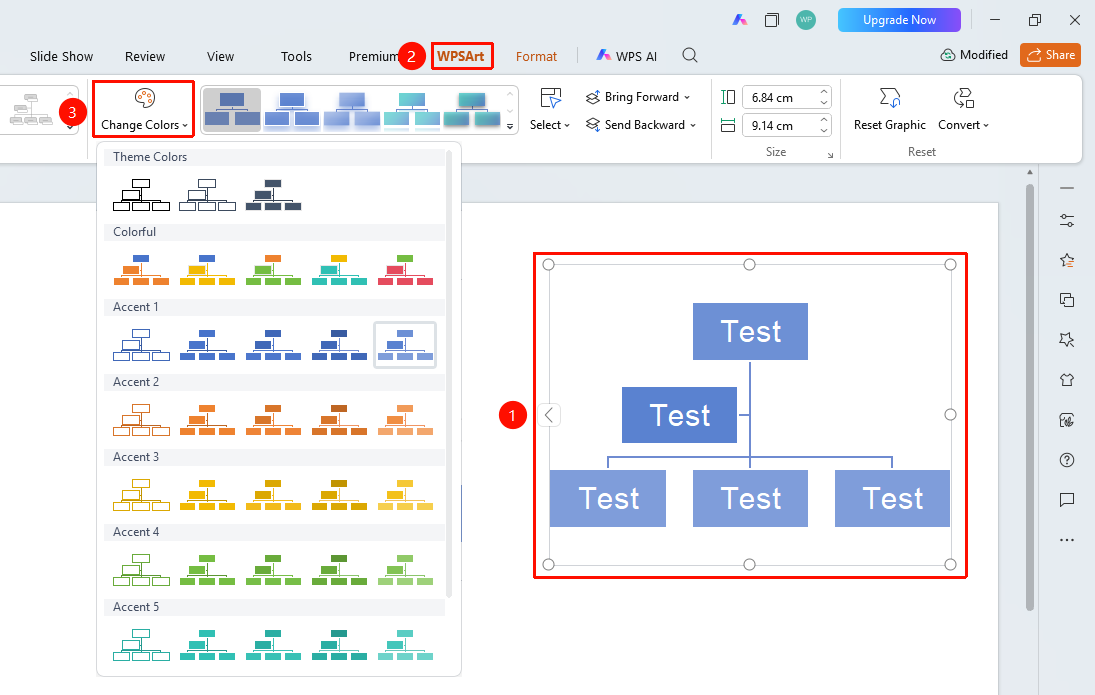
"Design" tab → "Change Color"
- Select the WPS Art graphic
- Click the top "Design" tab
- Locate and click the "Change Color" button
- Select the desired coloring
- Click to apply
FAQ
Q1: Will changing the color affect the text color?
- Solution: Changing the color mainly affects the fill color of shapes. The text color usually remains unchanged, unless a theme that includes text color changes is selected.
Q2: How to restore the original color?
- Solution: Select the first default color theme in the Change Color panel, or use Ctrl+Z to undo.
Q3: Can I customize the color combination?
- Solution: The Change Color feature only provides preset themes. To customize, you need to manually modify the color of each shape.
Notes
- Changing the color will apply to the entire WPS Art graphic
- The color theme will change with the presentation theme