Feature Summary
The theme feature is used to apply preset design styles to presentations, including a unified combination of colors, fonts, effects, and other elements.
Feature Description
| Feature Dimension | Description |
|---|---|
| Membership Restriction | No membership restriction |
| Version Restriction | No version restriction |
Operation Steps
Apply a Theme
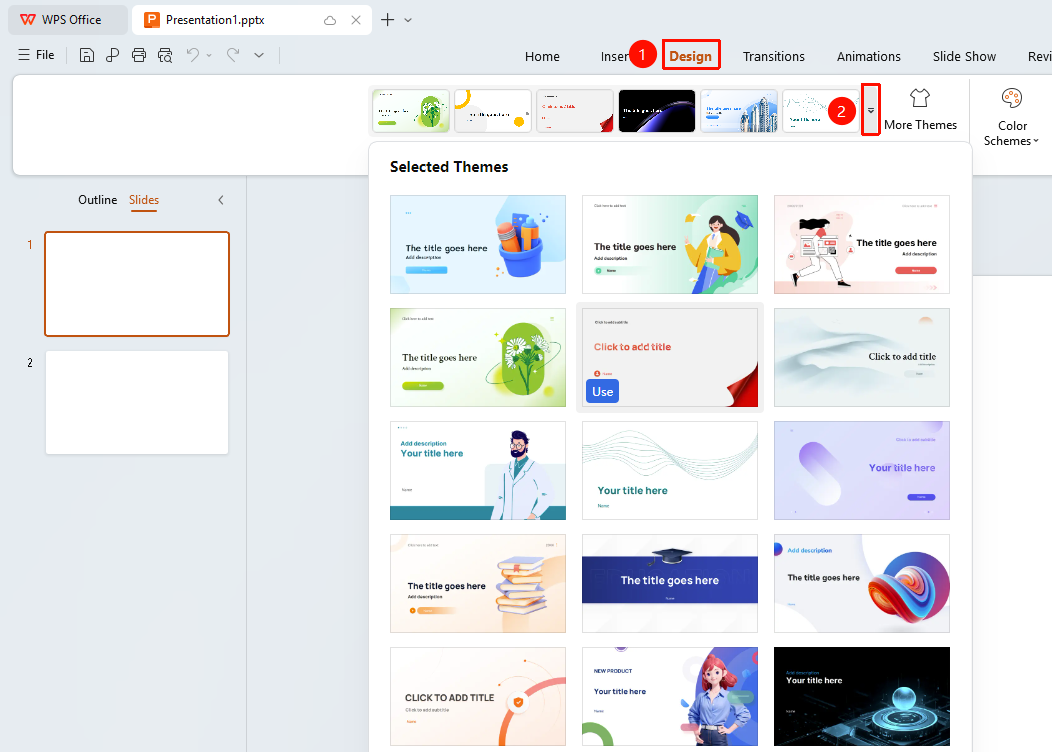
Feature Entry ①
"Design" tab → Drop-down button on the right side of the theme style gallery
- Click the top "Design" tab
- Click the drop-down button on the right side of the theme style gallery
- Open the featured themes panel and browse available themes
- Click to select and apply the desired theme
- Click "More Themes" at the bottom to "view" the full theme library
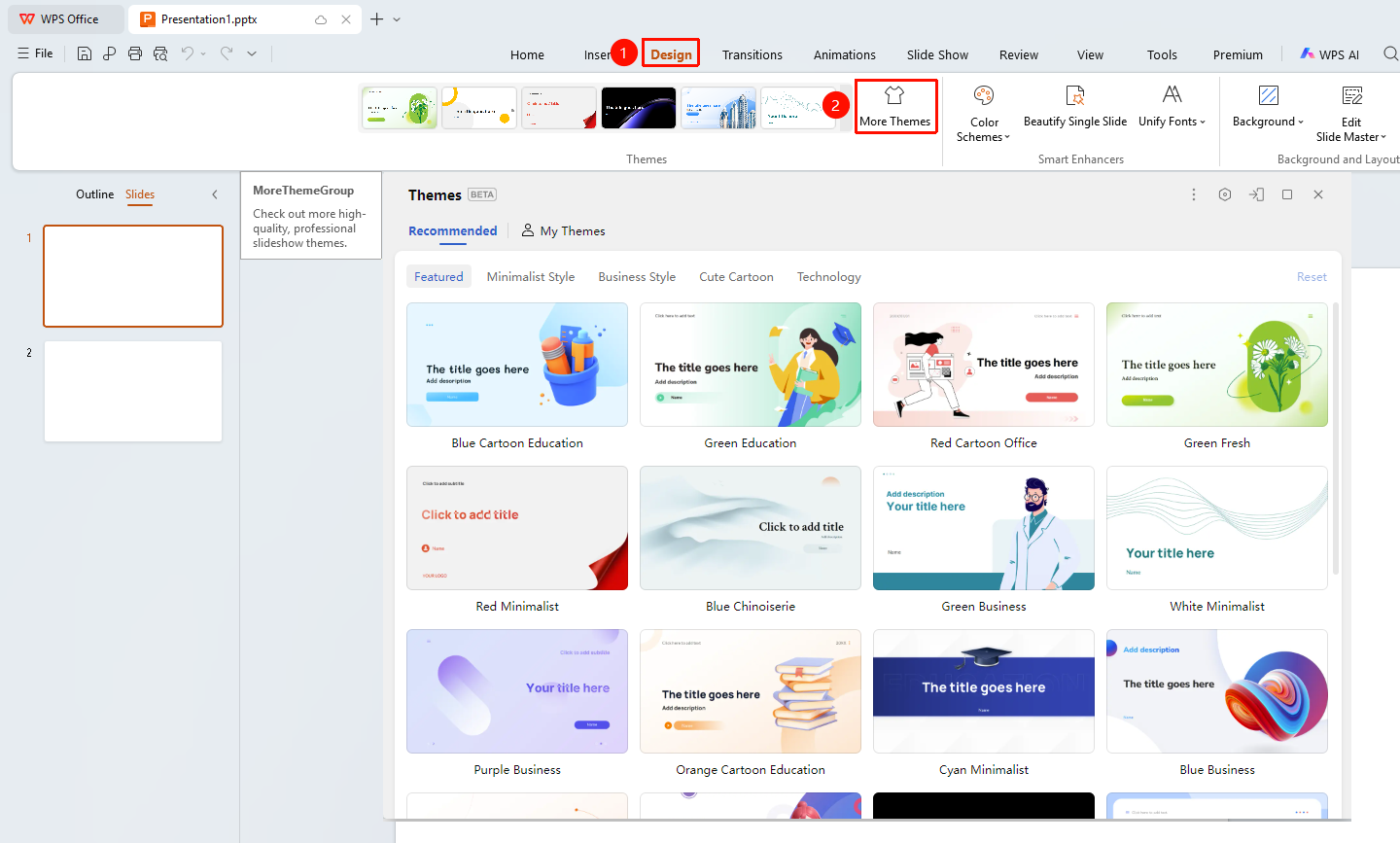
Feature Entry ②
"Design" tab → "More Themes"
- Click the top "Design" tab
- Click the "More Themes" option
- Open the theme library and browse different themes
- Click to apply a theme with one click
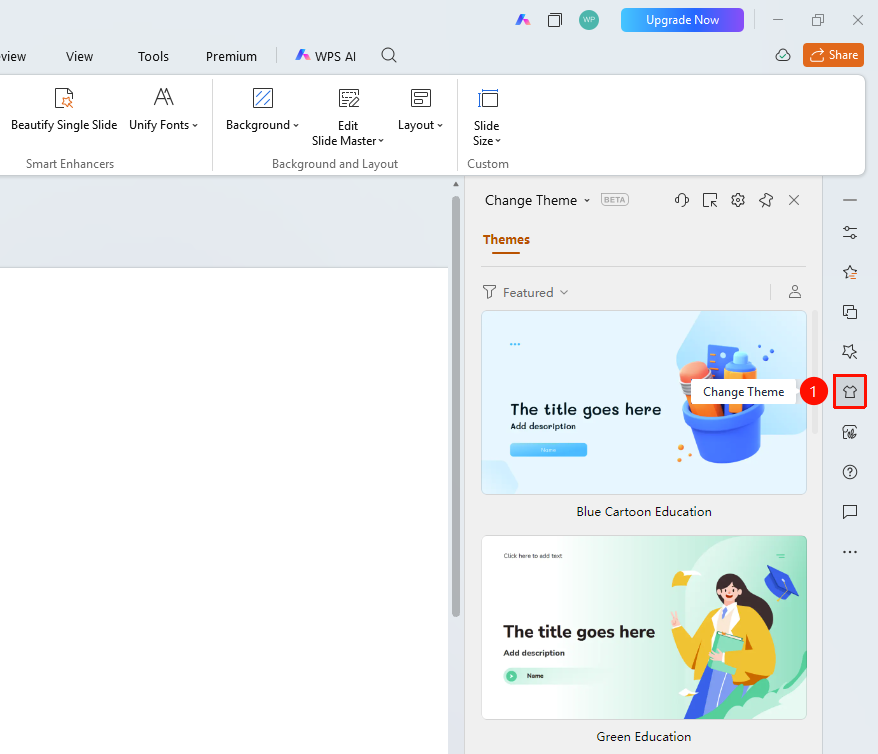
Feature Entry ③
Side task pane → "Change Theme" button
- Click the "Switch Theme" button in the right sidebar
- Open the theme panel and browse theme schemes
- Click to apply a new theme
Notes
- Applying a theme will change the style of all slides
- It is recommended to select an appropriate theme early in the presentation creation process