Feature Summary
The column feature is used to divide the content within a text box into multiple columns, helping users achieve multi-column layouts similar to those in newspapers and magazines, thereby enhancing text readability and layout design.
Feature Description
| Feature Dimension | Description |
|---|---|
| Membership Restriction | No membership restriction |
| Version Restriction | No version restriction |
Steps
Quickly Apply Columns
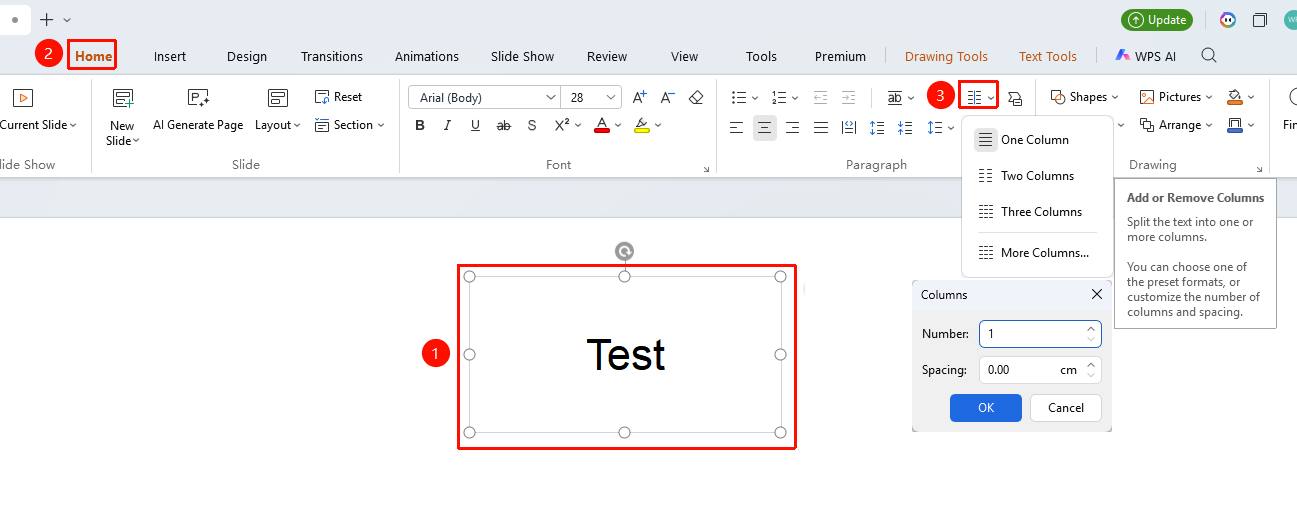
Feature Entry 1
"Home" tab → "Columns" button
- Select the text box you want to set columns for
- Click the "Columns" button in the "Home" tab
- Set the column parameters in the pop-up dialog box:
- One Column: Default, no columns
- Two Columns: Content in the text box is automatically divided into two columns
- Three Columns: Content in the text box is automatically divided into three columns
- More Columns: Enter the exact number of columns and spacing
- Click "OK" to apply the column settings
Feature Entry 2
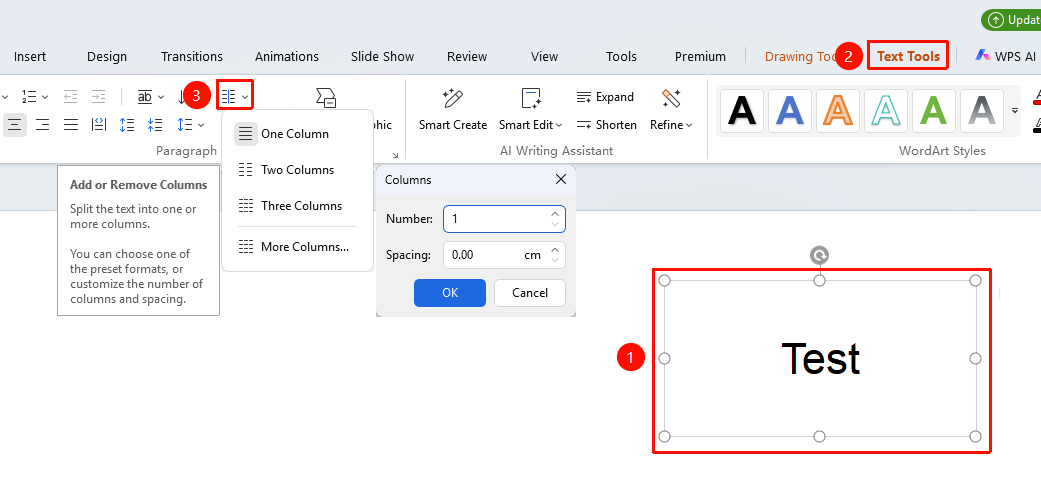
"Text Tools" tab → "Columns" button
- Select the text box you want to set columns for
- Click the "Columns" button in the "Text Tools" tab
- Set the column parameters in the pop-up dialog box:
- One Column: Default, no columns
- Two Columns: Content in the text box is automatically divided into two columns
- Three Columns: Content in the text box is automatically divided into three columns
- More Columns: Enter the exact number of columns and spacing
- Click "OK" to apply the column settings
Set Columns via Object Properties
Feature Entry
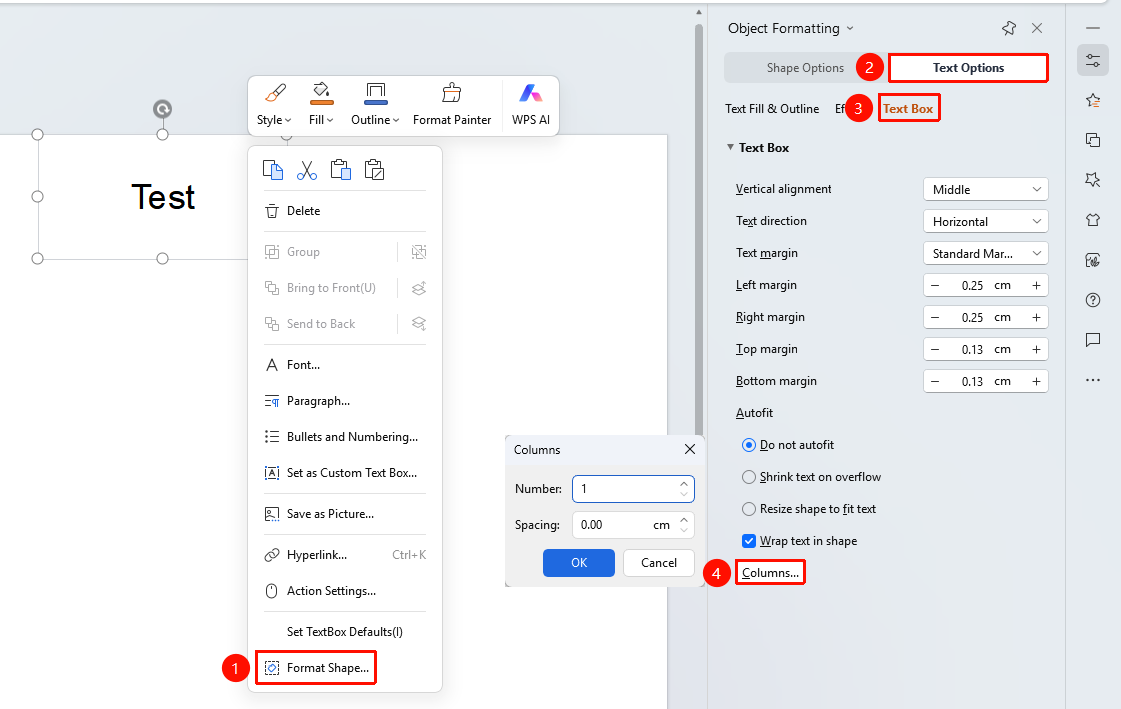
"Select Text Box" → Right-click menu → "Format Object" → "Text Options" → "Text Box" → Columns
- Select the text box you want to set columns for
- Right-click and select "Format Object" from the context menu to open the side panel
- Switch to the "Text Options" tab → "Text Box" section
- Click the "Columns" button, enter the exact number of columns and spacing distance
- Click "OK" to complete the column setup
FAQ
Q1: What should I do if the text is not fully displayed after applying columns?
- Solution: Check if the text box is large enough to accommodate the column content. Adjust the text box size appropriately or reduce the number of columns to ensure all text is displayed properly.
Q2: How do I cancel columns and restore the single-column display?
- Solution: Select the text box, open the Columns dialog box, and set the number of columns to 1 to restore the single-column layout.
Q3: How can I precisely adjust the column spacing?
- Solution: Enter a specific spacing value (unit: cm) directly in the Columns dialog box to precisely control the distance between columns. It is recommended to set this reasonably based on layout requirements.
Notes
- The column feature applies to text content within text boxes, not to table objects
- It is recommended to set the number of columns reasonably based on the text box width and content volume to avoid having too little text per column, which may affect readability