Feature Summary
The column width feature is used to precisely set the width of columns in a Sheet. It supports both manual drag adjustment and precise numerical input, helping users flexibly control the display width of columns according to content needs, ensuring that Sheet content is fully displayed with a reasonable layout.
Feature Description
| Feature Dimension | Description |
|---|---|
| Membership Restriction | No membership restriction |
| Version Restriction | No version restriction |
Operation Steps
Drag to Adjust Column Width
Feature Entry
Hover mouse over right border of column → Drag to adjust
- Move the mouse to the right border of the column you need to adjust
- When the mouse cursor changes to a left-right double arrow shape
- Hold down the left mouse button and drag left or right
- Release the mouse button to adjust the column width to the new position
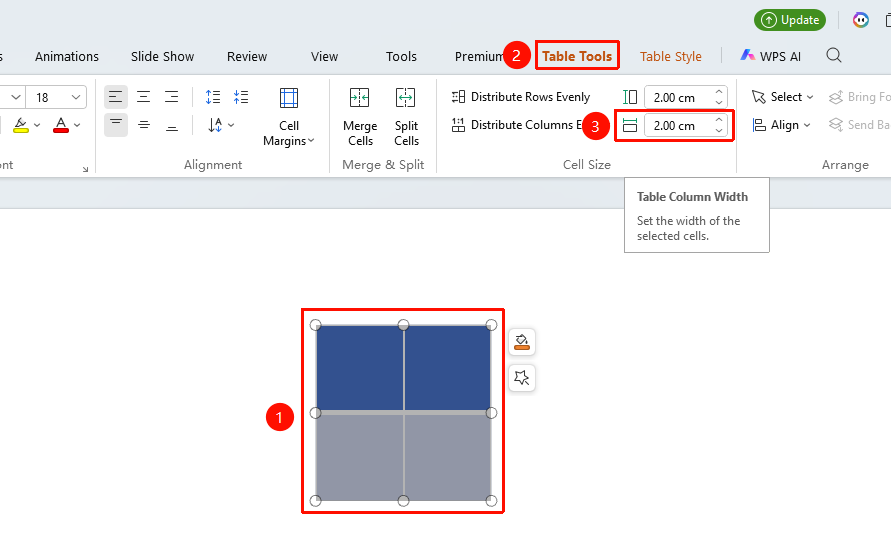
Precisely Set Column Width
Feature Entry
Select column → "Sheet Tools" → "Set Column Width"
- Select the column(s) you need to set (multiple columns can be selected)
- Find "Column Width" in the top "Sheet Tools" tab
- Enter a precise column width value in the dialog box (unit: cm) or use the buttons to fine-tune the column width
Frequently Asked Questions
Question 1: How to make all column widths consistent?
- Solution: Select the entire table, choose "Set Equal Column Width for All Columns" in "Sheet Tools" to quickly set all columns to the same width, ensuring the table is neat and uniform.
Notes
- When precisely setting column width, the default unit for the entered value is centimeters. It is recommended to set it reasonably based on the amount of content.
- Adjusting column width does not affect the content format within the Sheet; it only changes the display width of the column.
- When setting column width for multiple columns simultaneously, all selected columns will be set to the same width value.
- It is recommended to set the column width reasonably based on the amount of content to avoid content being incompletely displayed due to too narrow columns or wasting space due to too wide columns.