Feature Summary
The Remove Background Image feature is used to remove the background image setting from a slide, restoring it to the default background or a solid color background.
Feature Description
| Feature Dimension | Description |
|---|---|
| Membership Restriction | No membership restriction |
| Version Restriction | No version restriction |
Operation Steps
Remove Background Image
Feature Entry ①
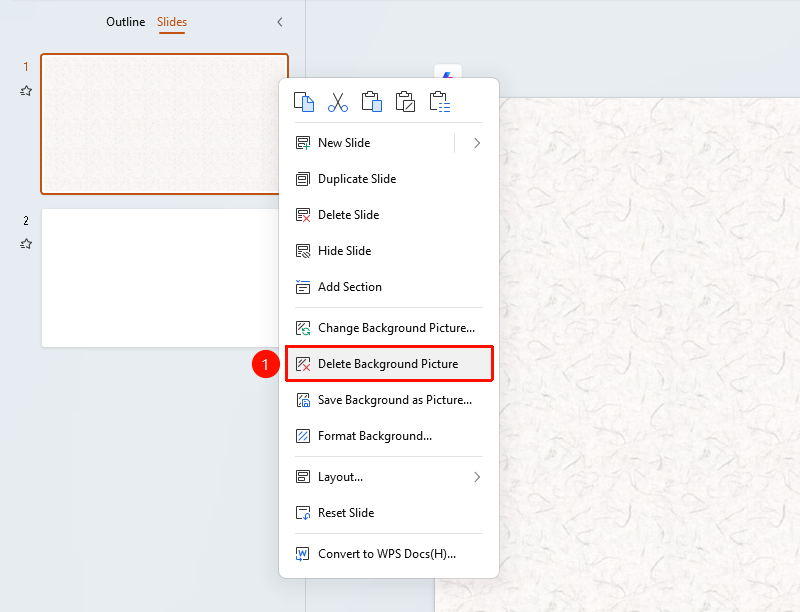
Right-click menu on the left slide thumbnail → "Remove Background Image"
- Right-click the slide whose background you want to remove in the left slide thumbnail pane
- Select the "Remove Background Image" option
- The background image will be removed and restored to the default background
Feature Entry ②
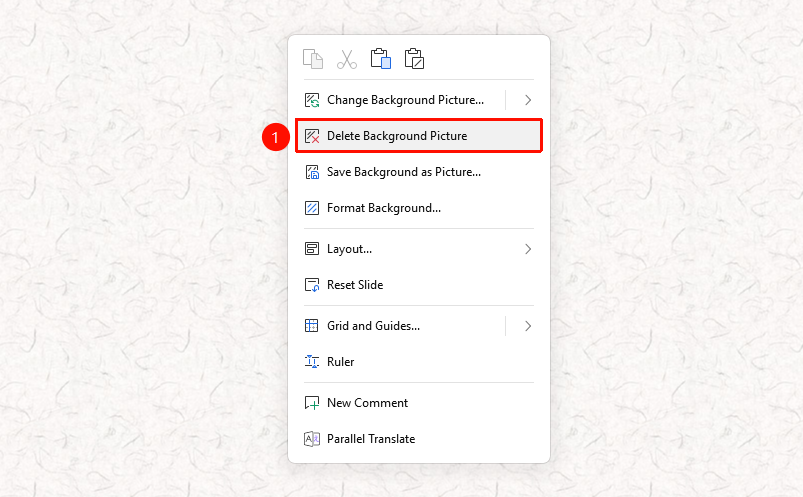
Right-click menu in the slide editing area → "Remove Background Image"
- Right-click on a blank area in the slide editing area
- Select the "Remove Background Image" option
- The background image will be removed and restored to the default background
Reset Background
Feature Entry
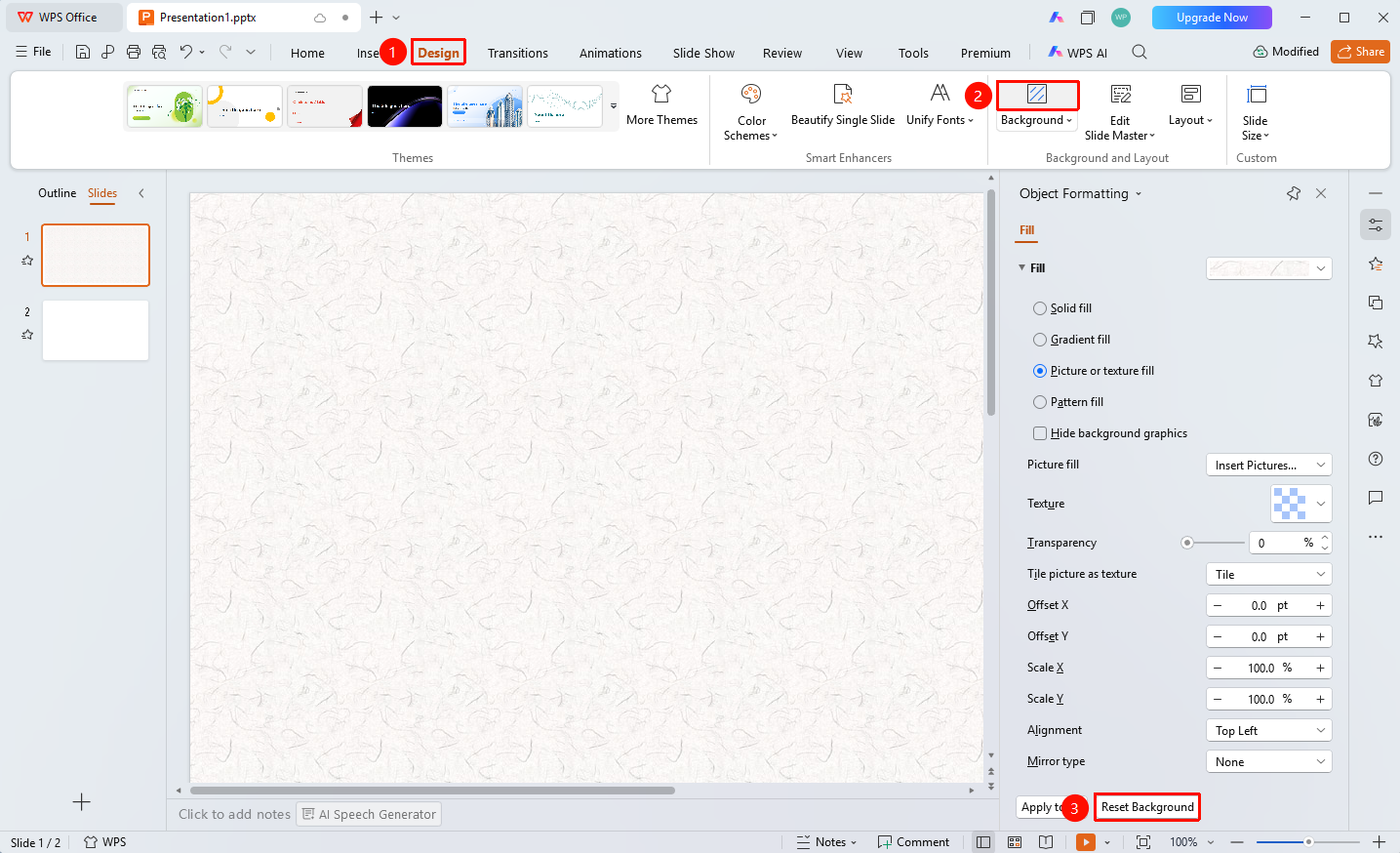
"Design" tab → "Background" → Right sidebar "Object Properties" panel → "Reset Background"
- Click the "Design" tab at the top
- Click the "Background" button
- Click the "Reset Background" button at the bottom of the right Object Properties panel
- The current slide background settings will be reset
FAQ
Q1: How to restore after deletion
- Solution: Press Ctrl+Z to undo the operation, or set the background image again.
Q2: How to remove the background of only some slides
- Solution: Select the slides whose background you want to remove, and perform the deletion operation individually.
Notes
- It is recommended to document important background settings before deletion