Feature Summary
The cell margin feature is used to adjust the distance between text and cell edges within a table cell. By setting the top, bottom, left, and right inner margins, you can control the position of text within the cell, making the layout of table content more visually appealing and easier to read.
Feature Description
| Feature Dimension | Description |
|---|---|
| Membership Restriction | No membership restriction |
| Version Restriction | No version restriction |
Operation Steps
Quick Cell Margin Setup
Feature Entry
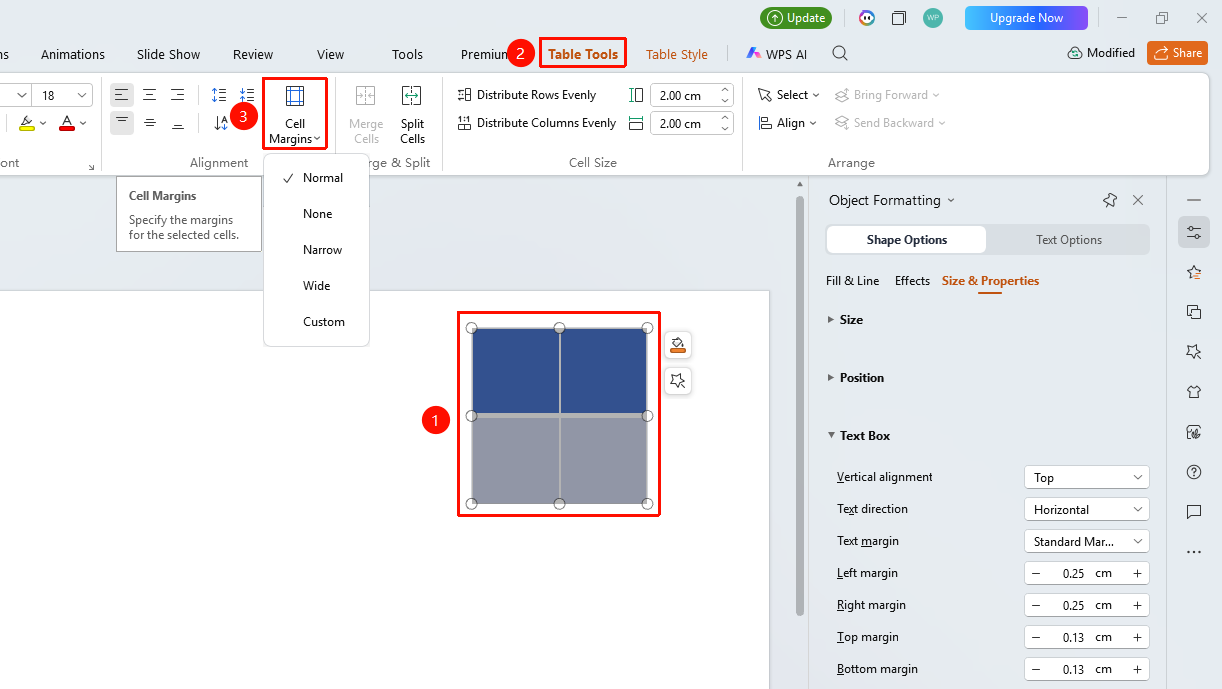
Select cell(s) → "Table Tools" tab → "Cell Margins"
- Select the table cell(s) for which you want to set margins (multiple cells can be selected)
- Click the Table Tools tab
- Click the "Cell Margins" button
- In the pop-up dialog box, choose from the following margin options:
- "No Margins"
- "Narrow Margins"
- "Normal"
- "Wide Margins"
- "Custom": Opens the object properties in the task pane to set values for "Left Margin", "Right Margin", "Top Margin", and "Bottom Margin" individually
- Click "OK" to apply the settings
Setting Cell Margins via Right-Click Menu
Feature Entry
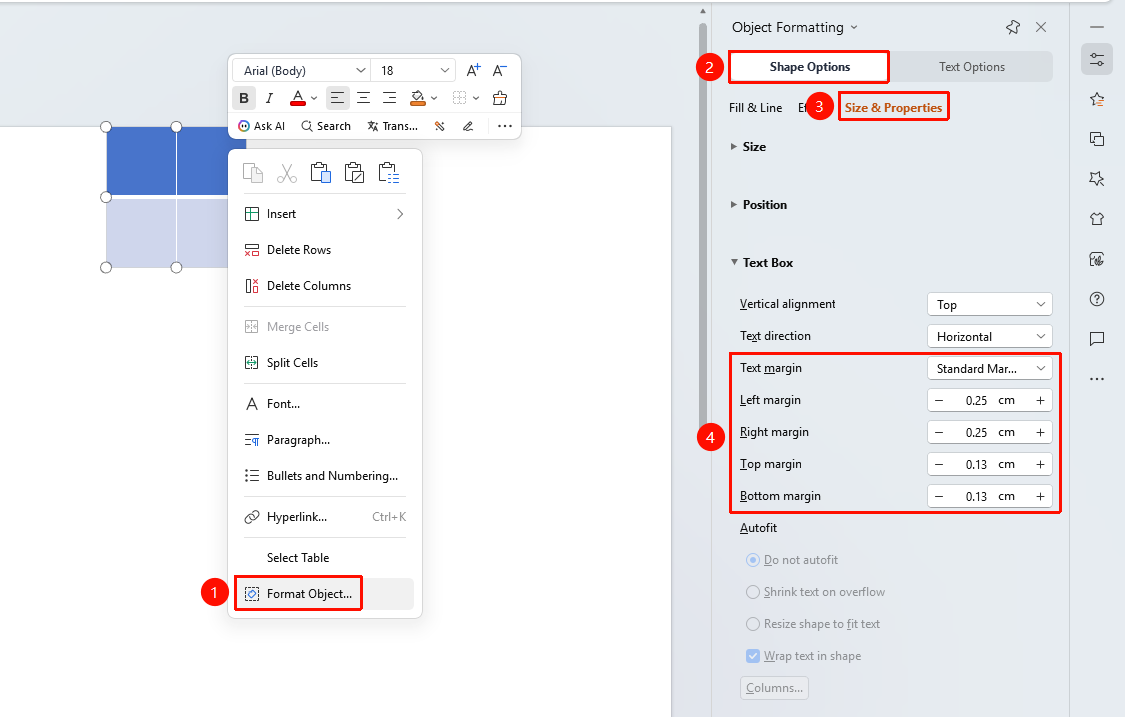
Select cell(s) → Right-click menu → "Format Object" → "Shape Options" → "Size & Properties" → "Text Box" section → "Text Margins"
- Select the cell(s) for which you want to set margins
- Right-click and select "Format Object" to open the "Object Properties" sidebar in the task pane
- In the sidebar, find the "Shape Options" tab, click "Size & Properties", and locate "Text Box"
- Click the "Text Margins" drop-down menu to view all text margin options
- "No Margins": No spacing between text and text box
- "Narrow Margins": Narrow spacing between text and text box, default (0.13 cm)
- "Normal Margins": Standard spacing between text and text box, default (left and right margins 0.25 cm, top and bottom margins 0.13 cm)
- "Wide Margins": Wide spacing between text and text box, default (0.38 cm)
- "Extra Wide Margins": Wide spacing between text and text box, default (left and right margins 0.75 cm, top and bottom margins 0.38 cm)
- "Custom": Set values for "Left Margin", "Right Margin", "Top Margin", and "Bottom Margin" individually below
- Once set, the text within the cell will automatically rearrange according to the new margins
FAQ
Q1: Can I set different margins for different cells?
- Solution: Yes. Select the cells you want to set individually and configure their respective margin values. You can also select an entire row or column to set margins uniformly.
Q3: What is the unit for cell margins?
- Solution: The default unit is centimeters.
Notes
- Cell margins affect the distance between the text inside the cell and its borders, which is different from the outer margins of the table
- It is recommended to maintain consistent margin settings within the same table to preserve visual uniformity
- Setting smaller margins allows more content to be displayed within a limited space