Feature Summary
The single-page beautification feature is used to optimize the layout and visual effects of the current slide without affecting other slides.
Feature Description
| Feature Dimension | Description |
|---|---|
| Membership Restriction | Some beautification styles require a subscribed membership to use |
| Version Restriction | No version restriction |
Operation Steps
Some beautification styles require a subscribed membership to use. Please note the membership indicator before use.
Using Single-Page Beautification
Feature Entry
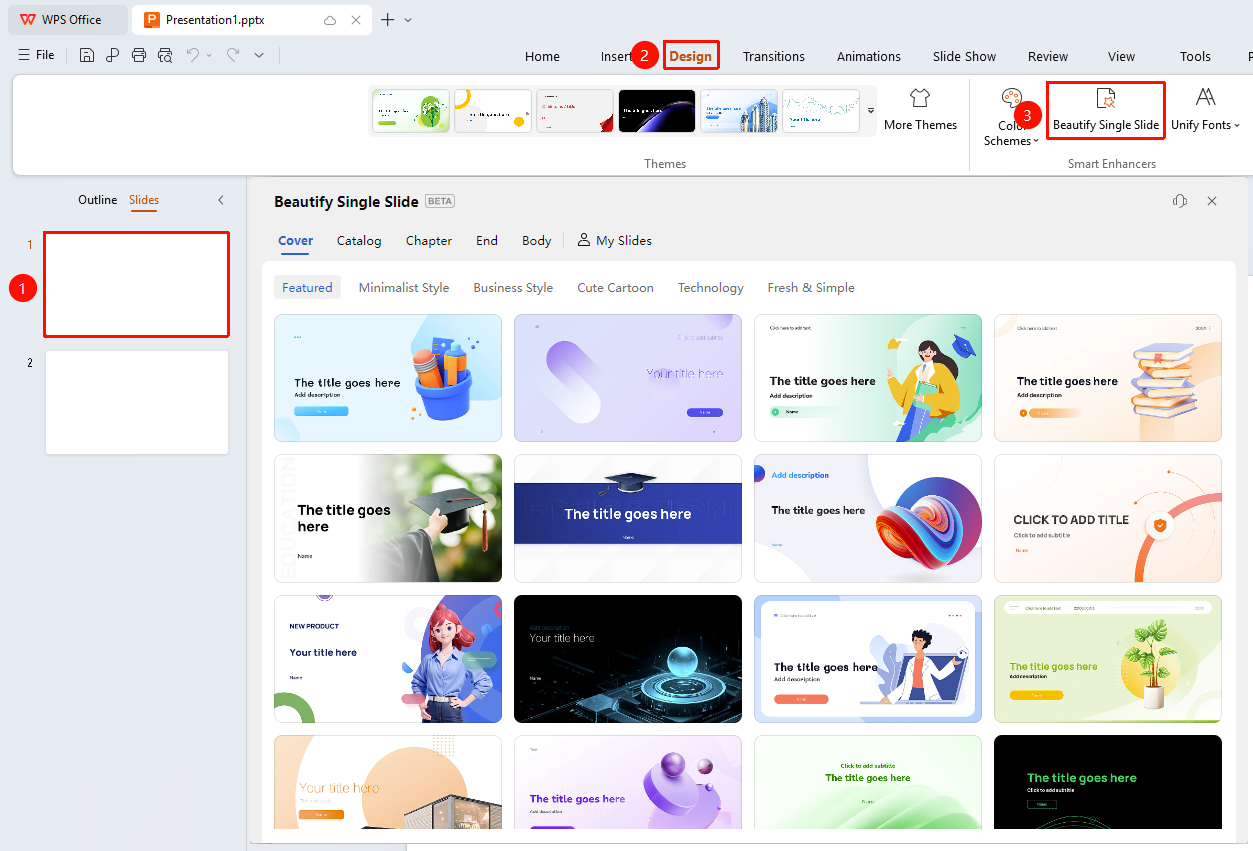
"Design" tab → "Single-Page Beautification" button
- Select the slide you want to beautify
- Click the "Design" tab at the top
- Click the "Single-Page Beautification" button to expand the beautification panel
- Move the mouse over a beautification style to choose from the following options:
- "Favorites" : Add the style to favorites
- "Apply Now" : Use the style for single-page beautification
- "Apply to All" : Apply the beautification style to all slides
FAQ
Q1: Can I use single-page beautification multiple times?
- Solution: Yes, you can use it multiple times. Each time it will re-optimize the layout of the current slide.
Notes
- It is recommended to save the file before beautification so that you can restore it if needed
- Click the "Beautification Assistant" button in the side task pane to quickly apply document beautification