Feature Summary
The Merge Cells feature allows you to combine multiple adjacent cells into a single cell, while the Split Cells feature allows you to divide a single cell into multiple cells. These two features are essential tools for adjusting table layouts and are commonly used to create complex headers and specially formatted tables.
Feature Description
| Feature Dimension | Description |
|---|---|
| Membership Restriction | No membership restriction |
| Version Restriction | No version restriction |
Steps
Merge Cells
Feature Entry
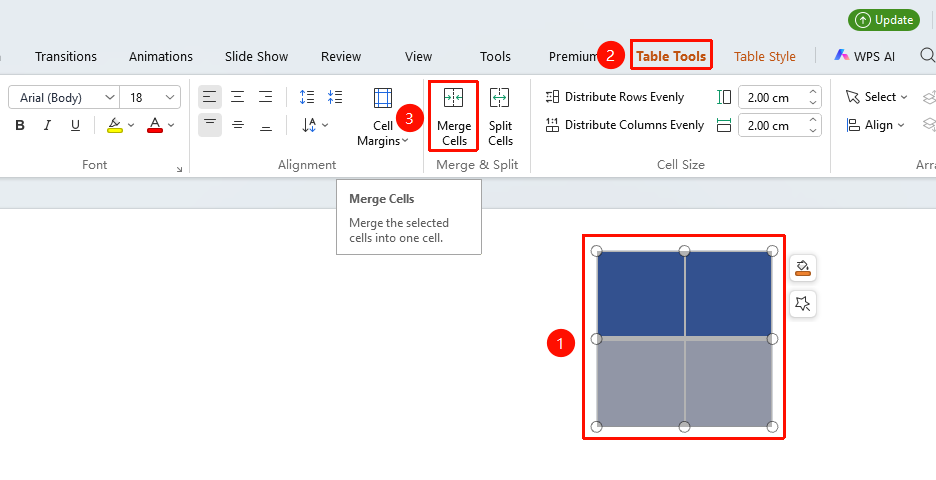
"Table Tools" tab → "Merge Cells"
- Hold down the left mouse button and drag to select multiple adjacent cells you want to merge
- Click the Table Tools tab
- Click the "Merge Cells" button
- The selected multiple cells will be merged into a single cell
- The content from all merged cells will be combined into the single cell in reading order, separated by spaces or line breaks as appropriate
Split Cells
Feature Entry
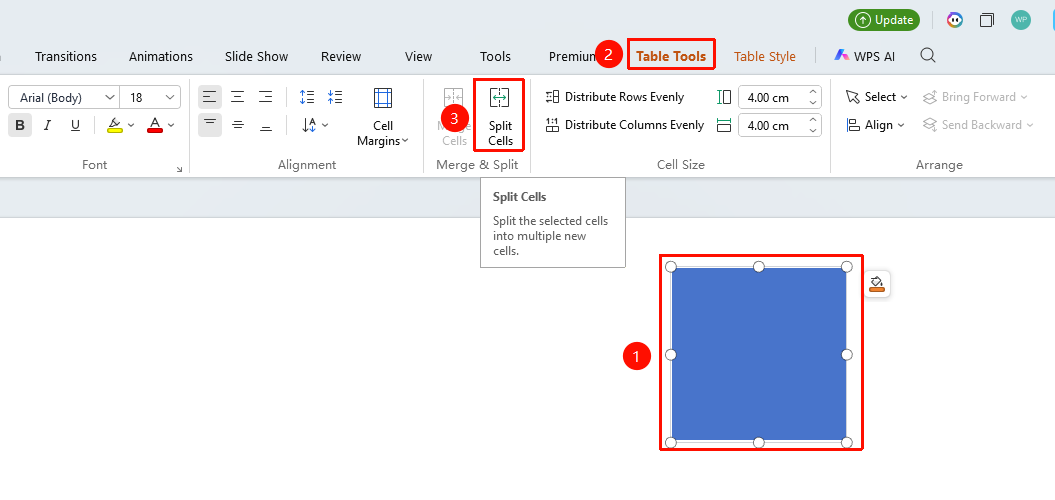
"Table Tools" tab → "Split Cells"
- Click the cell you want to split
- Click the Table Tools tab
- Click the "Split Cells" button
- In the pop-up dialog box, set the number of rows and columns to split into
- Click "OK" to complete the split
Merge/Split via Right-Click Menu
Feature Entry
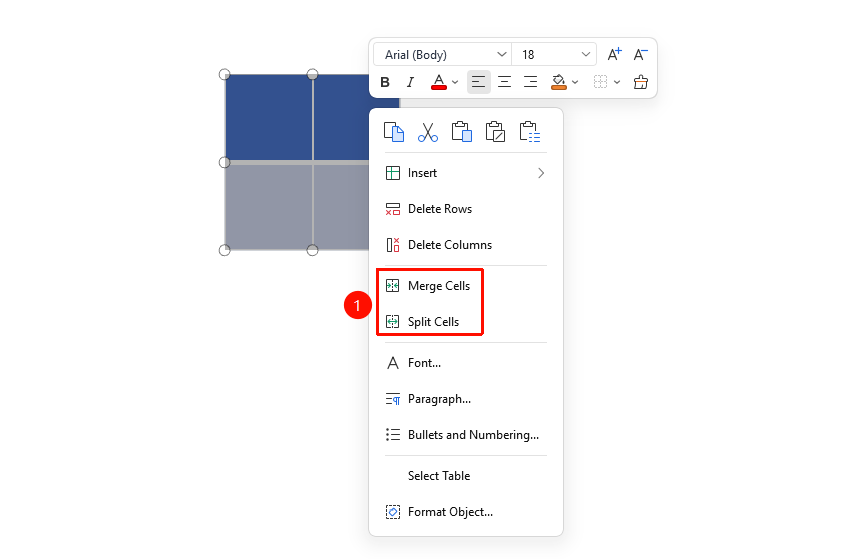
"Right-click" menu → "Merge Cells" / "Split Cells"
- Select the cells you want to merge or split
- Right-click the selected area
- Select "Merge Cells" or "Split Cells"
- Follow the prompts to complete the operation
FAQ
Q1: What happens to the content in multiple cells after merging?
- Solution: After merging, the text content from all merged cells will be concatenated in order into the merged cell, and no text will be lost.
Q2: Can merging cells be undone?
- Solution: Yes. You can use the Shortcut (Ctrl+Z) to undo the merge operation. However, please note that if you have made multiple edits after merging, you may need to undo multiple times to restore the state before merging.
Q3: Which cells cannot be merged?
- Solution: Only adjacent cells can be merged. Non-adjacent cells (not arranged consecutively in the same row or column) cannot be merged.
Notes
- Merging cells is commonly used to create headers that span columns or rows
- The size of split cells is automatically allocated based on the original cell dimensions and the number of split rows and columns
- Splitting cells will not automatically split previously merged content