Feature Summary
The icon position feature is used to adjust the position of icons in slides. You can quickly adjust it by manually dragging, or precisely set the horizontal and vertical position coordinates in the object properties.
Feature Description
| Feature Dimension | Description |
|---|---|
| Membership Restriction | No membership restriction |
| Version Restriction | No version restriction |
Operation Steps
Manually Drag to Adjust Position
- Select the icon you want to reposition
- Hold down the left mouse button and drag the icon to the target position
- Release the mouse to complete the position adjustment
Precisely Set Position in Object Properties
Feature Entry
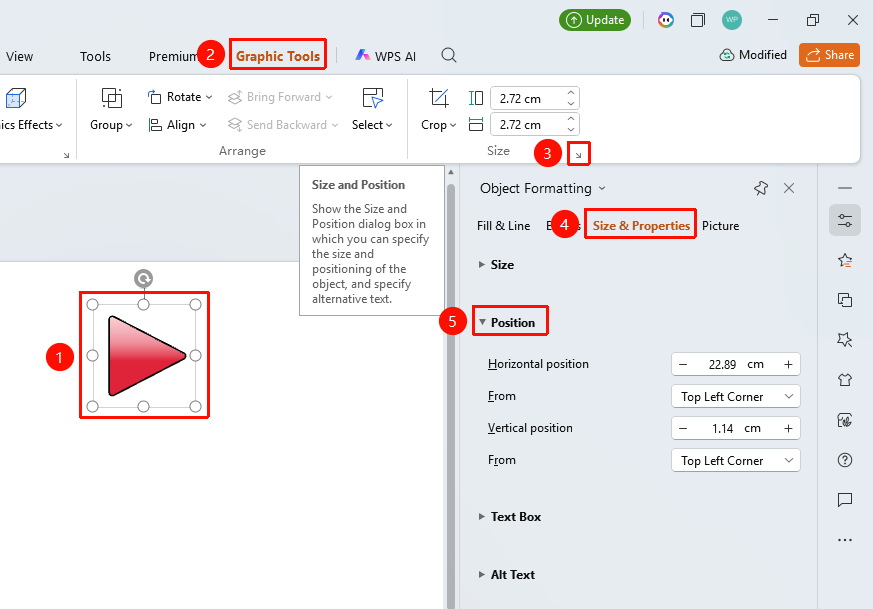
"Drawing Tools" tab → "Size & Position" group → Expand button → "Object Properties" sidebar → "Size & Properties" tab → "Position" section
- Select the icon you want to reposition
- Click the "Drawing Tools" tab
- Find the Size area, click the expand button to open the "Object Properties" sidebar on the right
- Under the "Size & Properties" tab, find the "Position" area
- Configure the following parameters
- "Horizontal Position": Set the horizontal position of the icon (in centimeters)
- "Vertical Position": Set the vertical position of the icon (in centimeters)
- "Relative To": Set the position reference point
- "Top Left": Position relative to the top-left corner of the slide
- "Center": Position relative to the center of the slide
- Preview changes in real time; click elsewhere to apply
Quickly Set Position via Alignment
Use the "Align" feature to quickly align the icon to a specific position on the slide. For detailed operations, please refer to the "Icon Alignment Feature User Guide".
FAQ
Q1: How to precisely center an icon using Horizontal and Middle Align
- Solution: Select the icon, then click "Horizontal Align" and "Middle Align" in the Align group to center it exactly on the slide.
Q2: What is the difference between "Relative to Top Left" and "Relative to Center"
- Solution: In "Top Left" mode, position coordinates are calculated from the top-left corner of the slide; in "Center" mode, coordinates are calculated from the center of the slide.
Q3: How to fine-tune the icon position using the keyboard
- Solution: After selecting the icon, press the arrow keys to fine-tune the icon position in small increments; hold down the Ctrl key and press the arrow keys for finer adjustments.
Notes
- Manual dragging is suitable for quick, rough position adjustments
- Object properties are suitable for precise position value settings
- You can combine with the alignment feature to quickly position icons