Feature Summary
The Icon Arrange Order Feature is used to adjust the front-to-back display order of icons. You can move icons forward or backward by one layer, or to the very front or very back, so that the display hierarchy of icons meets design requirements.
Feature Description
| Feature Dimension | Description |
|---|---|
| Membership Restriction | No membership restriction |
| Version Restriction | No version restriction |
Steps
Adjust Stacking Order
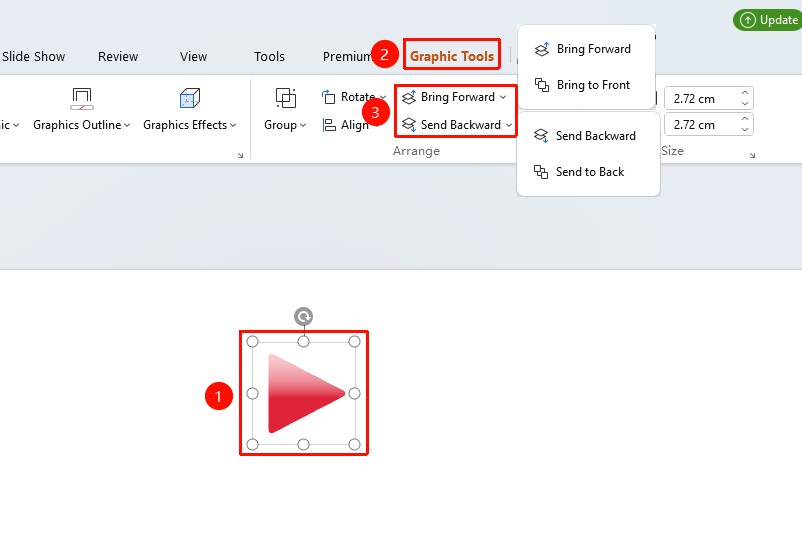
Feature Entry ①
"Drawing Tools" tab → Arrange area → "Bring Forward" or "Send Backward"
- Select the icon whose stacking order you want to adjust
- Click the top "Drawing Tools" tab
- Find and click the "Bring Forward" or "Send Backward" button to expand and set the following options
- "Bring Forward": Move the icon one layer forward
- "Send Backward": Move the icon one layer backward
- "Bring to Front": Move the icon to the very front
- "Send to Back": Move the icon to the very back
Feature Entry ②
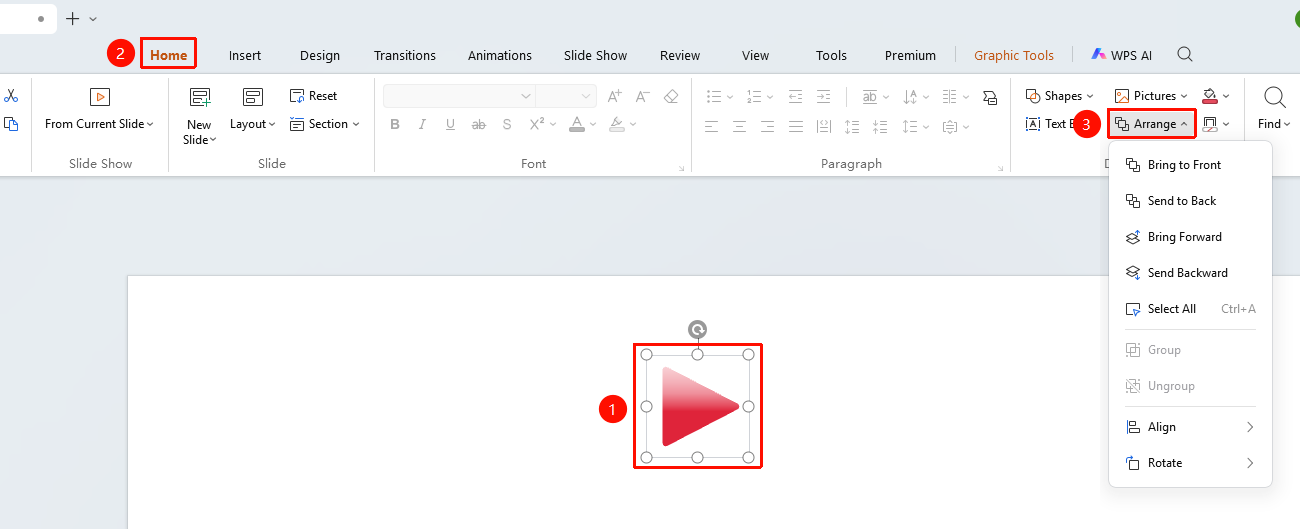
"Home" tab → Arrange
- Select the icon whose stacking order you want to adjust
- Click the top "Home" tab
- Find and click the "Arrange" button
- Select the corresponding option from the dropdown menu
Feature Entry ③
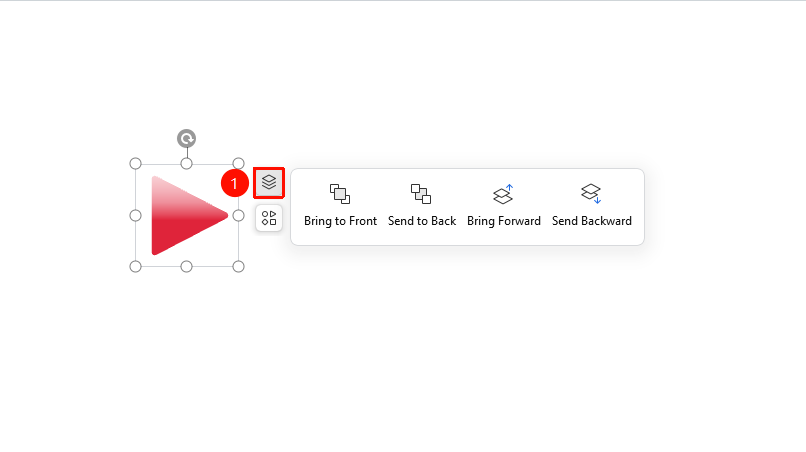
Floating editing bar → "Stacking Order"
- Select the icon whose stacking order you want to adjust
- Click the "Stacking Order" button in the floating editing bar
- Select the corresponding option
Feature Entry ④
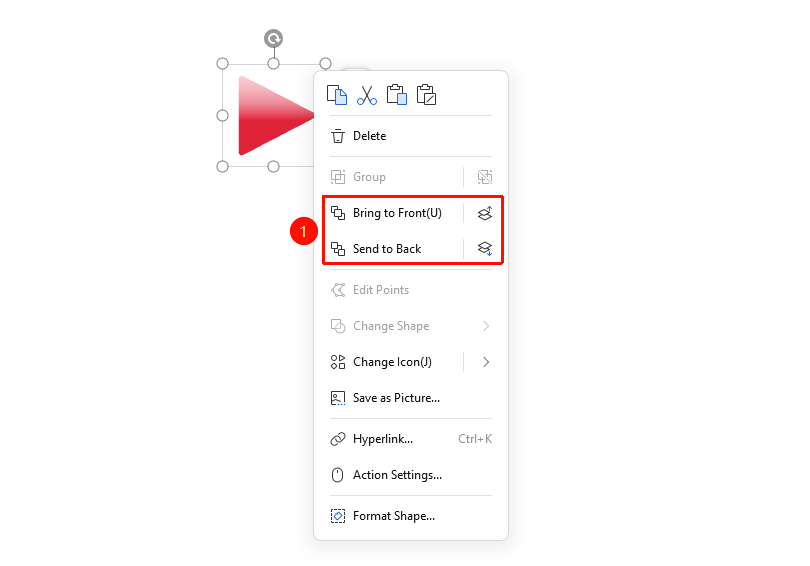
Icon right-click menu → "Bring to Front" or "Send to Back"
- Select the icon whose stacking order you want to adjust
- Right-click the icon
- Select "Bring to Front" or "Send to Back", "Bring Forward" or "Send Backward"
FAQ
Q1: How do I move an icon to the front if it is covered?
- Solution: Use the "Selection Pane" to select the covered icon, then use "Bring to Front" to move it directly to the very front; or use "Bring Forward" to move it forward layer by layer.
Q2: How do I quickly place a specific icon at the very back?
- Solution: Select the icon, right-click and choose "Send to Back" → "Send to Back", and the icon will be moved directly to the very back of all icons.
Q3: What is the difference between Bring Forward and Bring to Front?
- Solution: Bring Forward moves the icon only one layer, while Bring to Front moves it directly to the very top. If there are multiple overlapping icons, Bring Forward may require multiple operations.
Q4: How do I view the hierarchical relationship of icons?
- Solution: You can open the Selection Pane via the "Select" button to view the hierarchical list of all objects on the current slide.
Notes
- Icons inserted later are placed above earlier inserted icons by default
- Stacking order only affects the display order, not the actual position of the icons
- When multiple icons overlap, the upper icon will cover the lower icon