Feature Summary
The icon alignment feature is used to align multiple icons in specified ways, including left alignment, right alignment, center alignment, etc. It can also set horizontal and vertical distribution to produce clean, uniform icon layouts.
Feature Description
| Feature Dimension | Description |
|---|---|
| Membership Restriction | No membership restriction |
| Version Restriction | No version restriction |
Operation Steps
Icon Alignment
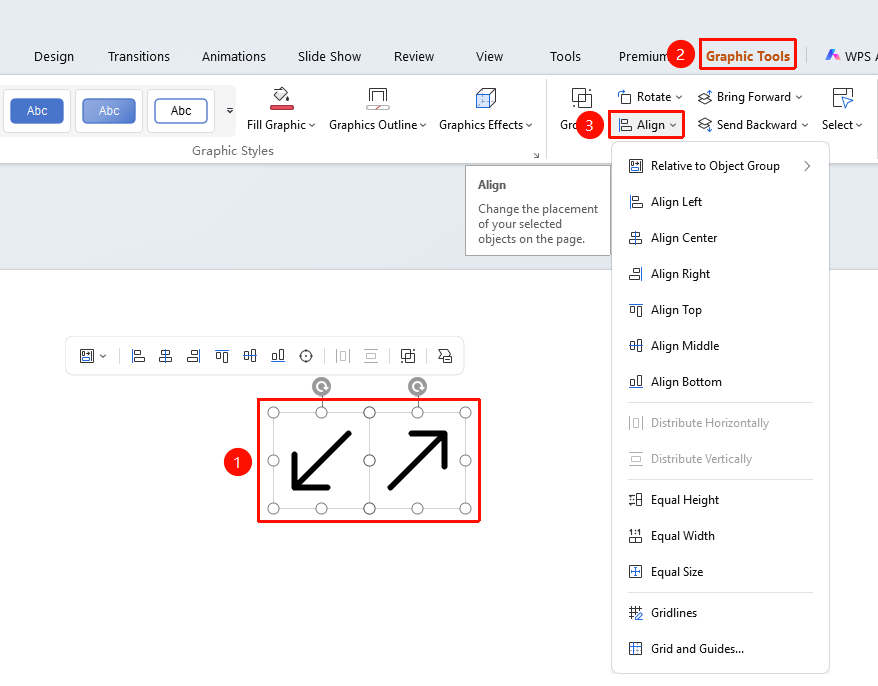
Feature Entry ①
Shape Format' tab → "Align"
- Select the icons to be aligned
- Click the top Shape Format' tab
- Find and click the "Align" button to expand and set the following options
- "Relative to Slide": Set the alignment reference mode
- "Relative to Object Group": Align relative to the selected object group
- "Relative to Slide": Align relative to the slide
- "Relative to Last Selected Object": Align relative to the last selected object
- "Align Left": Align the left edges of all icons
- "Align Center": Horizontally center all icons
- "Align Right": Align the right edges of all icons
- "Align Top": Align the top edges of all icons
- "Middle Align": Vertically center all icons
- "Align Bottom": Align the bottom edges of all icons
- "Distribute Horizontally": Distribute all icons evenly horizontally
- "Distribute Vertically": Distribute all icons evenly vertically
- "Equal Height": Set all icons to the same height
- "Equal Width": Set all icons to the same width
- "Equal Size": Set all icons to the same size
- "Gridlines": Show gridlines to assist alignment
- "Gridlines and Guides": Open gridlines and guides settings
- Click the desired alignment method to apply it to the icons
"Home" Tab Settings
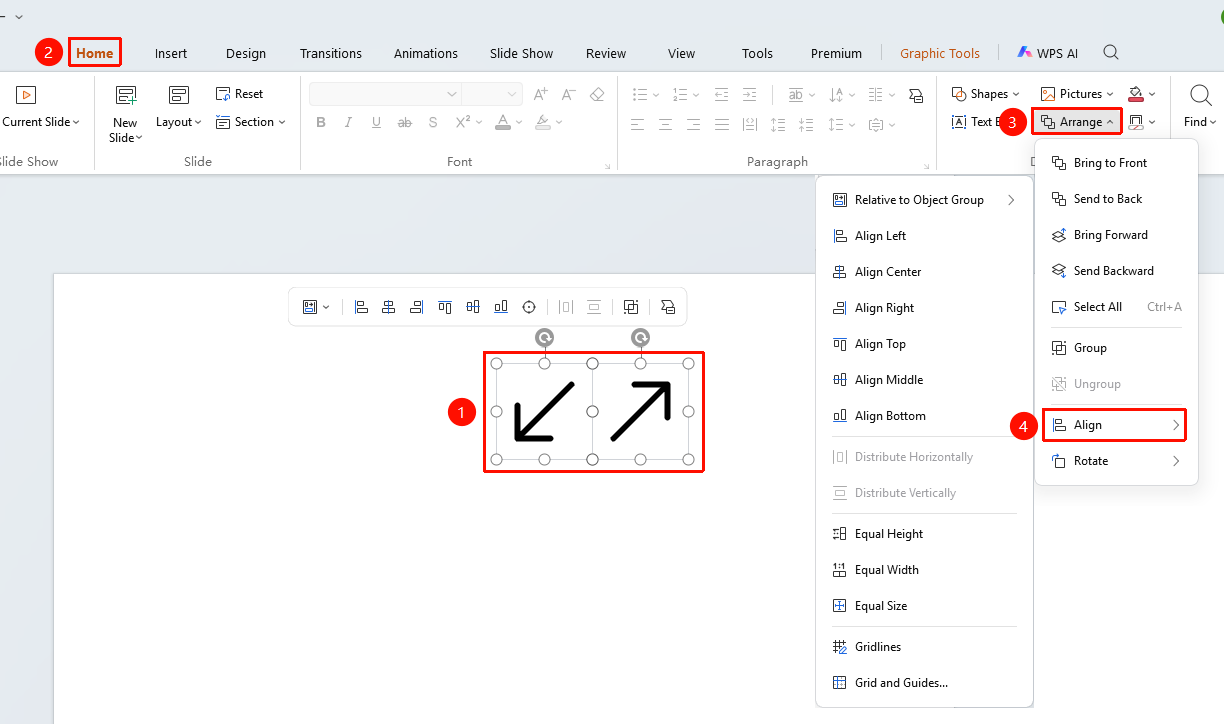
Feature Entry
"Home" tab → Arrange → "Align"
- Select the icons to be aligned
- Click the top "Home" tab
- Find and click the "Arrange" button
- Select "Align" from the drop-down menu
- Choose the desired alignment method
Floating Edit Bar Settings (Requires selecting multiple shapes)
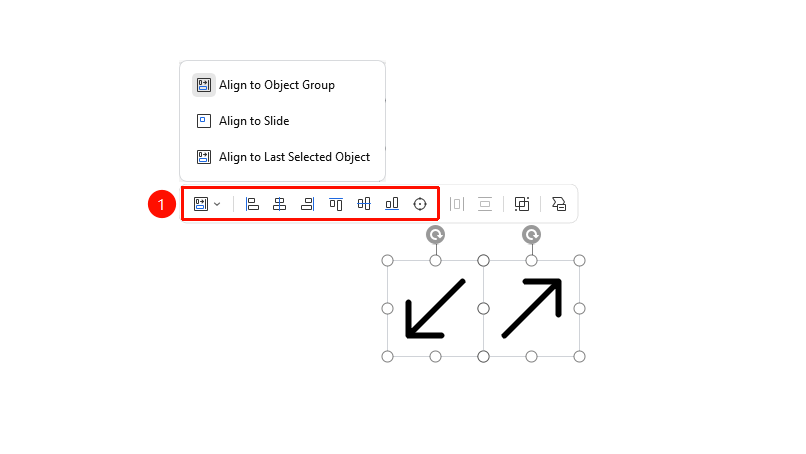
Feature Entry
Floating Edit Bar → "Align"
- Select multiple icons to be aligned
- Click the "Align" button on the floating edit bar
- Select the alignment reference mode
- Choose the desired alignment method
Frequently Asked Questions
Q1: How to arrange 3 icons with equal spacing
- Solution: First select the 3 icons, then use "Distribute Horizontally" or "Distribute Vertically". The icons will be automatically arranged with equal spacing.
Q4: What does relative to last selected object mean
- Solution: The last selected icon will serve as the alignment reference, and other icons will align to it. The order in which icons are clicked affects the reference.
Notes
- The alignment reference mode affects the final result. It is recommended to confirm the reference mode first.
- "Distribute Horizontally" and "Distribute Vertically" are suitable for evenly arranging icons.