Summary
The 3D Rotation feature is used to rotate the three-dimensional angle of an icon. It allows you to adjust parameters such as preset styles, direction, X/Y/Z axis rotation angles, and perspective, giving the icon a three-dimensional visual effect from different angles.
Feature Description
| Feature Dimension | Description |
|---|---|
| Membership Restriction | No membership restriction |
| Version Restriction | No version restriction |
Steps
Applying 3D Rotation Effects
Feature Entry
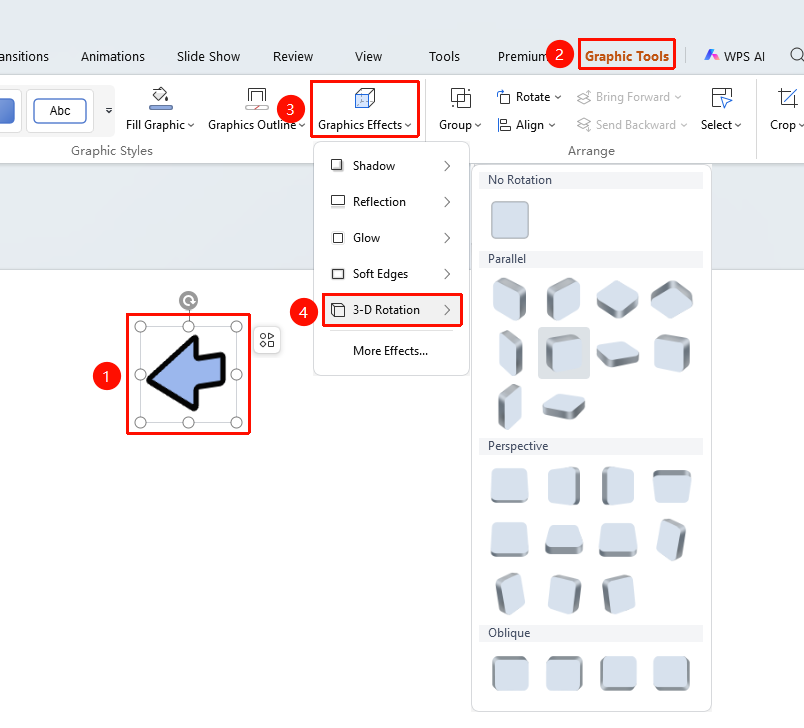
"Drawing Tools" tab → "Effects" → "3D Rotation"
- Select the icon to which you want to add 3D rotation
- Click the top Picture Tools tab
- Find and click the "Effects" button
- Select "3D Rotation" to expand and configure the following options
- "Parallel": Select a parallel 3D rotation preset style
- "Perspective": Select a perspective 3D rotation preset style
- "Oblique": Select an oblique 3D rotation preset style
- Click a 3D rotation style to apply it instantly to the selected icon
- Click "More Settings" to expand the effects settings panel
Customize 3D Rotation Effects
Feature Entry
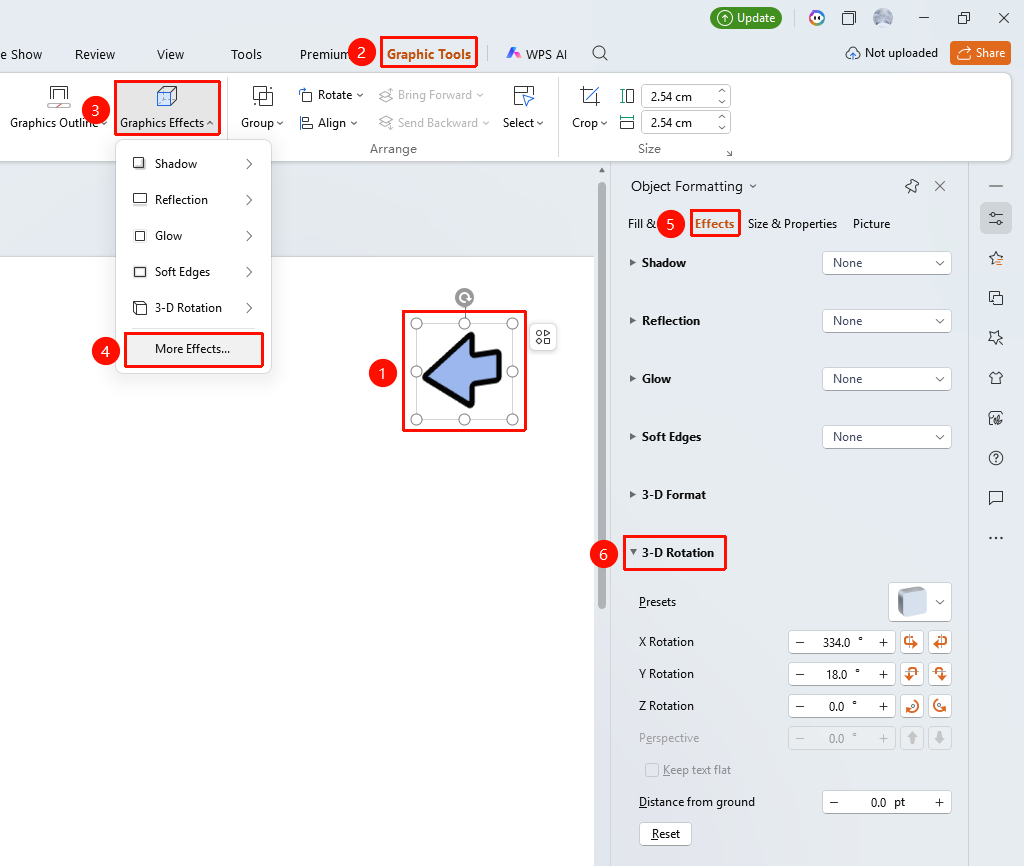
"Picture Tools" tab → "Effects" → "More Settings" → "Object Properties" → "3D Rotation"
- Select the icon to which you want to add 3D rotation
- Click the "Picture Tools" tab
- Click the "Effects" button
- Select "More Settings" to expand the "Object Properties" sidebar on the right
- Configure the following parameters in the "3D Rotation" settings
- "Preset": Select a preset 3D rotation style
- "Direction": Select the rotation direction (X/Y/Z axis)
- "X Rotation": Set the X-axis rotation angle
- "Y Rotation": Set the Y-axis rotation angle
- "Z Rotation": Set the Z-axis rotation angle
- "Perspective": Set the perspective effect
- "Keep Text Flat": When checked, text does not rotate with the icon
- "Distance from Ground": Set the distance from the ground
- Preview the effect in real time, and click a blank area to apply
Right-Click Menu Settings
Feature Entry
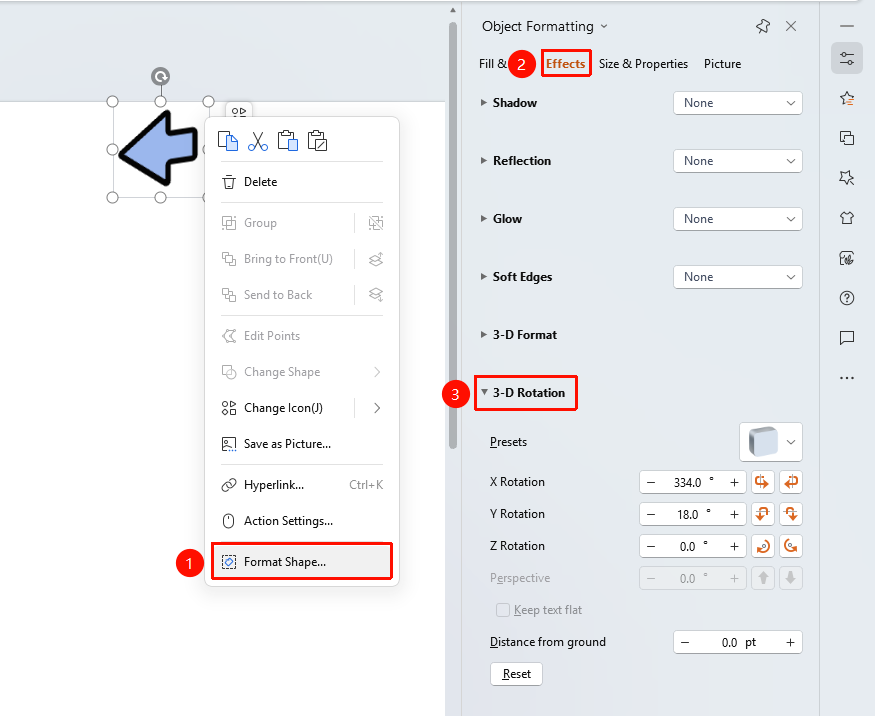
Icon right-click menu → "Format Object"
- Select the icon to which you want to add 3D rotation
- Right-click the icon
- Select "Format Object"
- Set the 3D rotation effect in the "Object Properties" sidebar on the right
Side Task Pane Settings
Feature Entry
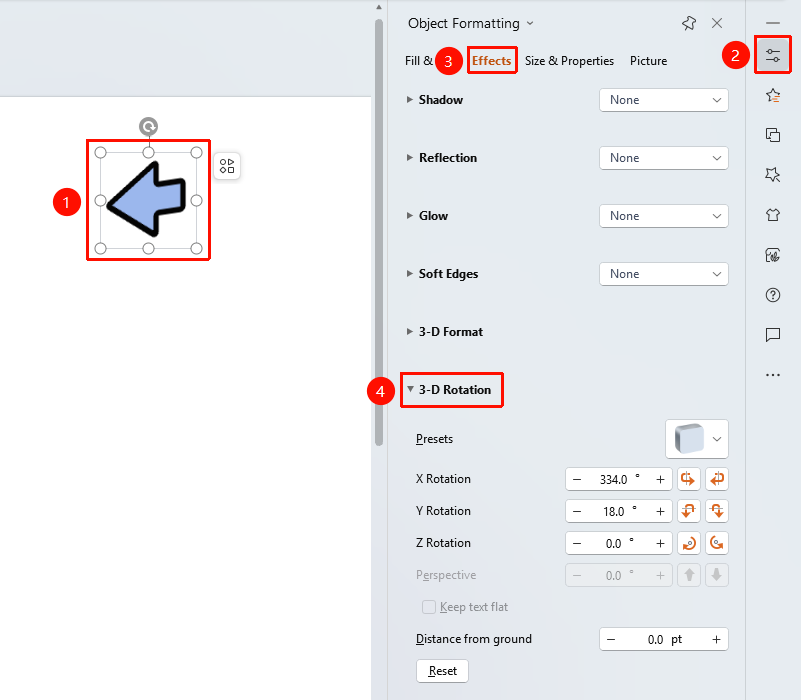
Side "Task Pane" → "Object Properties"
- Select the icon to which you want to add 3D rotation
- Click the side "Object Properties" button
- Set the 3D rotation effect in the "Object Properties" sidebar
FAQ
Q1: How to adjust the 3D rotation angle
- Solution: In the 3D rotation settings, drag the X/Y/Z axis sliders or enter values to adjust the rotation angle.
Q2: How to set the perspective effect
- Solution: In the 3D rotation settings, drag the perspective slider or enter a value. The larger the value, the stronger the perspective effect.
Q3: How to remove the 3D rotation effect
- Solution: Select "No Rotation" in the preset styles, or set all X/Y/Z axis angles to 0°.
Notes
- 3D rotation gives the icon a three-dimensional visual effect from different angles
- X/Y/Z axis rotations can be combined to create more complex rotation effects