Feature Summary
The 3D Format feature is used to add three-dimensional effects to icons. You can adjust parameters such as depth, surface, material, and lighting to give icons a stereoscopic visual appearance.
Feature Description
| Feature Dimension | Description |
|---|---|
| Membership Restriction | No membership restriction |
| Version Restriction | No version restriction |
Steps
Setting 3D Format
Feature Entry
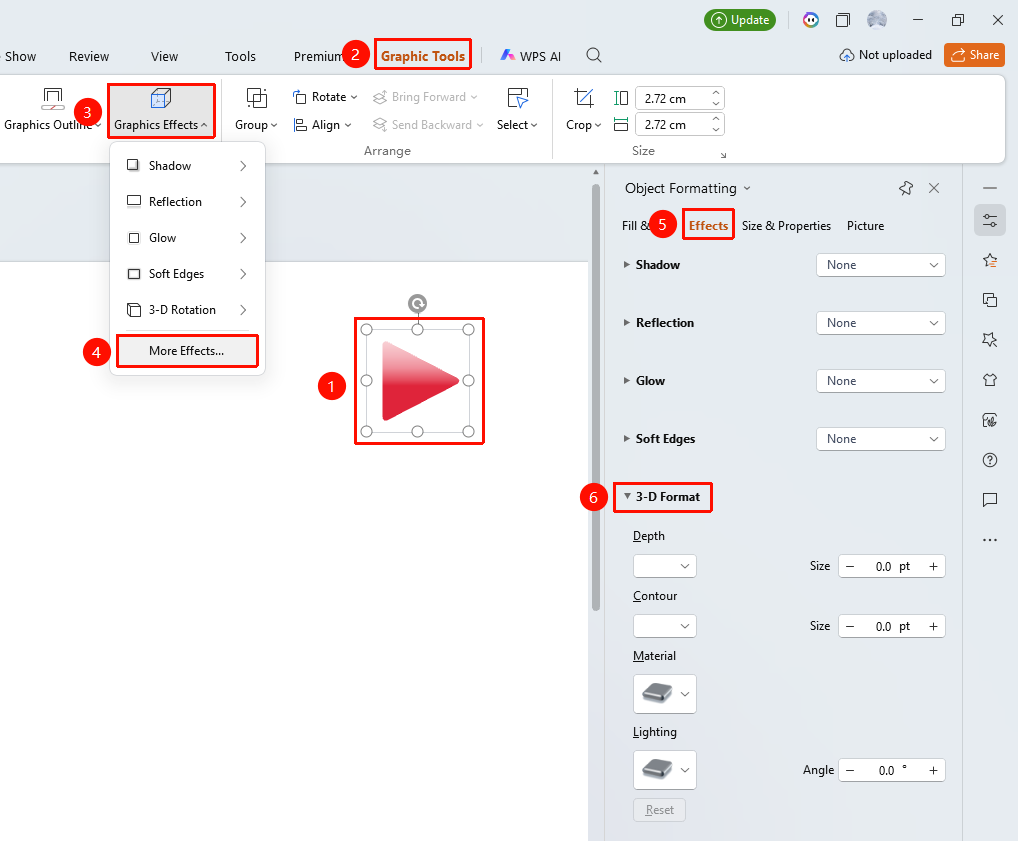
"Shape Format" tab → "Effects" → "More Settings" → "Object Properties" → "Effects" → "3D Format"
- Select the icon to which you want to add 3D format
- Click the top "Shape Format" tab
- Find and click the "Effects" button
- Click "More Settings" to expand the "Object Properties" sidebar on the right
- Under the "Effects" tab, find the "3D Format" area
- Configure the following parameters
- "Depth": Set depth color and size
- "Surface": Set surface color and size
- "Material": Select a material style
- "Lighting": Select a lighting style and angle
- Preview changes in real time; effects are applied automatically upon adjustment or when closing the pane.
Setting via Right-Click Menu
Feature Entry
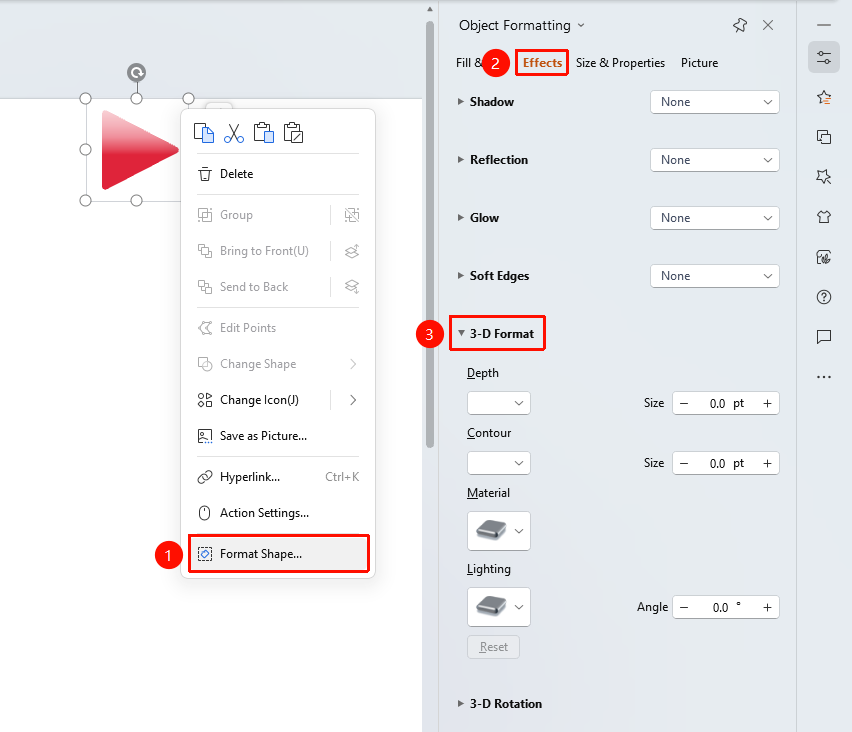
Icon right-click menu → "Format Object"
- Select the icon to which you want to add 3D format
- Right-click the icon
- Select "Format Object"
- Set the 3D format effect in the "Object Properties" sidebar on the right
Setting via Side Task Pane
Feature Entry
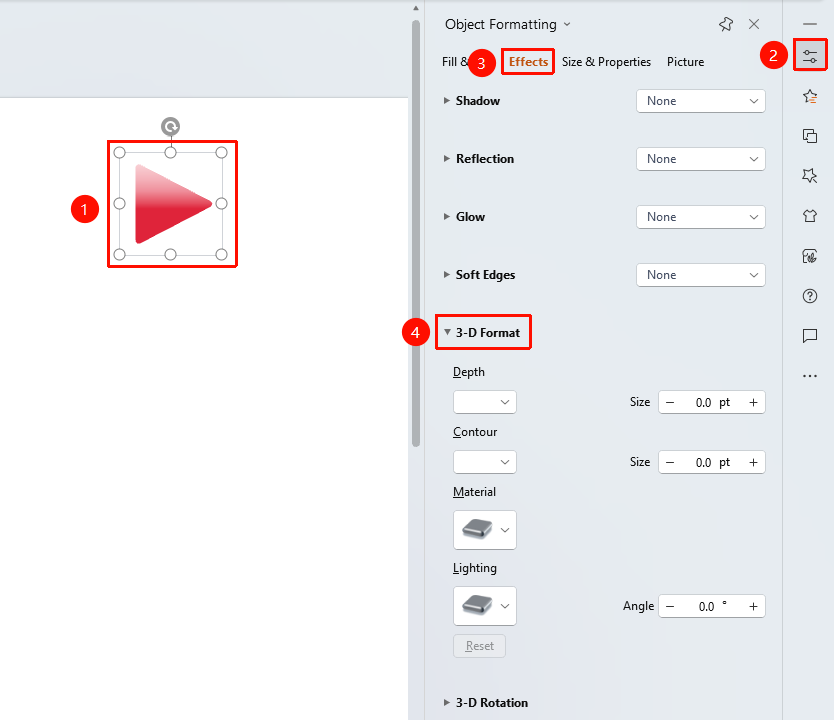
Side "Task Pane" → "Properties"
- Select the icon to which you want to add 3D format
- Click the side "Properties" button
- Set the 3D format effect in the "Object Properties" sidebar
FAQ
Q1: How to select different materials and lighting
- Solution: Select different preset styles from the "Material" and "Lighting" drop-down menus.
Q2: How to remove the 3D format effect
- Solution: Set both the "Depth" and "Surface" sizes to 0.
Notes
- 3D Format gives icons a stereoscopic visual appearance
- Depth and surface affect the intensity of the three-dimensional effect