Feature Summary
The shadow effect feature is used to add shadows to icons. You can adjust parameters such as shadow preset styles, color, transparency, size, blur, angle, and distance to give icons a three-dimensional visual effect.
Feature Description
| Feature Dimension | Description |
|---|---|
| Membership Restriction | No membership restriction |
| Version Restriction | No version restriction |
Operation Steps
Applying Shadow Effects
Feature Entry
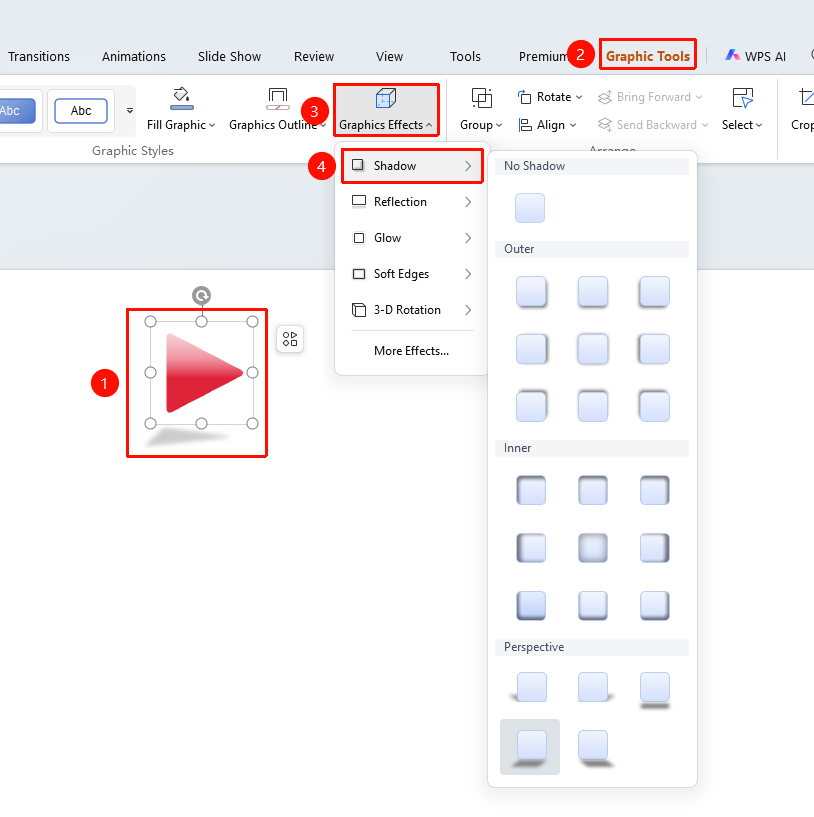
"Picture Format" tab → "Effects" → "Shadow"
- Select the icon you want to add a shadow to
- Click the top "Picture Format" tab
- Find and click the "Effects" button
- Select "Shadow" to expand and set the following options
- "Outer": Select an outer shadow preset style
- "Inner": Select an inner shadow preset style
- "Perspective": Select a perspective shadow preset style
- Click the desired shadow style to apply it to the icon
- Click "More Settings" to expand the effects settings panel
Customizing Shadow Effects
Feature Entry
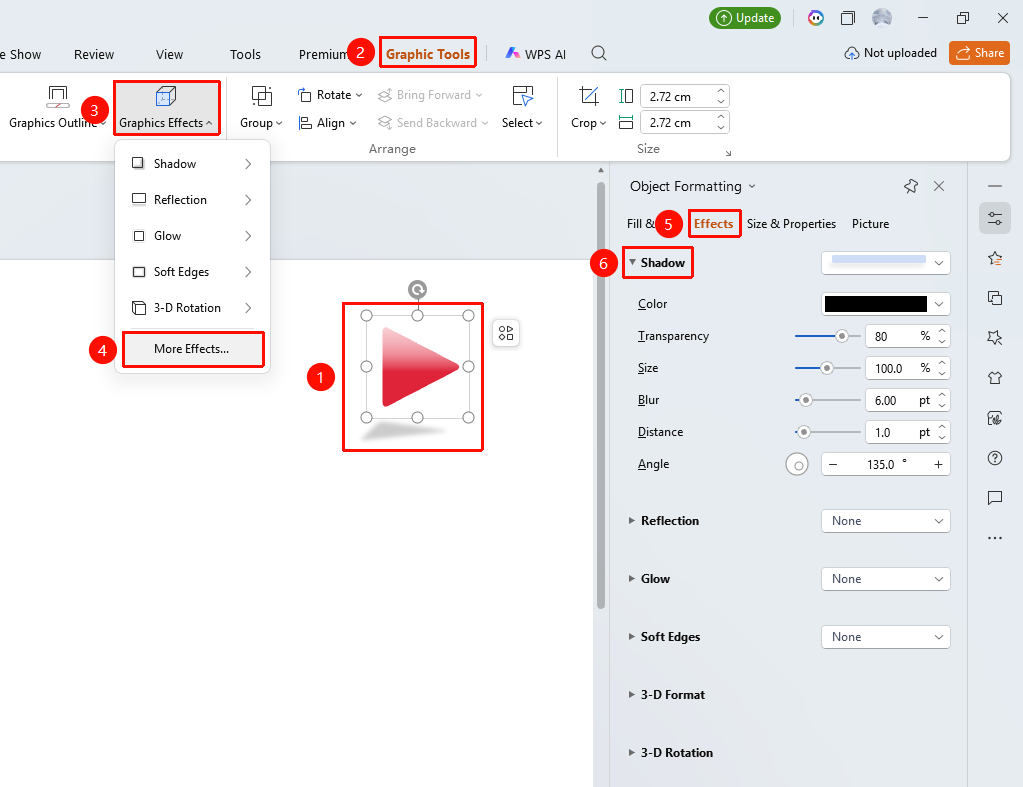
"Picture Format" tab → "Effects" → "More Settings" → "Object Properties" → "Shadow"
- Select the icon you want to add a shadow to
- Click the "Picture Format" tab
- Click the "Effects" button
- Select "More Settings" to expand the "Object Properties" sidebar on the right
- Configure the following parameters in the "Shadow" settings
- "Presets": Select a preset shadow style
- "Color": Set the shadow color
- "Transparency": Set the shadow transparency
- "Size": Set the shadow size
- "Blur": Set the shadow blur level
- "Angle": Set the shadow angle
- "Distance": Set the shadow distance
- Preview the effect in real time, and click a blank area to apply
Right-Click Menu Settings
Feature Entry
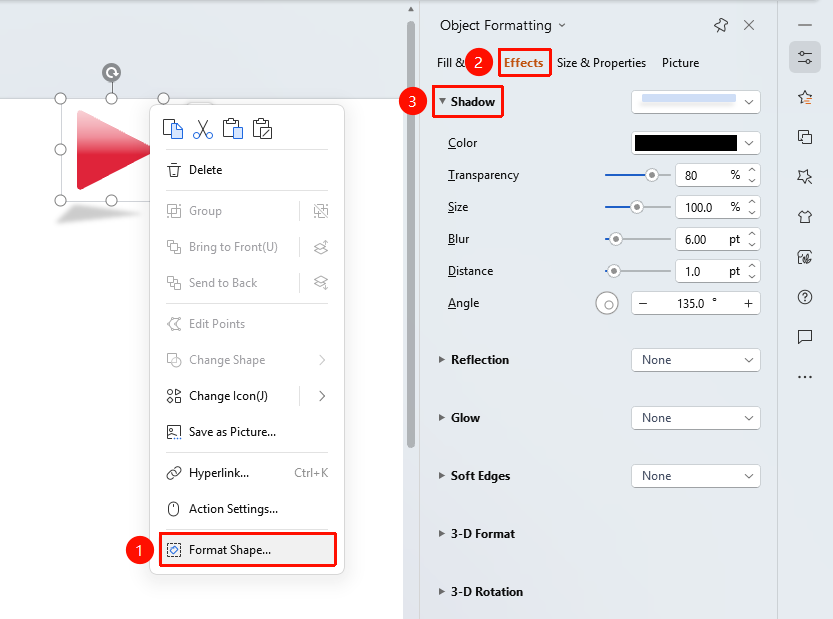
Icon right-click menu → "Format Object"
- Select the icon you want to add a shadow to
- Right-click the icon
- Select "Format Object"
- Set the shadow effect in the "Object Properties" sidebar on the right
Side Task Pane Settings
Feature Entry
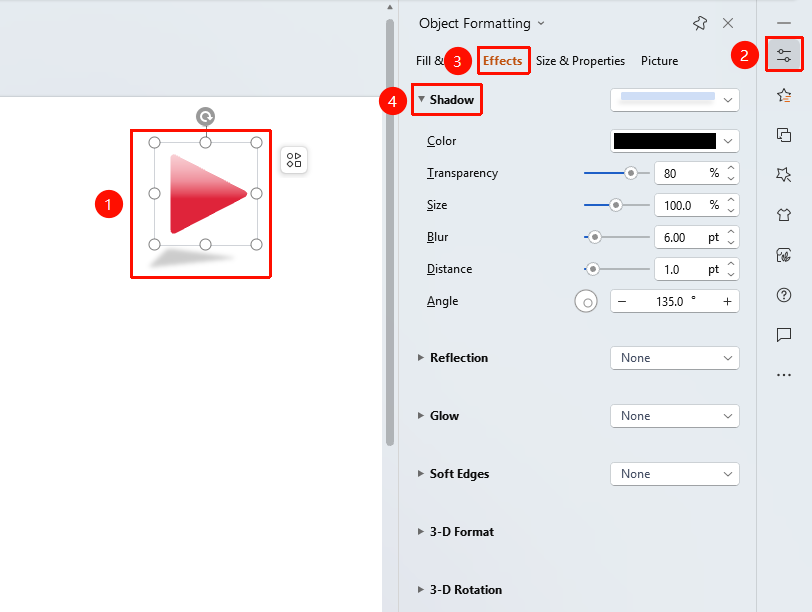
Side "Task Pane" → "Properties"
- Select the icon you want to add a shadow to
- Click the side "Properties" button
- Set the shadow effect in the "Object Properties" sidebar
Frequently Asked Questions
Q1: How to adjust the blur level of the shadow
- Solution: In the shadow settings, drag the blur slider or enter a value. The larger the value, the blurrier the shadow.
Q2: How to set a perspective shadow
- Solution: In the preset styles, select a shadow style of the "Perspective" type.
Q3: How to remove the shadow effect
- Solution: Select "No Shadow" in the preset styles, or turn off the shadow in the object properties.
Notes
- Shadows give icons a three-dimensional visual effect
- Overly strong shadows may affect the readability of icons