Feature Summary
The icon rotation feature is used to rotate the angle of an icon. You can quickly rotate it by 90° or flip it via preset options, or manually drag or enter a precise rotation angle to display the icon at different angles.
Feature Description
| Feature Dimension | Description |
|---|---|
| Membership Restriction | No membership restriction |
| Version Restriction | No version restriction |
Operation Steps
Using Preset Rotation
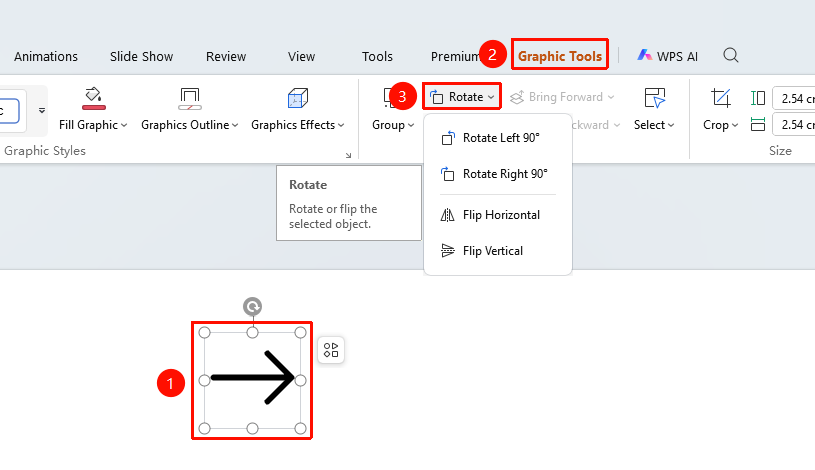
Feature Entry ①
Shape Format' tab → "Rotate"
- Select the icon to rotate
- Click the top Shape Format' tab
- Find and click the "Rotate" button to expand and set the following options
- "Rotate Left 90°": Rotates the icon 90° counterclockwise
- "Rotate Right 90°": Rotates the icon 90° clockwise
- "Flip Horizontal": Flips the icon horizontally as a mirror image
- "Flip Vertical": Flips the icon vertically as a mirror image
- Click the desired option to apply
Feature Entry ②
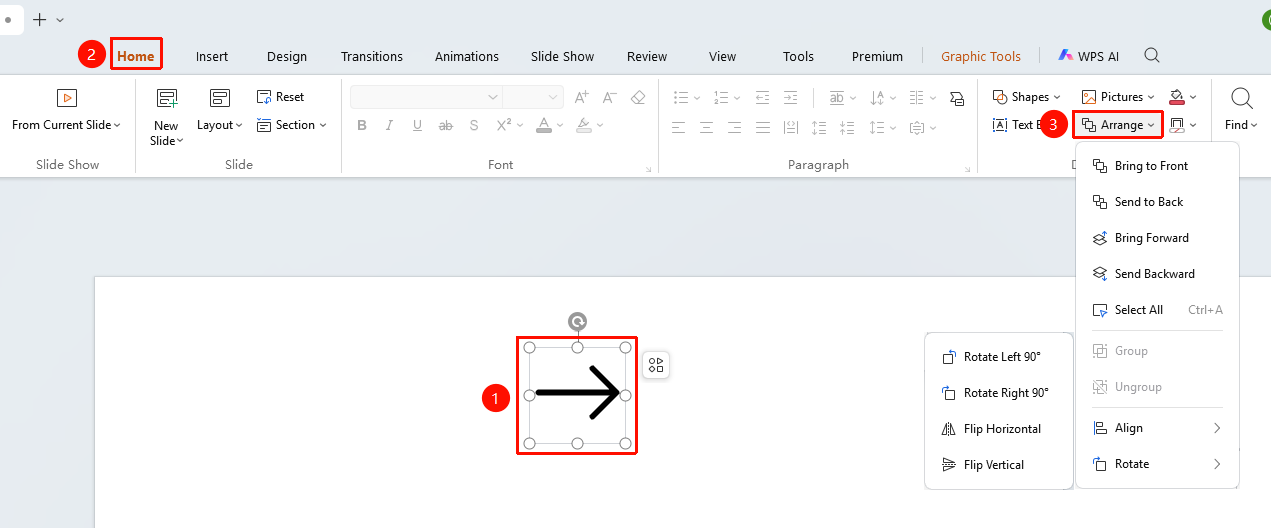
"Home" tab → Arrange → "Rotate"
- Select the icon to rotate
- Click the top "Home" tab
- Find and click the "Arrange" button
- Select "Rotate" from the drop-down menu
Manually Rotating an Icon
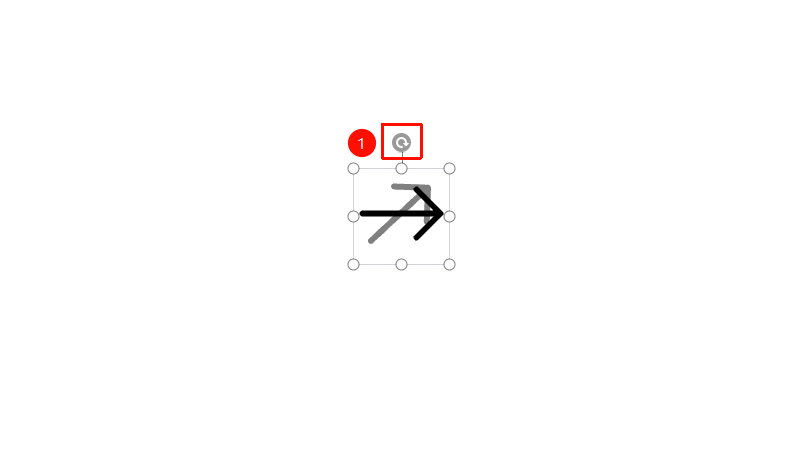
- Select the icon to rotate
- Move the mouse cursor to the rotation handle above the icon
- Hold down the left mouse button and drag the rotation handle
- Release the mouse button to complete the rotation
Precisely Setting the Rotation Angle
Feature Entry
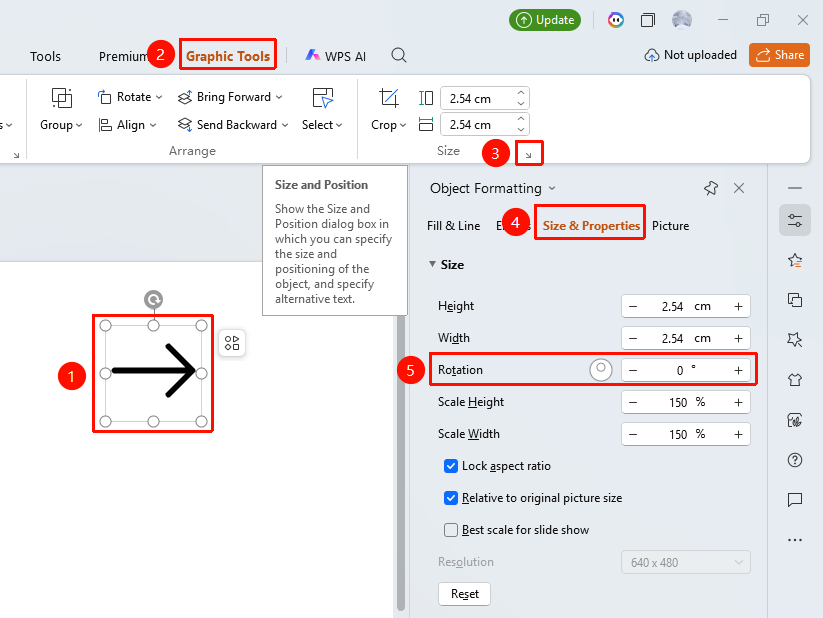
"Shape Format" tab → Size group → Expand button → "Format Pane" → "Size"
- Select the icon to rotate
- Click the "Shape Format" tab
- Locate the Size area, click the expand button to open the "Object Properties" sidebar on the right
- Under the "Size & Properties" tab, find the "Size" area
- Enter a precise rotation angle (0°~360°) in the "Rotation" input box or use the rotation ball for quick rotation
- Preview the effect in real time, and click a blank area to apply
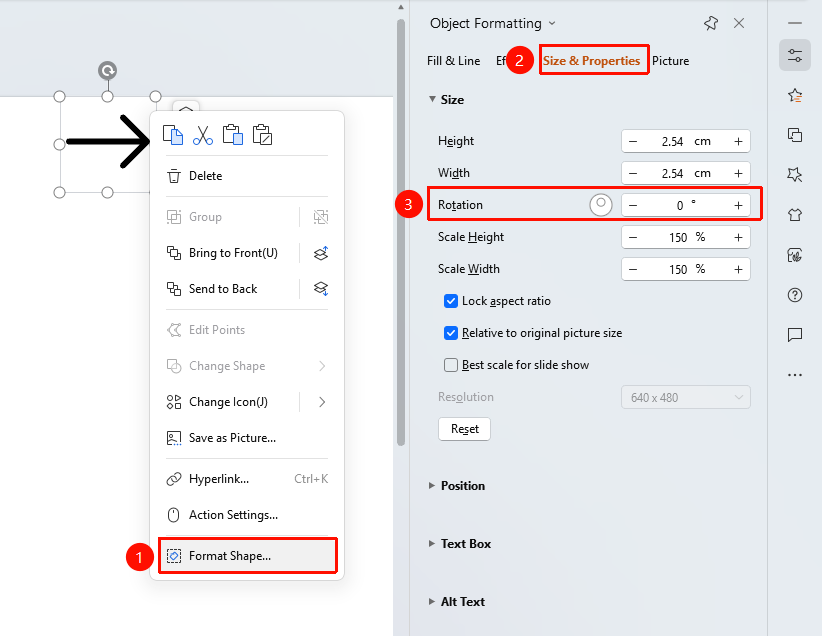
Setting via Right-Click Menu
Feature Entry
Icon right-click menu → "Format Object"
- Select the icon to rotate
- Right-click the icon
- Select "Format Object"
- Set the rotation angle in the "Object Properties" sidebar on the right
Frequently Asked Questions
Question 1: Where is the rotation handle?
- Solution: After selecting the icon, a circular rotation handle will appear above the icon. Hovering the mouse over it will change the cursor to a rotation arrow shape.
Question 2: How to rotate in increments of 15°?
- Solution: Hold down the Shift key while dragging the rotation handle, and the icon will automatically snap to angles in multiples of 15°, facilitating precise alignment.
Question 3: What is the difference between Flip Horizontal and Flip Vertical?
- Solution: Flip Horizontal creates a left-right mirror image, swapping the icon's left and right sides; Flip Vertical creates an up-down mirror image, swapping the icon's top and bottom.
Question 4: How to restore the icon to its horizontal state?
- Solution: Enter 0 in the rotation input box in the object properties and press Enter; the icon will return to its original angle.
Notes
- The center of rotation is the icon's center point
- Hold down the Shift key to lock rotation to 15° increments
- Rotation does not affect the icon's size or position