Feature Summary
The icon gradient fill feature is used to apply gradient color fill effects to icons. You can customize parameters such as gradient style, angle, and color stop position to give icons rich color transition effects.
Feature Description
| Feature Dimension | Description |
|---|---|
| Membership Restriction | Some fill styles require activating a WPS Premium membership |
| Version Restriction | No version restriction |
Steps
Apply Gradient Fill
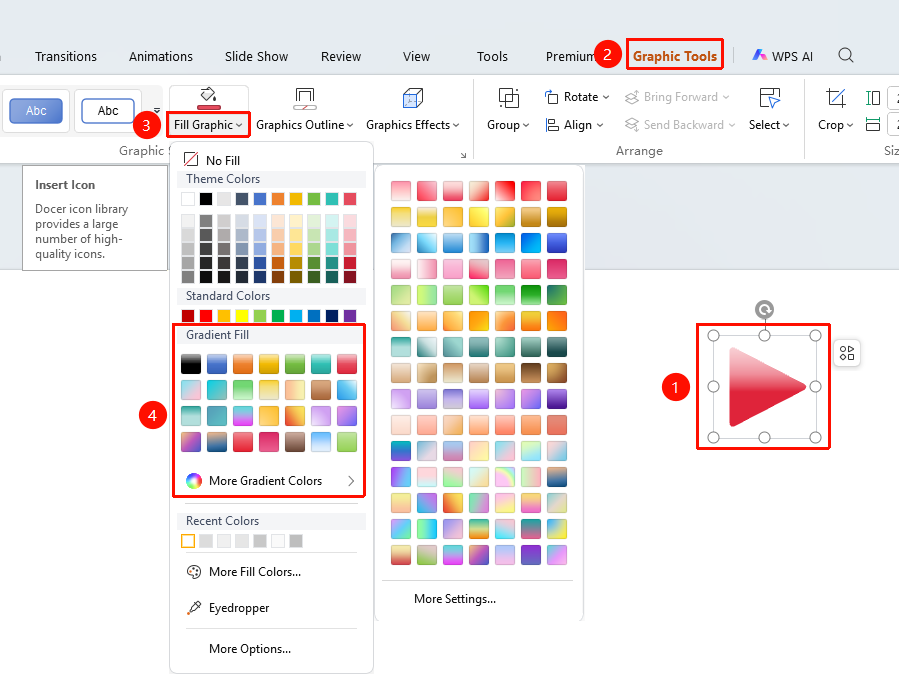
Feature Entry ①
"Shape Format" tab → "Fill"
- Select the icon you want to fill with a gradient color
- Click the top "Shape Format" tab
- Find and click the "Fill" button to expand and set the following options
- "Gradient Fill": Click gradient fill to quickly set a gradient fill
- "More Fill Colors": Get more preset gradient fill colors
- Click the desired gradient style to apply it to the icon with one click
- Click "More Settings" to expand the icon fill panel
Custom Gradient Fill
Feature Entry
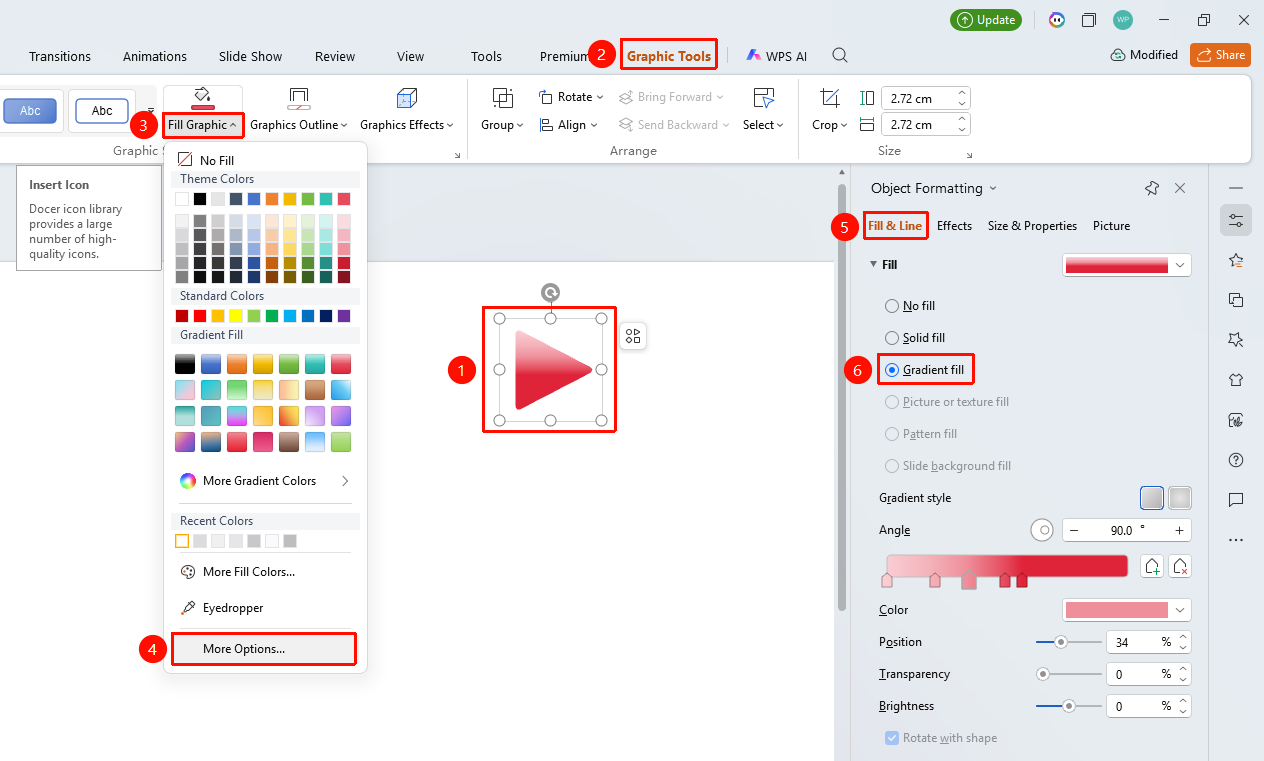
"Shape Format" tab → "Fill" → "More Settings" → "Object Properties" → "Fill"
- Select the icon you want to fill with a gradient color
- Click the "Shape Format" tab
- Click the "Fill" drop-down button to expand the drop-down menu
- Find and click "More Settings" in the drop-down menu to expand the "Object Properties" sidebar on the right
- Under the "Fill & Line" tab, click "Fill" to expand the fill list
- Select "Gradient Fill" and set the following options
- "Gradient Style": Select the gradient style
- "Angle": Set the gradient angle
- "Color Stop Color": Set the color stop color
- "Position": Set the color stop position
- "Transparency": Set the color stop transparency
- "Brightness": Set the color stop brightness
- "Rotate with Shape": When checked, the gradient rotates with the icon
- Preview the effect in real time, and click a blank area to apply
"Home" Tab Settings
Feature Entry
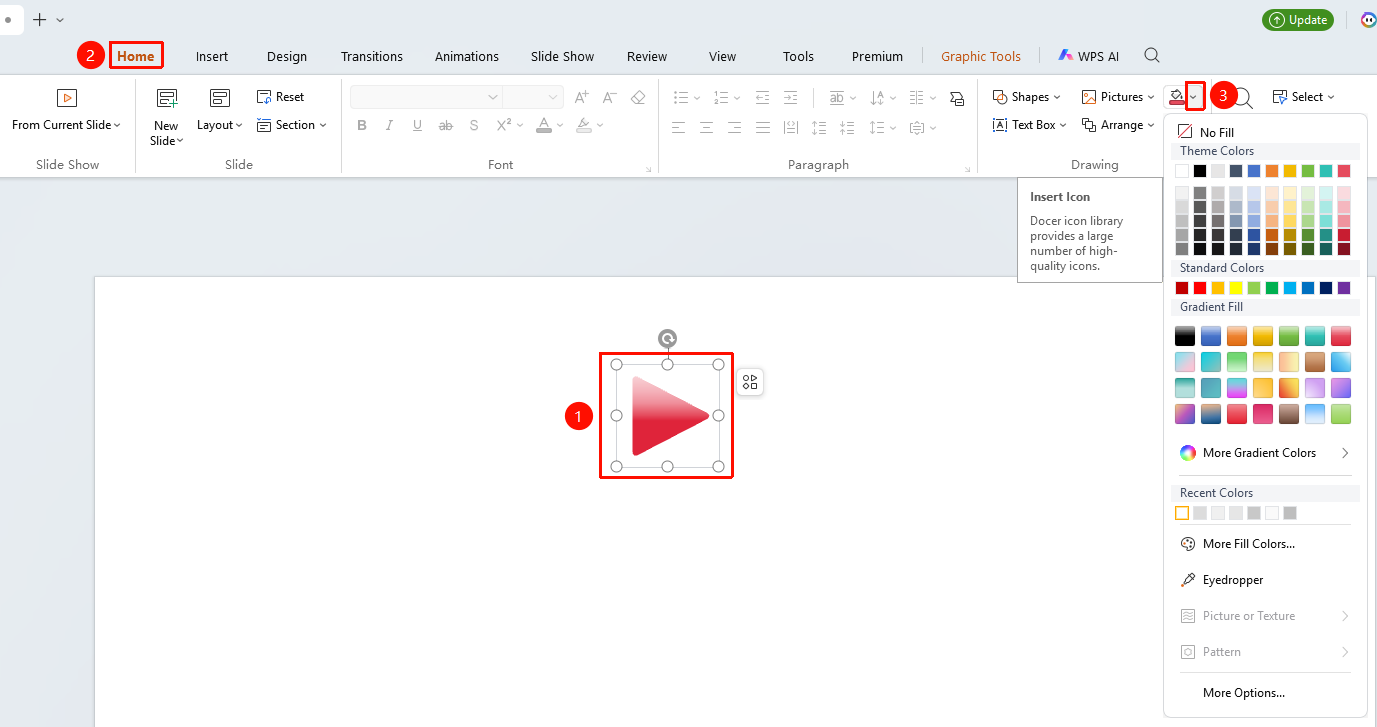
"Home" tab → "Shape Fill"
- Select the icon you want to fill with a gradient color
- Click the top "Home" tab
- Find and click the "Shape Fill" button
- Select a gradient fill style from the drop-down menu, and click "More Settings" to go to the Object Properties sidebar
Right-Click Menu Settings
Feature Entry
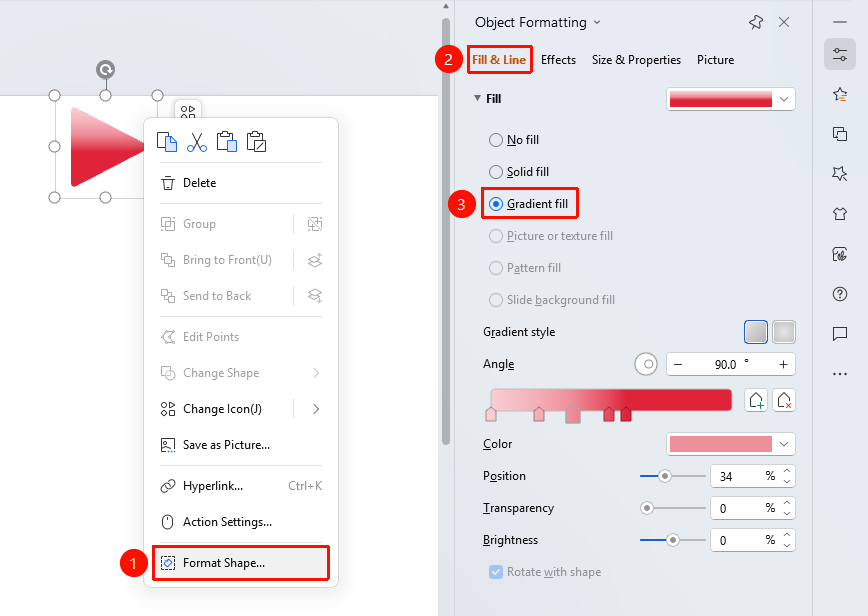
Icon right-click menu → "Format Object"
- Select the icon you want to fill with a gradient color
- Right-click the icon
- Select "Format Object"
- Set the gradient fill style in the "Object Properties" sidebar on the right
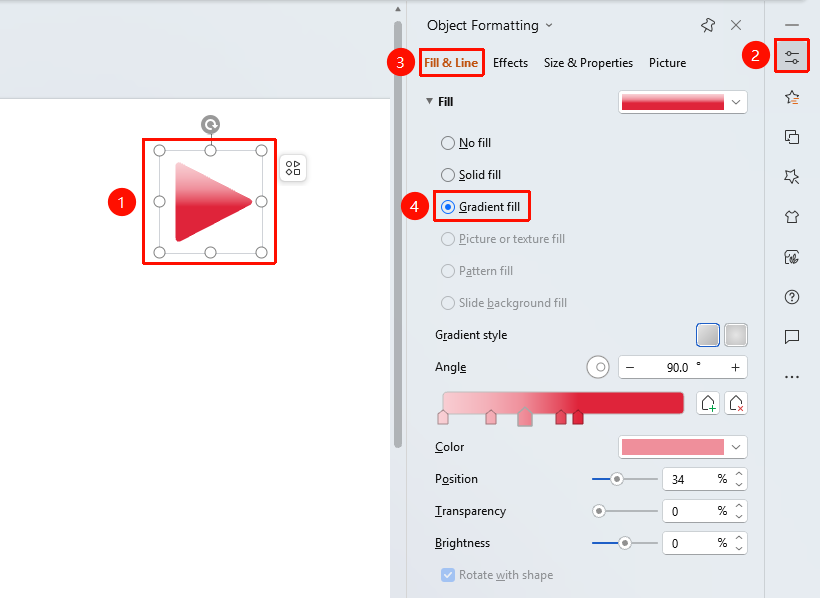
Side Task Pane Settings
Feature Entry
Side "Task Pane" → "Object Properties"
- Select the icon you want to fill with a gradient color
- Click the side "Object Properties" button
- Set the gradient fill style in the "Object Properties" sidebar
Notes
- Gradient fill gives icons rich color transition effects
- You can control color distribution by adjusting the color stop position