Feature Summary
The icon description feature is used to add optional text descriptions to icons, serving as supplementary information in icon properties to enhance accessibility and aid understanding.
Feature Description
| Feature Dimension | Description |
|---|---|
| Membership Restriction | No membership restriction |
| Version Restriction | No version restriction |
Operation Steps
Add Icon Description
Feature Entry
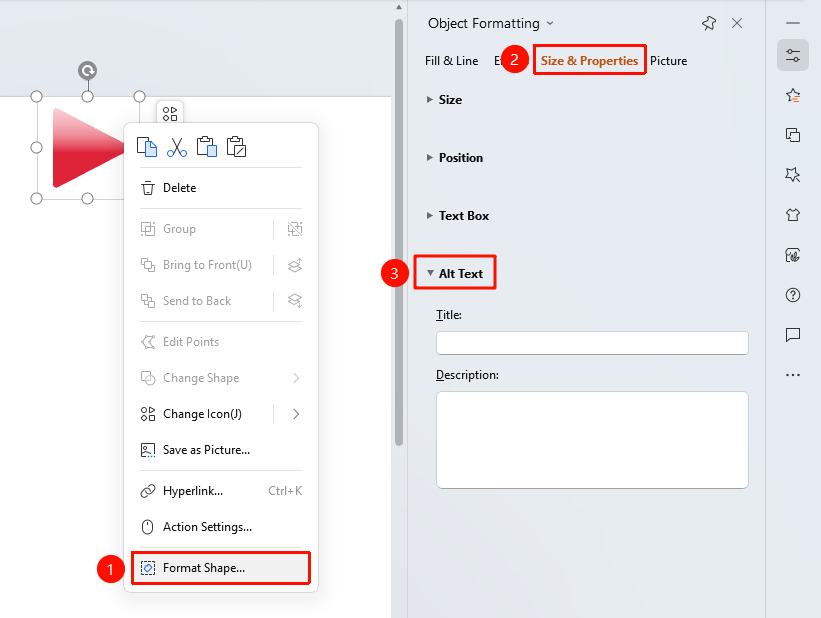
Shape right-click menu → "Format Object"
- Select the icon to which you want to add a description
- Right-click the shape
- Select "Format Object" to open the "Object Properties" pane on the right
- In the "Object Properties" panel on the right, click the "Size & Properties" tab
- Expand "Alt Text" to set the title and description
- "Title": Enter the shape title
- "Description": Enter the shape description text
- Click a blank area to save
Side Task Pane Settings
Feature Entry
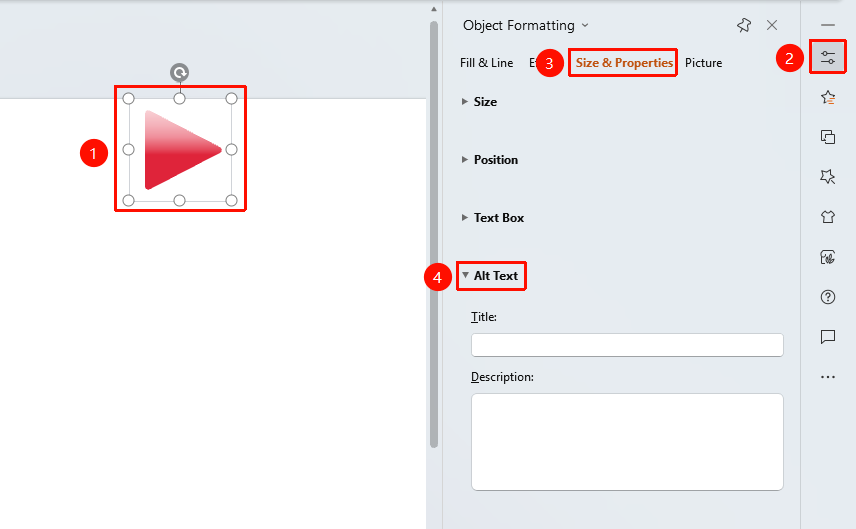
Side "Task Pane" → "Properties"
- Select the icon to which you want to add a description
- Click the side "Properties" button
- Set the alt text in the "Object Properties" sidebar
FAQ
Q1: Will the icon description be displayed during the slideshow?
- Solution: No, alt text is only saved as metadata and will not be displayed during slideshows or when printing.
Q2: How can I view an added icon description?
- Solution: After selecting the icon, you can view and edit the description content in the "Alt Text" area of the Object Properties sidebar.
Q3: Is there a character limit for icon descriptions?
- Solution: There is no strict character limit, but it is recommended to keep it concise; generally, one sentence summarizing the icon's meaning or purpose is sufficient.
Notes
- Icon descriptions will not be displayed on the slide; they are only saved as property information
- It is recommended to add descriptions for icons with actual meaning; purely decorative icons may not need descriptions
- Description text should be concise and clear, describing the icon's purpose or meaning