Feature Summary
The icon transparency feature is used to adjust the transparency level of an icon's fill color. It allows you to set a semi-transparent effect, giving the icon a subtle, partially visible appearance. This is commonly used for creating watermarks or background decorations.
Feature Description
| Feature Dimension | Description |
|---|---|
| Membership Restriction | No membership restriction |
| Version Restriction | No version restriction |
Operation Steps
Adjusting Icon Transparency
Feature Entry
Icon right-click menu → "Format Object" → "Object Properties" → "Fill & Line" → "Fill"
- Select the icon whose transparency you want to adjust
- Right-click the icon
- Select "Format Object" to expand the side "Object Properties" panel
- Under the "Picture" tab, click "Picture Transparency"
- Locate the "Transparency" slider
- Set the transparency value (0%–100%)
- 0%: Completely opaque
- 100%: Completely transparent
- Preview the effect in real time, and click a blank area to apply
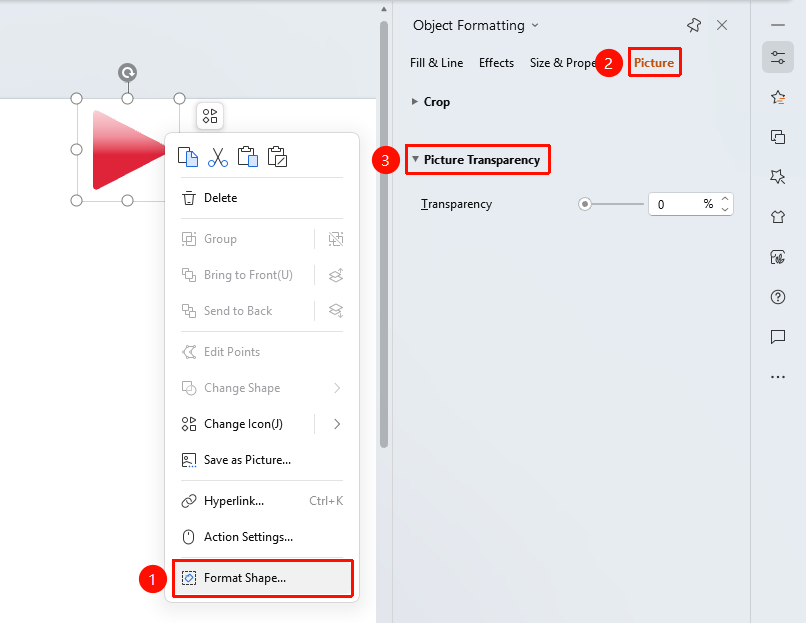
Side Task Pane Settings
Feature Entry
Side "Task Pane" → "Properties"
- Select the icon whose transparency you want to adjust
- Click the side "Properties" button
- Set the fill transparency in the "Object Properties" sidebar
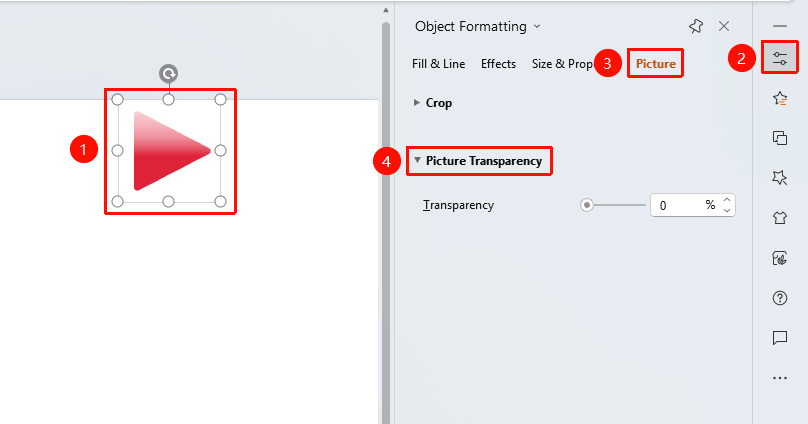
Frequently Asked Questions
Q1: How to create a semi-transparent watermark effect
- Solution: Set the icon fill transparency to 70%–90%, then place the icon on the top layer over the content to create a watermark effect.
Q2: How to restore the icon to fully opaque
- Solution: Change the value to 0% in the transparency settings, and the icon will return to a completely opaque state.
Q3: Does transparency affect icon export quality
- Solution: Transparency settings are fully preserved. The transparency effect remains intact when exporting to images or PDF.
Notes
- Excessively high transparency may make the icon difficult to recognize
- The transparent effect may vary depending on the device during projection and printing