Feature Summary
The Distribute Columns feature can set the width of all columns in a sheet to the same value, making column widths consistent. It allows you to quickly create neat, uniform-width sheets, enhancing visual appeal and readability.
Feature Description
| Feature Dimension | Description |
|---|---|
| Membership Restriction | No membership restriction |
| Version Restriction | No version restriction |
Steps
Distribute Columns
Feature Entry
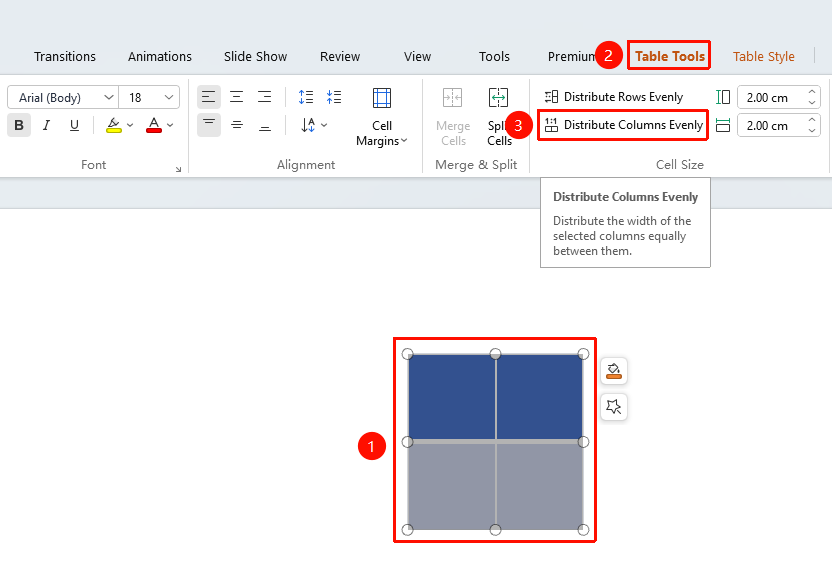
Select the sheet → "Sheets Tools" tab → "Distribute Columns"
- Click any cell in the table to select the entire table
- Click the Sheets Tools tab
- Locate and click the "Distribute Columns" button
- The width of all columns in the Sheets will be automatically adjusted to the same value
FAQ
Q1: Will the overall sheet width change after distributing columns?
- Solution: The Distribute Columns feature automatically calculates column width based on the total sheet width and the number of columns. If the total sheet width remains unchanged, each column will automatically share the total width equally.
Q2: Can I distribute the width of only some columns?
- Solution: Yes. First, select the columns you want to distribute (hold the Ctrl key and click above the header of each column), then execute the Distribute Columns operation.
Q3: How can I manually adjust the width of a specific column after distributing columns?
- Solution: You can manually adjust it by dragging the column border directly with the mouse. You can also precisely set the value through "Set Column Width" in "Sheets Tools".
Notes
- The Distribute Columns operation affects the width of all selected columns
- The total sheet width remains unchanged, and column widths are automatically distributed equally based on the number of columns
- If you need certain columns to have different widths, it is recommended to manually fine-tune them after distributing