Feature Summary
The Distribute Row Height feature can set the height of all rows in a table to the same value, making the row spacing consistent and the table look neater and more standardized. It is a convenient tool for quickly unifying table formatting.
Feature Description
| Feature Dimension | Description |
|---|---|
| Membership Restriction | No membership restriction |
| Version Restriction | No version restriction |
Operation Steps
Distribute Row Height
Feature Entry
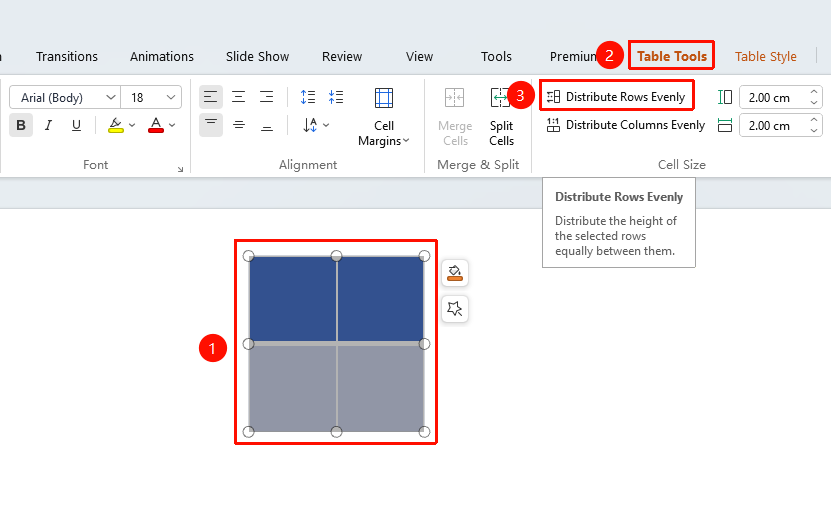
Select table → "Table Tools" tab → "Distribute Row Height"
- Click any cell in the table to select the entire table
- Click the Table Tools tab
- Find and click the "Distribute Row Height" button
- The height of all rows in the table will be automatically adjusted to the same value
Frequently Asked Questions
Q1: What should I do if the content is not fully displayed after distributing row height?
- Solution: Distribute Row Height automatically calculates row height based on the total table height and the number of rows. If there is a lot of content, you can manually increase the overall table height first, and then perform the Distribute Row Height operation.
Q2: Can I distribute the row height for only some rows?
- Solution: Yes. First select the rows you want to distribute row height for (click rows one by one while holding the Ctrl key), then perform the Distribute Row Height operation. Only the height of the selected rows will be adjusted.
Q3: How to restore the original row height after distributing row height?
- Solution: Use Ctrl+Z to undo the operation to restore. If other edits have been made, you can adjust the row height by manually dragging the row border or enter a precise value in "Table Tools" → "Set Row Height" to change it.
Notes
- The Distribute Row Height operation affects the height of all selected rows
- The total table height remains unchanged, and the row height is automatically evenly distributed based on the number of rows