Feature Summary
The indentation feature is used to adjust the left and right indentation distance of paragraphs within text boxes on slides. It supports quickly increasing or decreasing the indentation amount via toolbar buttons, and also allows precise setting of indentation values before/after text, measurement units, and special indentation formats in the Paragraph dialog box, helping users finely control the horizontal position of paragraphs.
Feature Description
| Feature Dimension | Description |
|---|---|
| Membership Restriction | No membership restriction |
| Version Restriction | No version restriction |
Steps
Method 1: Quickly increase or decrease indentation via toolbar buttons
Feature Entry 1
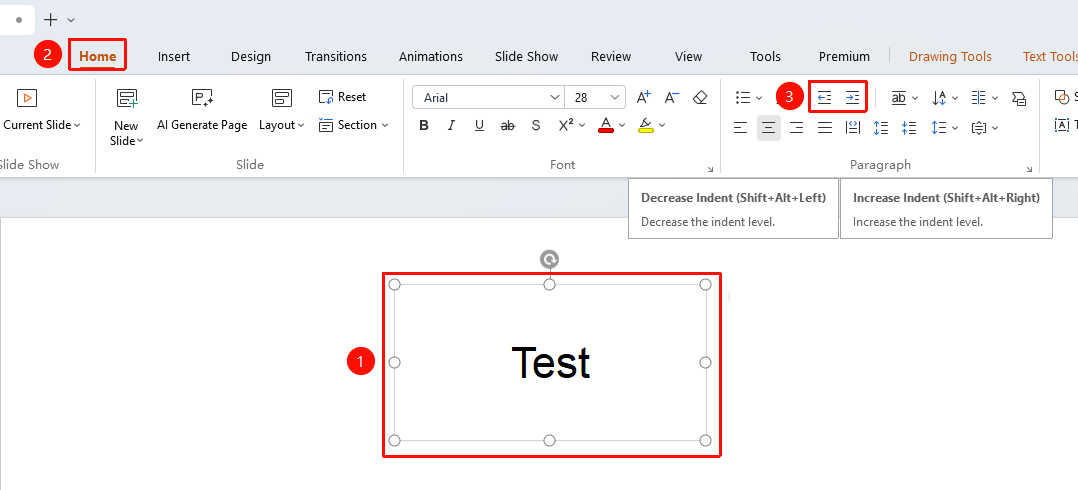
"Home" tab → "Paragraph" group → "Decrease Indent" / "Increase Indent" button
- Double-click the text box on the slide to enter Edit Mode, and place the cursor in the paragraph where you want to adjust the indentation.
- Click the "Home" tab in the top menu bar.
- In the "Paragraph" group, find the following two buttons:
- "Decrease Indentation": After clicking, the entire paragraph moves to the left, reducing the indentation distance.
- "Increase Indentation": After clicking, the entire paragraph moves to the right, increasing the indentation distance.
- Each click increases or decreases the indentation by one fixed unit. You can click multiple times for continuous adjustment.
Feature Entry 2
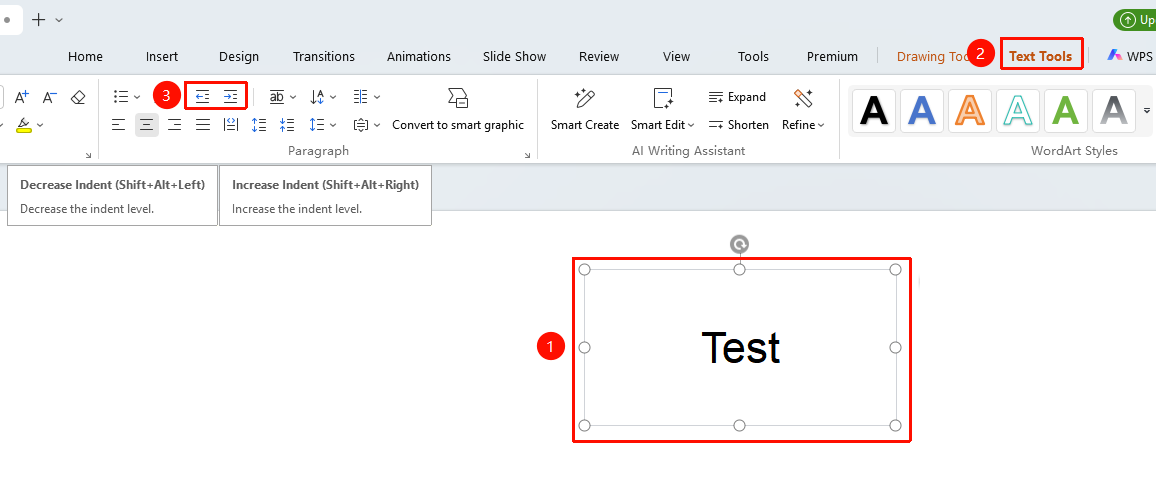
"Text Tools" tab → "Paragraph" group → "Decrease Indent" / "Increase Indent" button
- Double-click the text box on the slide to enter Edit Mode, and place the cursor in the paragraph where you want to adjust the indentation.
- Click the "Text Tools" tab in the top menu bar.
- In the "Paragraph" group, find the following two buttons:
- "Decrease Indentation": After clicking, the entire paragraph moves to the left, reducing the indentation distance.
- "Increase Indentation": After clicking, the entire paragraph moves to the right, increasing the indentation distance.
- Each click increases or decreases the indentation by one fixed unit. You can click multiple times for continuous adjustment.
Method 2: Precisely set indentation via the Paragraph dialog box
Feature Entry 1
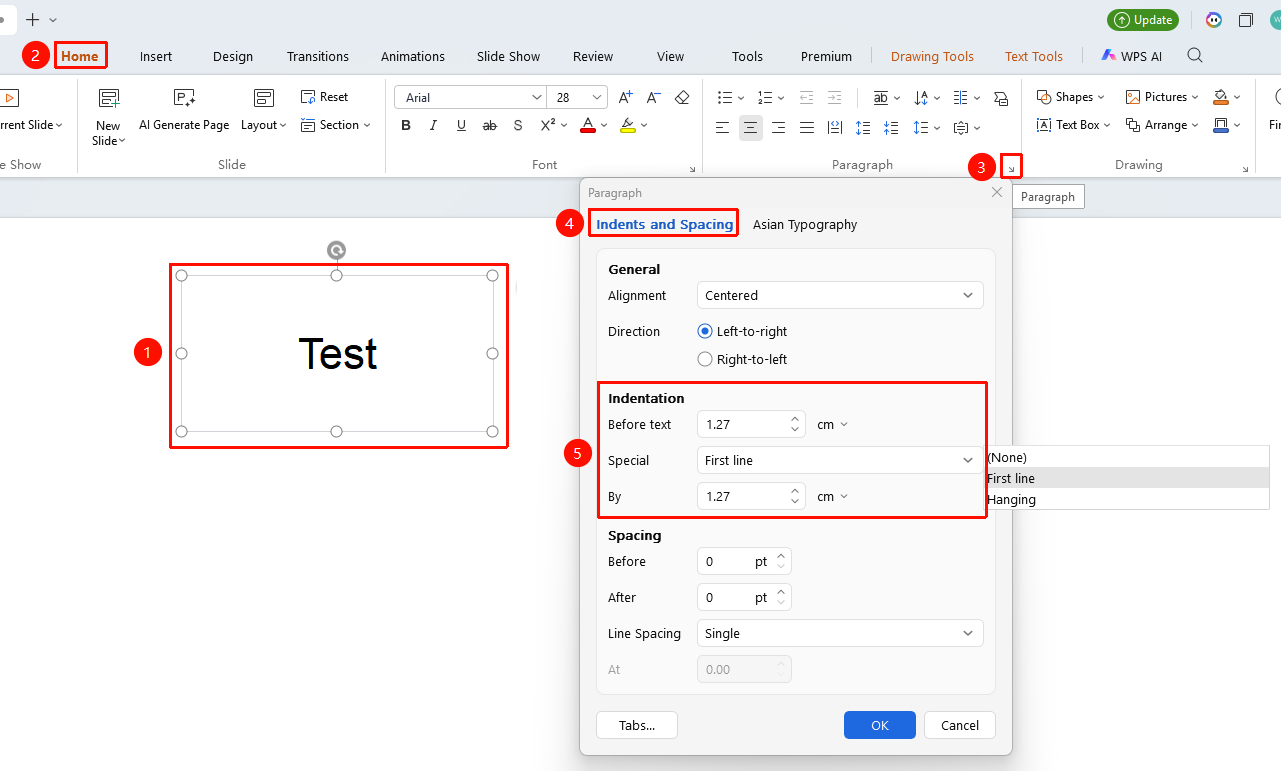
"Home" tab → "Paragraph" group → Paragraph menu → "Indents and Spacing" tab
- Double-click the text box on the slide to enter Read Mode, and place the cursor inside the paragraph where you want to adjust the indentation.
- Click the "Home" tab in the top menu bar.
- In the lower right corner of the "Paragraph" group, click the Paragraph menu (small arrow icon).
- In the pop-up "Paragraph" dialog box, the "Indents and Spacing" tab is displayed by default.
- In the "Indentation" area, you can set the following parameters:
- Before text: Sets the indentation distance on the left side of the paragraph. The value can be adjusted via the input box or the up/down arrows.
- Measure in: Sets the measurement unit for indentation, supporting five units: points, inches, centimeters, millimeters, and characters.
- Special: Sets the special indentation format for the paragraph, including:
- None: No special indentation is used.
- First line: Only the first line of the paragraph is indented.
- Hanging: All lines of the paragraph except the first line are indented.
- By: Used in conjunction with the special format to set the specific value for the special indentation.
- After completing the settings, click the "OK" button to apply.
Feature Entry 2
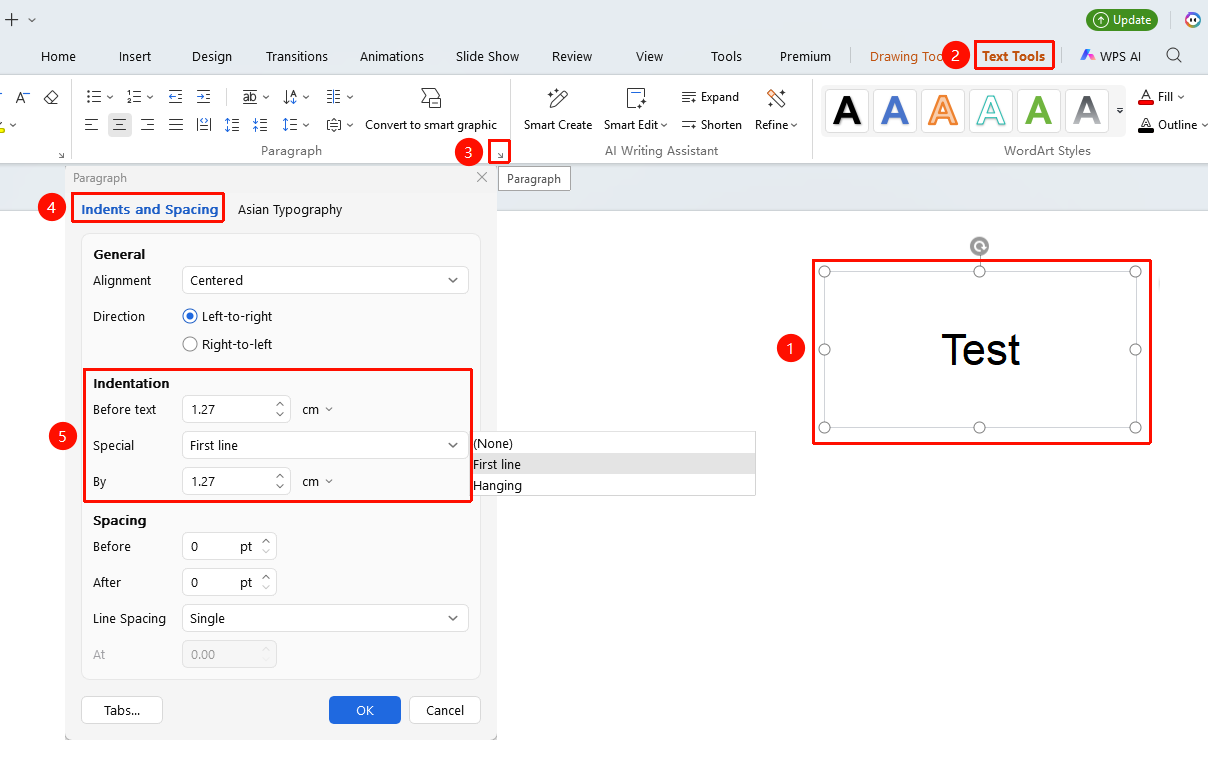
"Text Tools" tab → "Paragraph" group → Paragraph menu → "Indents and Spacing" tab
- Double-click the text box on the slide to enter Read Mode, and place the cursor inside the paragraph where you want to adjust the indentation.
- Click the "Text Tools" tab in the top menu bar.
- In the lower right corner of the "Paragraph" group, click the Paragraph menu (small arrow icon).
- In the pop-up "Paragraph" dialog box, the "Indents and Spacing" tab is displayed by default.
- In the "Indentation" area, you can set the following parameters:
- Before text: Sets the indentation distance on the left side of the paragraph. The value can be adjusted via the input box or the up/down arrows.
- Measure in: Sets the measurement unit for indentation, supporting five units: points, inches, centimeters, millimeters, and characters.
- Special: Sets the special indentation format for the paragraph, including:
- None: No special indentation is used.
- First line: Only the first line of the paragraph is indented.
- Hanging: All lines of the paragraph except the first line are indented.
- By: Used in conjunction with the special format to set the specific value for the special indentation.
- After completing the settings, click the "OK" button to apply.
FAQ
Q1: How do I switch the unit after setting the indentation value?
- Solution: In the indentation area of the Paragraph dialog box, click the unit name (e.g., "cm") to the right of the value, and select points, inches, centimeters, millimeters, or characters from the pop-up drop-down menu.
Notes
- The "Decrease Indent" and "Increase Indent" buttons on the toolbar adjust by a fixed step size each time and cannot precisely control the value.
- When precise indentation distance is required, it is recommended to set it through the Paragraph dialog box.
- Special indentation formats (First line, Hanging) are used in conjunction with the By value. When the By value is 0, it is equivalent to no indentation.