Feature Summary
The Notes Page feature is used to view and edit the notes content of slides. You can add speaker notes to each slide for convenient reference during presentations.
Feature Description
| Feature Dimension | Description |
|---|---|
| Membership Restriction | No membership restriction |
| Version Restriction | No version restriction |
Steps
Switch to Notes Page View
Feature Entry
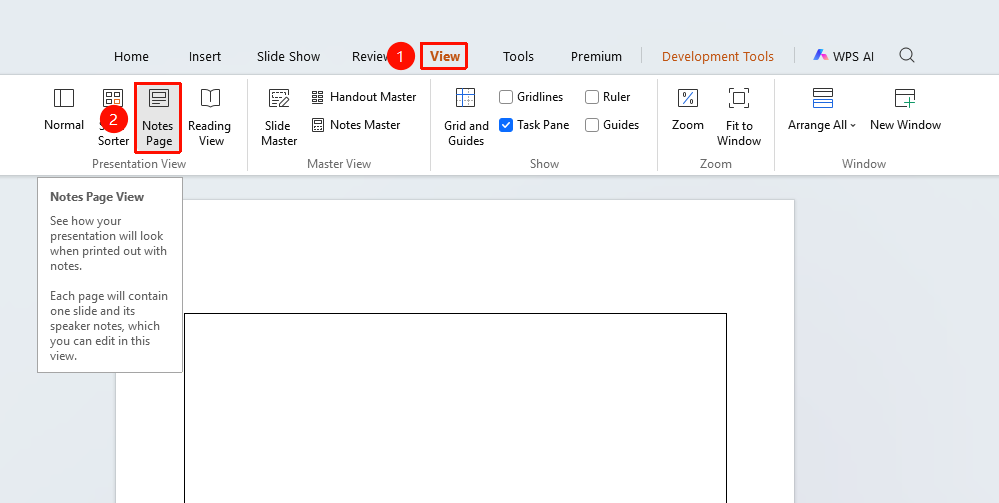
"View" tab → "Notes Page"
- Click the top "View" tab
- Find and click the "Notes Page" button
- Switch to Notes Page view
Edit Notes Content
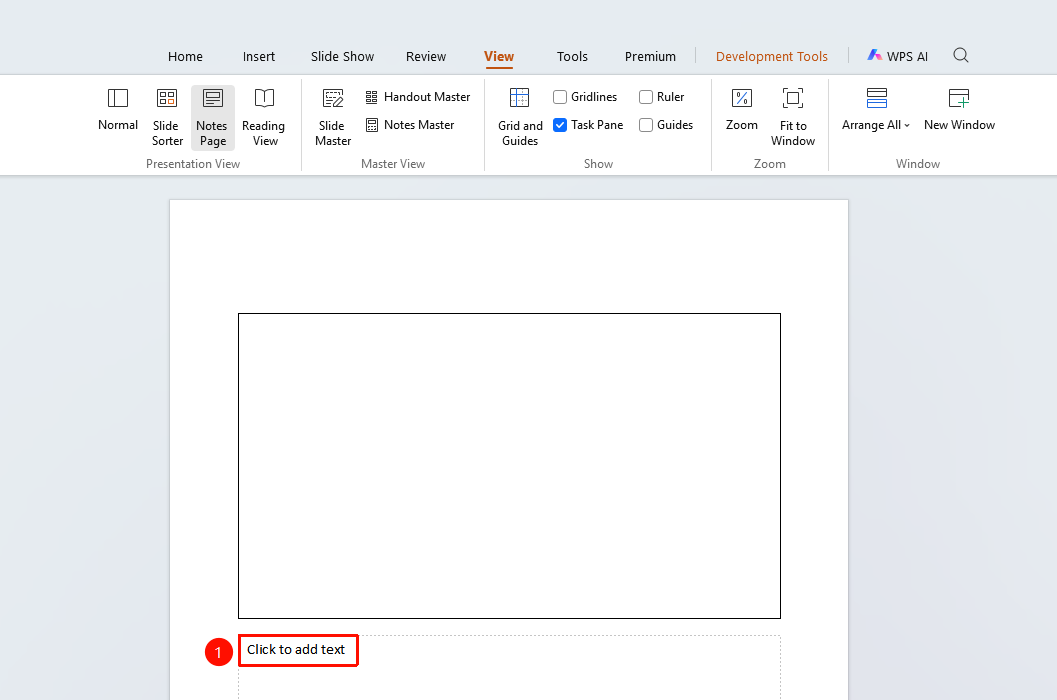
- Click the notes area in Notes Page view
- Enter or edit notes text
- The notes content will be displayed in the editing view
Add Notes in Normal View
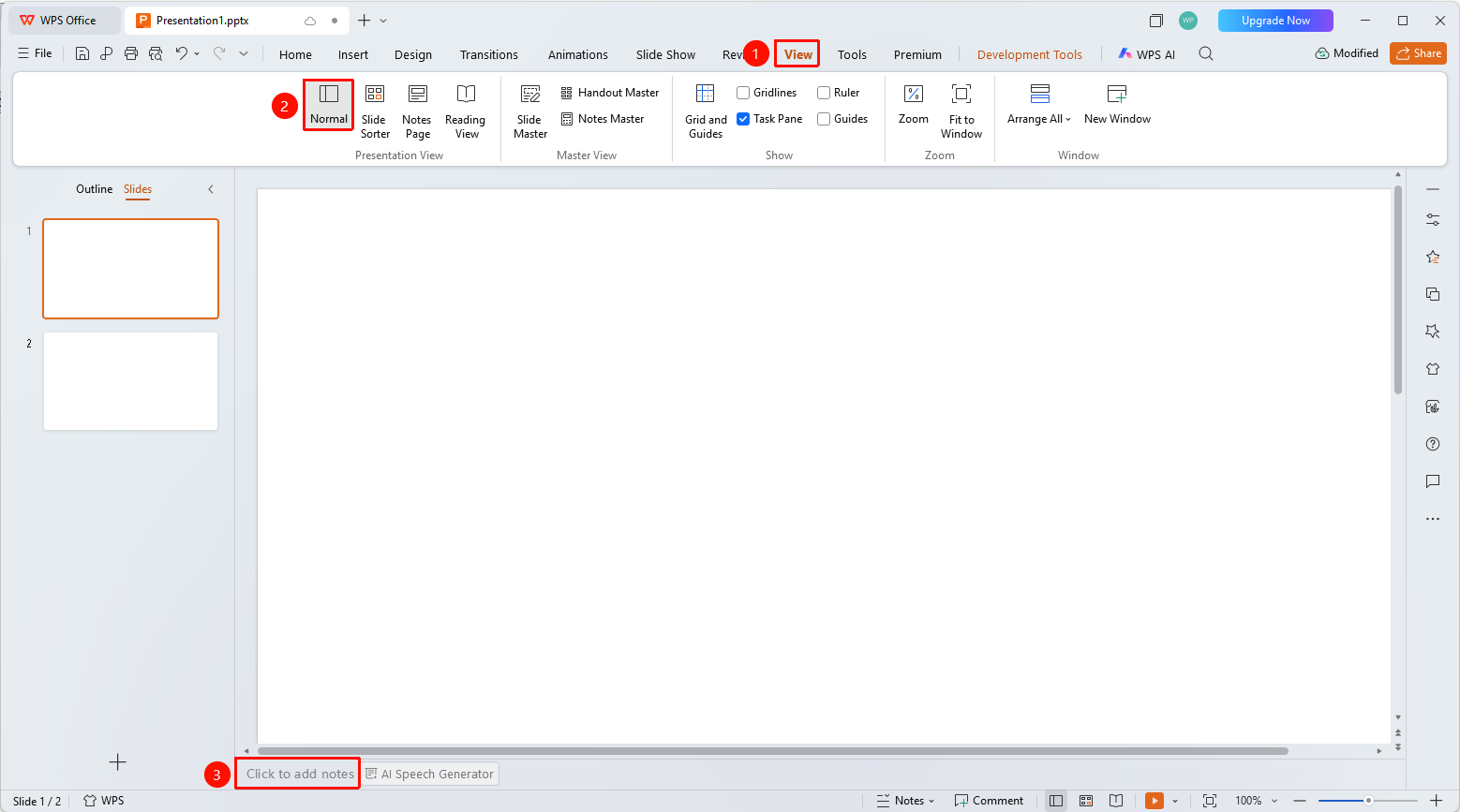
- Find the notes area at the bottom of Normal view
- Click "Click to add notes"
- Enter notes content
FAQ
Q1: Where is the notes content displayed?
- Solution: The notes content is displayed in the editing view. The audience cannot see the notes content during the slideshow.
Q2: Can the notes page be printed?
- Solution: Yes. When printing, select the "Notes Pages" print layout to print slides with notes.
Notes
- Notes content is only visible to the presenter or author
- The notes page is suitable for adding speaking prompts and explanations