Feature Summary
Font alignment is used to control the vertical positioning of text in different sizes within the same line. It provides four options: Top Align, Center, Roman Baseline Align, and Bottom Align, solving vertical alignment issues when mixing different font sizes.
Feature Description
| Feature Dimension | Description |
|---|---|
| Membership Restriction | No membership restriction |
| Version Restriction | No version restriction |
Operation Steps
Setting Font Alignment
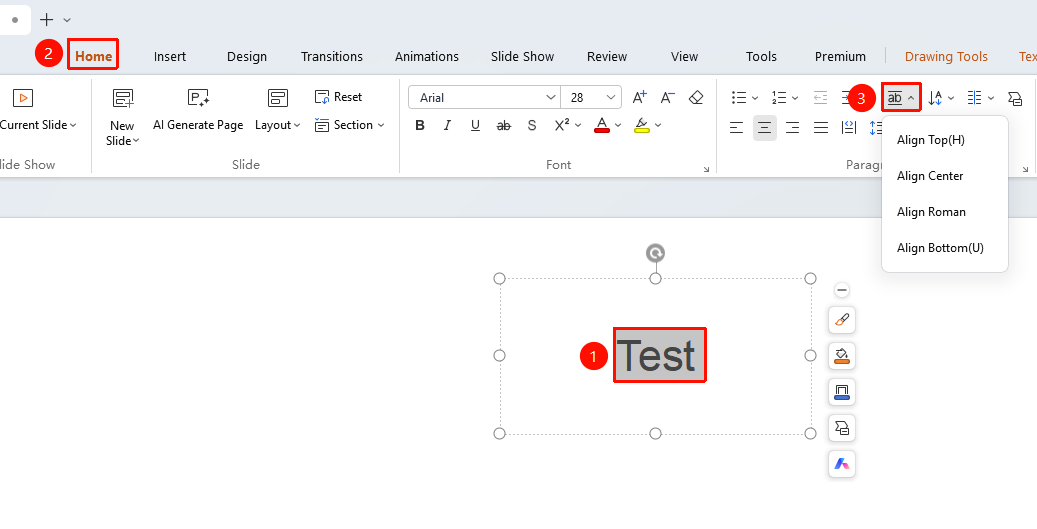
Feature Entry ①
"Home" tab → "Paragraph" section → "Font Alignment" button → Drop-down menu
- Double-click the text box on the slide to enter editing mode, and select the text you want to adjust the alignment for.
- Click the "Home" tab in the top menu bar.
- In the second row of the "Paragraph" section, click the drop-down arrow of the "Font Alignment" button.
- Select the desired alignment method from the pop-up drop-down menu:
- Top Align: Aligns text of different sizes based on their top edges.
- Center: Aligns text of different sizes based on their vertical center lines.
- Roman Baseline Align: Aligns text of different sizes based on the Roman baseline.
- Bottom Align: Aligns text of different sizes based on their bottom edges.
- The setting takes effect immediately upon selection.
Feature Entry ②
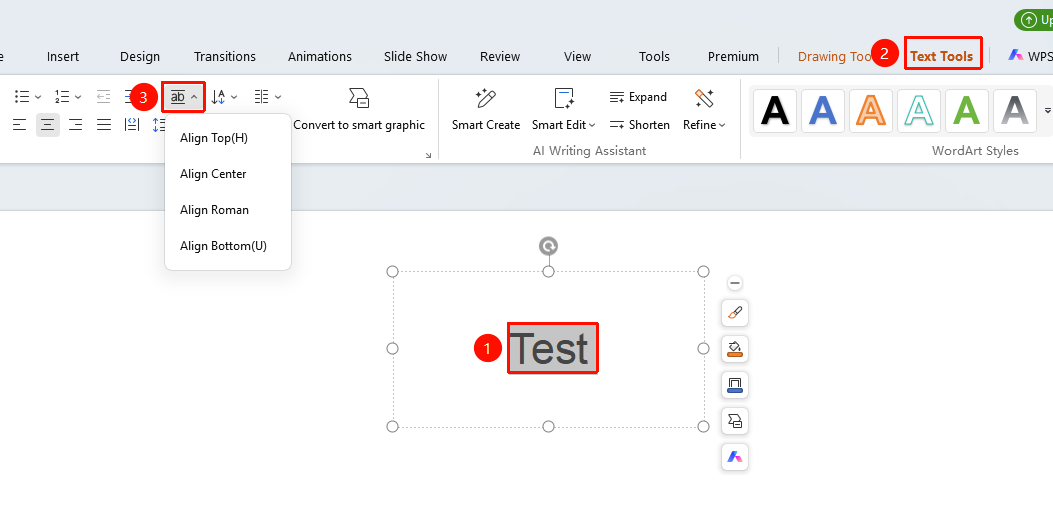
"Text Tools" tab → "Paragraph" section → "Font Alignment" button → Drop-down menu
- Double-click the text box on the slide to enter editing mode, and select the text you want to adjust the alignment for.
- Click the "Text Tools" tab in the top menu bar.
- In the second row of the "Paragraph" section, click the drop-down arrow of the "Font Alignment" button.
- Select the desired alignment method from the pop-up drop-down menu:
- Top Align: Aligns text of different sizes based on their top edges.
- Center: Aligns text of different sizes based on their vertical center lines.
- Roman Baseline Align: Aligns text of different sizes based on the Roman baseline.
- Bottom Align: Aligns text of different sizes based on their bottom edges.
- The setting takes effect immediately upon selection.
FAQ
Q1: Does font alignment have any effect on text with a uniform font size?
- Solution: The effect is not obvious. Font alignment mainly affects the vertical arrangement when mixing text of different sizes. If all text in the same line has exactly the same font size, the visual difference after setting is almost imperceptible.
Q2: What is the difference between Roman Baseline Align and Bottom Align?
- Solution: Roman Baseline Align aligns based on the Roman baseline, which is suitable for mixed Chinese and English typesetting scenarios. Bottom Align aligns based on the bottom edge of the characters. For most Chinese fonts, the effects are similar, but the difference becomes more apparent when English or special characters are included.
Q3: Can I undo the font alignment setting after applying it?
- Solution: Yes. Click the "Font Alignment" button again and select another alignment method to overwrite the current setting. You can also use the shortcut Ctrl+Z (Mac: ⌘+Z) to undo the previous step.
Notes
- The effect difference of font alignment is most obvious when mixing large and small font sizes; text with a uniform font size shows almost no visible difference.
- Among the four alignment methods, only one can be selected at a time. After selection, a ✓ mark will appear in front of the corresponding option in the drop-down menu.