Feature Summary
The Slide Sorter feature allows you to view all slides as thumbnails, enabling quick browsing, sorting, and management of slides. It is suitable for making overall structural adjustments.
Feature Description
| Feature Dimension | Description |
|---|---|
| Membership Restriction | No membership restriction |
| Version Restriction | No version restriction |
Steps
Switch to Slide Sorter
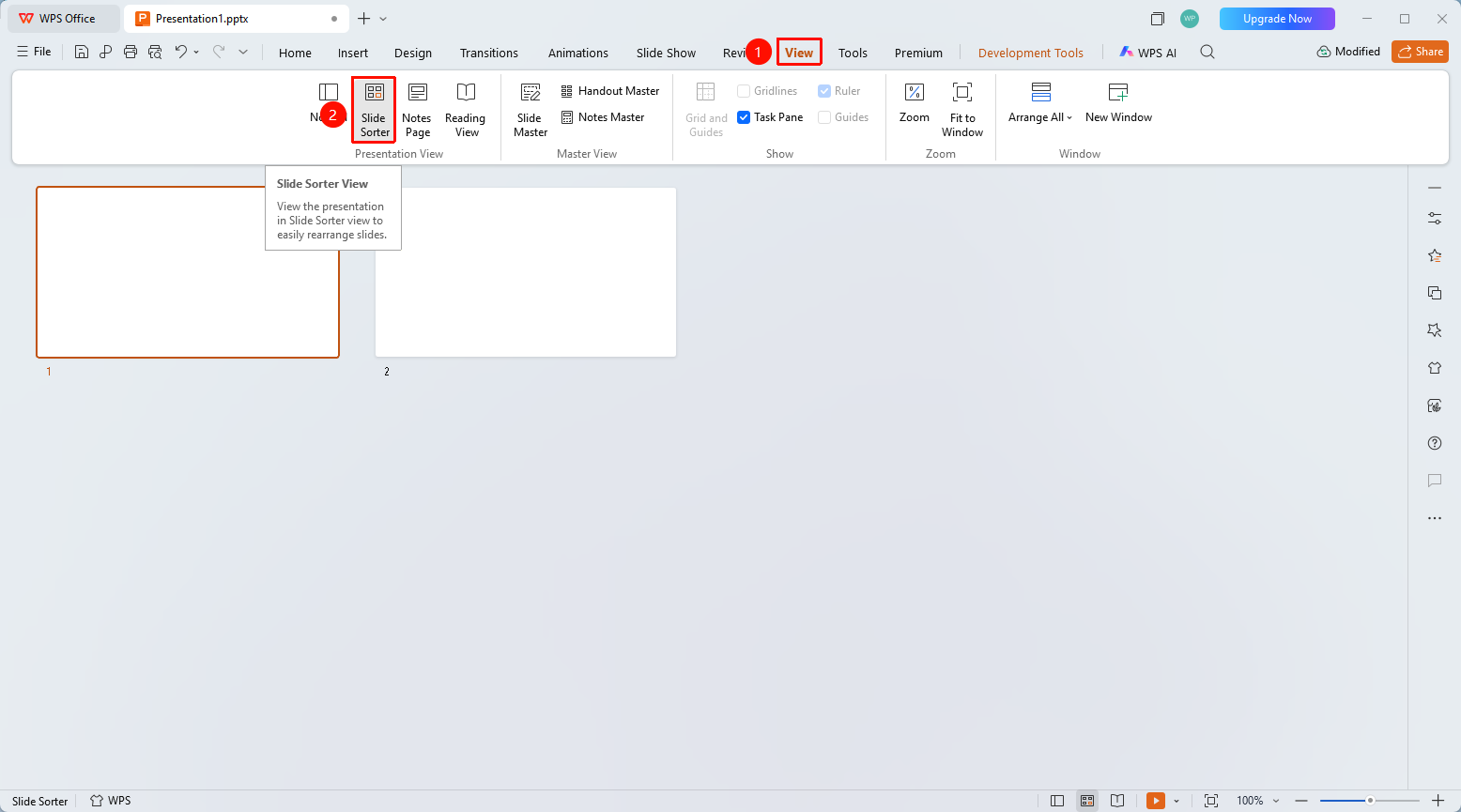
Entry Point ①
"View" tab → "Slide Sorter"
- Click the top "View" tab
- Find and click the "Slide Sorter" button
- All slides are displayed as thumbnails
- Drag slides to adjust their order
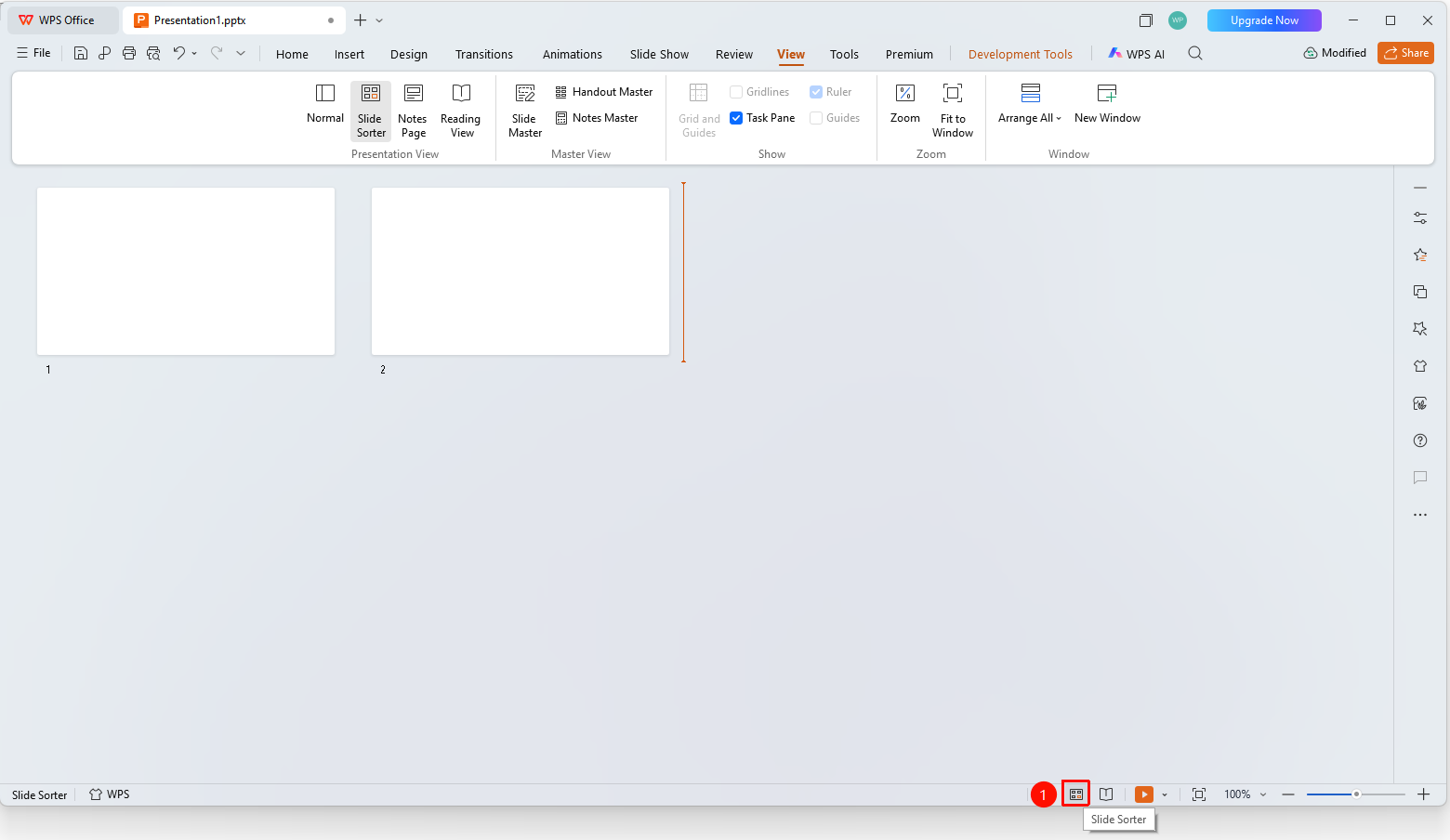
Entry Point ②
Status bar at the bottom of the screen → "Slide Sorter"
- Find and click the "Slide Sorter" button on the status bar at the bottom of the screen
- Switch to Slide Sorter view
FAQ
Q1: What is Slide Sorter used for
- Solution: Slide Sorter allows you to view all slide thumbnails at once, making it easy to quickly browse and adjust the slide order.
Q2: How to adjust slide order in Slide Sorter view
- Solution: Directly drag the slide thumbnail to the target position to adjust the order.
Q3: How to return to Normal view
- Solution: Double-click a slide, or click "Normal View" on the status bar at the bottom of the screen to switch back.
Notes
- Suitable for overall slide management and sorting