Feature Summary
The Shape Position feature is used to adjust the position of shapes on a slide. You can quickly adjust it by manual dragging, or precisely set the horizontal and vertical positions in the object properties.
Feature Description
| Feature Dimension | Description |
|---|---|
| Membership Restriction | No membership restriction |
| Version Restriction | No version restriction |
Operation Steps
Adjust Position by Manual Dragging
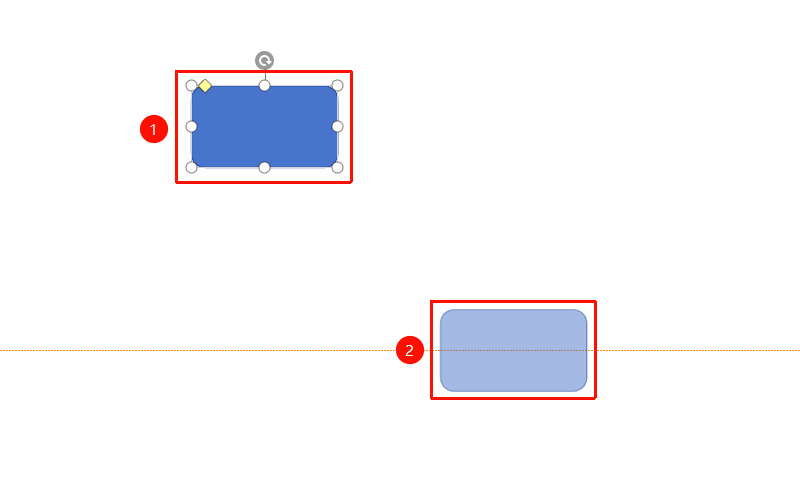
- Select the shape whose position you want to adjust
- Hold down the left mouse button and drag the shape to the target position
- Release the mouse to complete the position adjustment
Precisely Set Position in Object Properties
Feature Entry
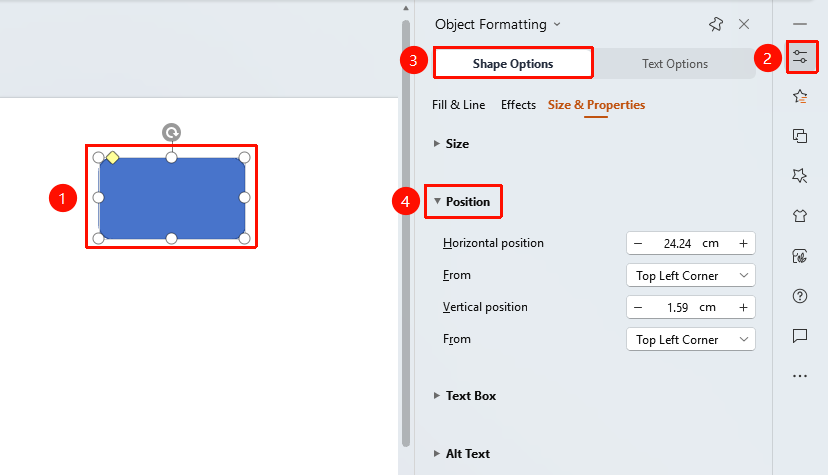
"Object Properties" → "Shape Options" → "Size & Properties" → "Position"
- Select the shape whose position you want to adjust
- Click the "Object Properties" button in the side task pane to expand the shape properties panel
- Find the size area under the "Shape Options" tab, click the expand button to open the "Object Properties" sidebar on the right
- Find the "Position" area under the "Size & Properties" tab
- Configure the following parameters
- "Horizontal Position": Set the horizontal position of the shape (cm)
- "Vertical Position": Set the vertical position of the shape (cm)
- "Relative To": Set the position reference point
- "Top Left Corner": Position relative to the top-left corner of the slide
- "Center": Position relative to the center of the slide
- Preview the effect in real time, click on a blank area to apply
Quickly Set Position via Alignment
Use the "Alignment" feature to quickly align a shape to a specific position on the slide. For detailed operations, please refer to the 'Shape Alignment Feature User Guide'.
FAQ
Q1: How to precisely set the shape position
- Solution: Directly enter the horizontal and vertical position values in the "Horizontal Position" "Vertical Position" area of the object properties.
Q2: What is the reference point for horizontal and vertical positions
- Solution: You can choose relative to the top-left corner or relative to the center, depending on the "Relative To" dropdown option.
Notes
- Manual dragging is suitable for quick, rough position adjustments
- Object properties are suitable for precise position value settings
- Use the alignment feature to quickly align shapes to standard positions