Feature Summary
The shape stacking order feature is used to adjust the front-to-back order of shapes. You can bring to front, send to back, bring forward, and send backward, so that the display hierarchy of shapes meets your design needs.
Feature Description
| Feature Dimension | Description |
|---|---|
| Membership Restriction | No membership restriction |
| Version Restriction | No version restriction |
Operation Steps
Adjust Stacking Order
Feature Entry
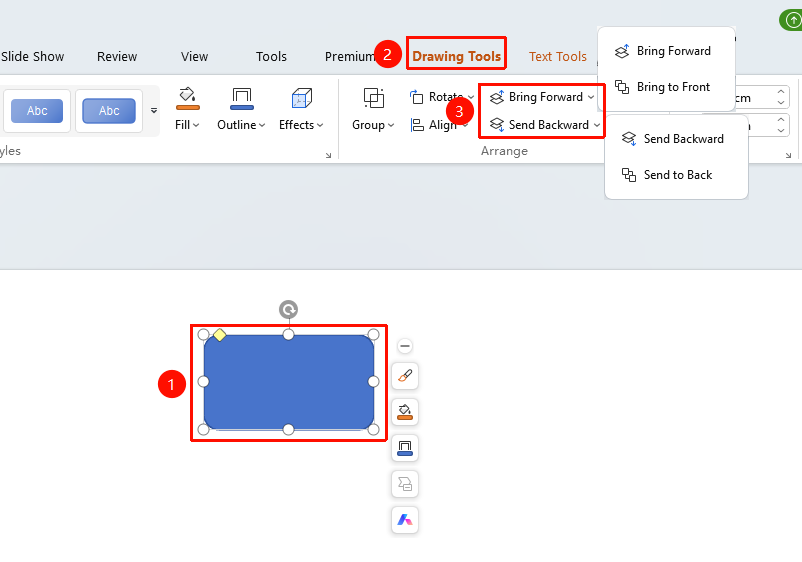
"Drawing Tools" tab → "Move Forward" or "Move Backward"
- Select the shape whose order you want to adjust
- Click the top "Drawing Tools" tab
- Find and click the "Move Forward" or "Move Backward" button to expand and set the following options
- "Move Forward": Move the shape up one layer
- "Move Backward": Move the shape down one layer
- "Bring to Front": Move the shape to the very front
- "Send to Back": Move the shape to the very back
Settings via the "Home" Tab
Feature Entry
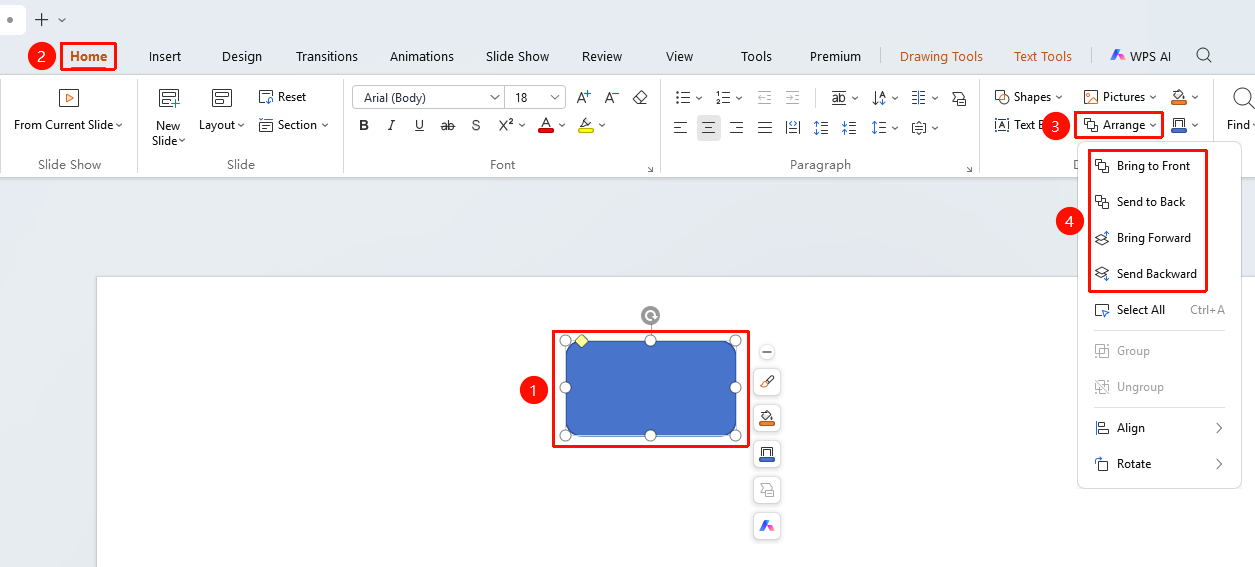
"Home" tab → "Arrange"
- Select the shape whose order you want to adjust
- Click the top "Home" tab
- Find and click the "Arrange" button
- Select the following options from the drop-down menu
- "Bring to Front": Move the shape to the very front
- "Send to Back": Move the shape to the very back
- "Move Forward": Move the shape up one layer
- "Move Backward": Move the shape down one layer
Settings via the Floating Edit Bar
Feature Entry
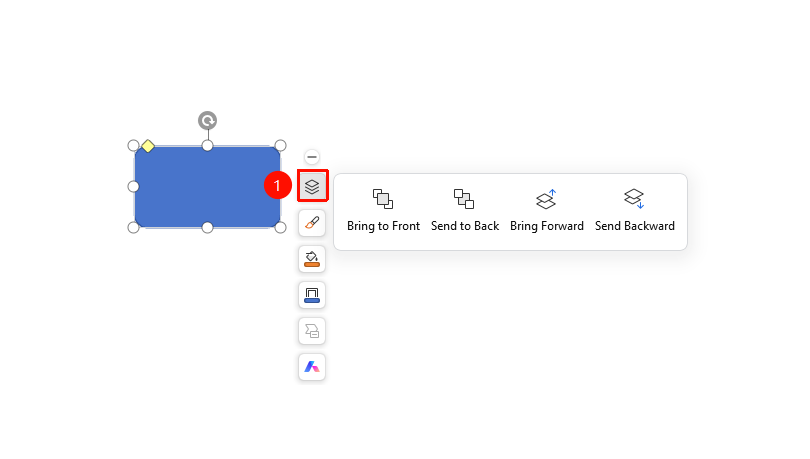
Floating Edit Bar → "Stacking Order"
- Select the shape whose order you want to adjust
- Click the "Stacking Order" button in the floating edit bar
- Select the following options
- "Bring to Front": Move the shape to the very front
- "Send to Back": Move the shape to the very back
- "Move Forward": Move the shape up one layer
- "Move Backward": Move the shape down one layer
Settings via the Right-Click Menu
Feature Entry
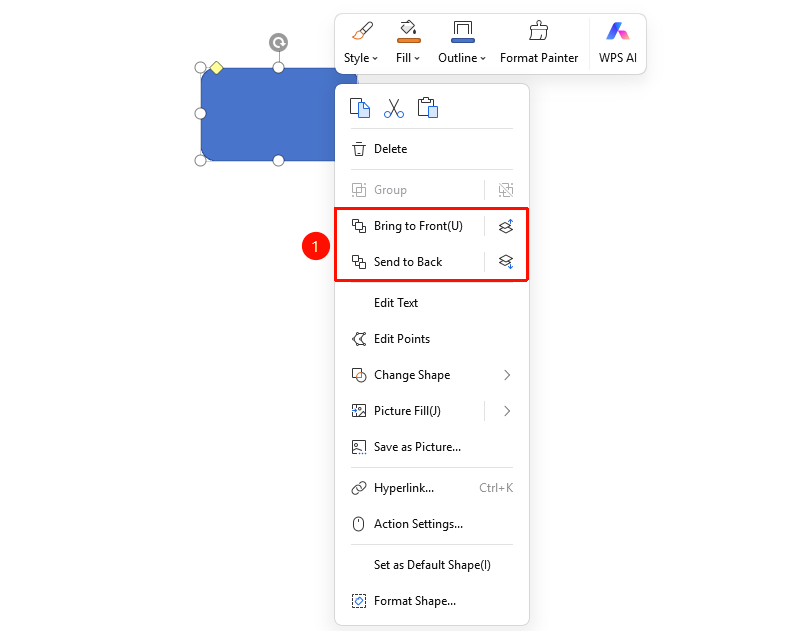
Shape right-click menu
- Select the shape whose order you want to adjust
- Right-click the shape
- Select "Bring to Front" or "Send to Back" → "Move Forward" or "Move Backward"
FAQ
Q1: How to move a shape to the very front
- Solution: Select "Bring to Front" to move the shape to the very front of all shapes.
Q2: How to move a shape to the very back
- Solution: Select "Send to Back" to move the shape to the very back of all shapes.
Q3: How to precisely adjust the layer of a shape
- Solution: Use "Move Forward" or "Move Backward" to adjust the layer of the shape step by step.
Notes
- The stacking order affects the display hierarchy of shapes
- Shapes created later are at the top layer by default
- You can adjust the order to make important shapes appear in front
- If a shape is sent to the back and cannot be selected, you can find it in the "Selection Pane" and bring it to the front