Summary
The shape picture or texture fill feature is used to apply a picture or texture as the fill background of a shape. You can customize parameters such as picture fill, texture fill, transparency, and placement to give shapes a unique visual effect.
Feature Description
| Feature Dimension | Description |
|---|---|
| Membership Restriction | No membership restriction |
| Version Restriction | No version restriction |
Steps
Apply Picture or Texture Fill
Feature Entry
"Drawing Tools" tab → "Shape Styles group" → "Shape Fill"
- Select the shape you want to fill with a picture or texture
- Click the top "Drawing Tools" tab
- Find and click the "Shape Fill" button to expand and set the following options
- "Picture or Texture": Choose a picture or texture as the fill background
- Click the desired picture or texture to apply it to the shape with one click
- Click "More Settings" to expand the shape fill panel
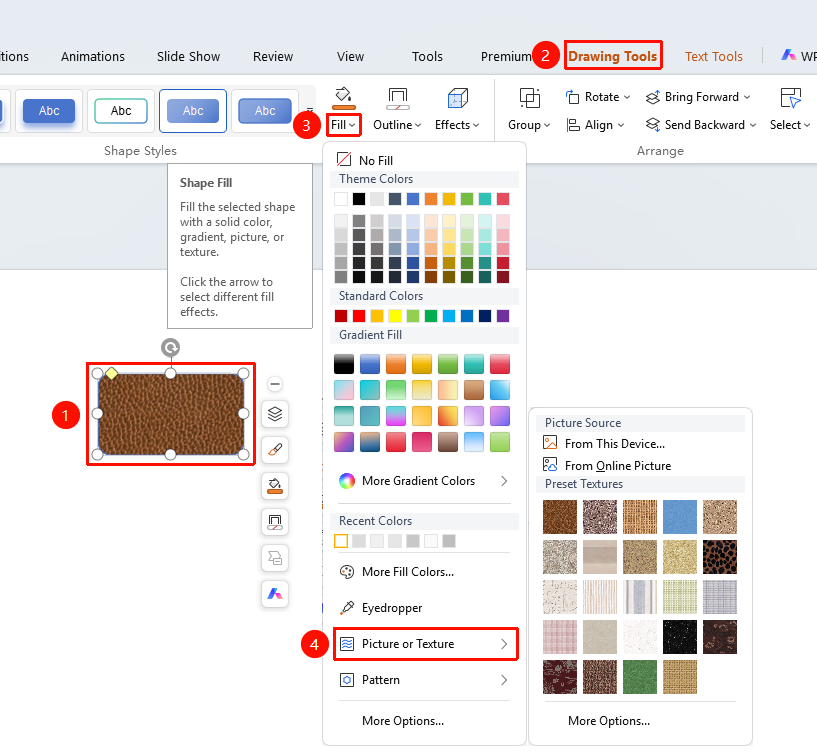
Custom Picture or Texture Fill
Feature Entry
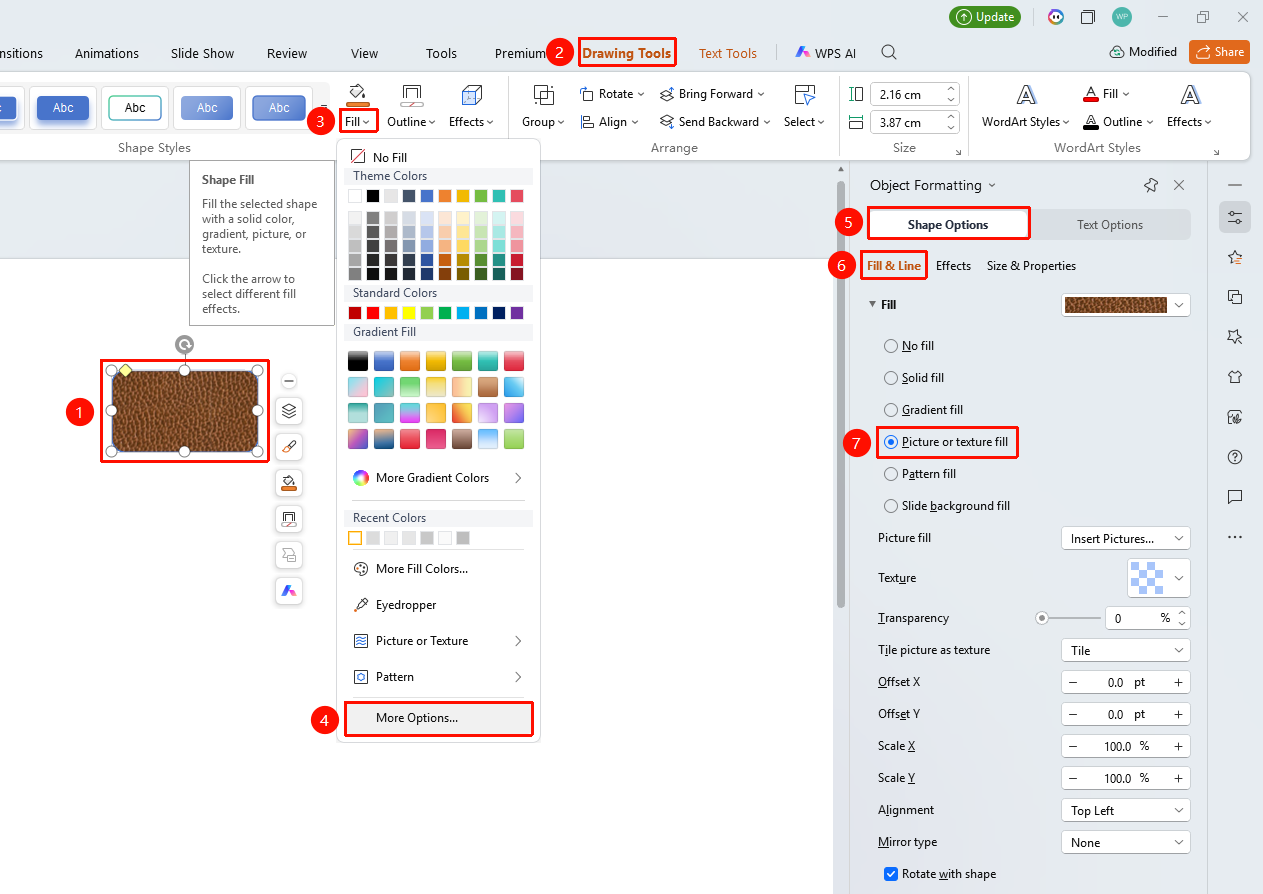
"Drawing Tools" tab → Shape Styles area → "Shape Fill" → "More Settings" → "Object Properties" → "Fill"
- Select the shape you want to fill with a picture or texture
- Click the "Drawing Tools" tab
- Click the "Shape Fill" dropdown button to expand the dropdown menu
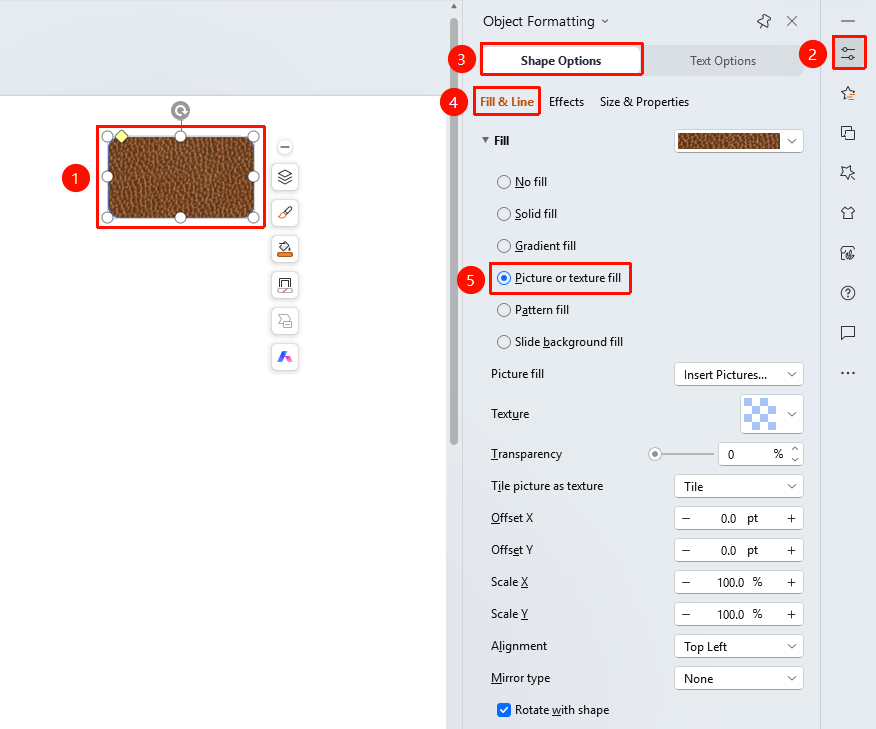
- Find and click "More Settings" in the dropdown menu to expand the "Object Properties" sidebar on the right
- Under the "Fill & Line" tab, click "Fill" to expand the fill list
- Select "Picture or Texture Fill" and set the following options:
- "Picture Fill": Click "Select Picture" to choose a local or online picture file
- "Texture Fill": Select a preset texture style
- "Transparency": Set the fill transparency (0%–100%)
- "Placement": Set the fill placement (Stretch, Tile, etc.)
- "Offset Left": Set the fill offset to the left (0%–100%)
- "Offset Right": Set the fill offset to the right (0%–100%)
- "Offset Top": Set the fill offset upward (0%–100%)
- "Offset Bottom": Set the fill offset downward (0%–100%)
- "Rotate with Shape": When checked, the fill rotates together with the shape
- Preview the effect in real time, and click a blank area to apply
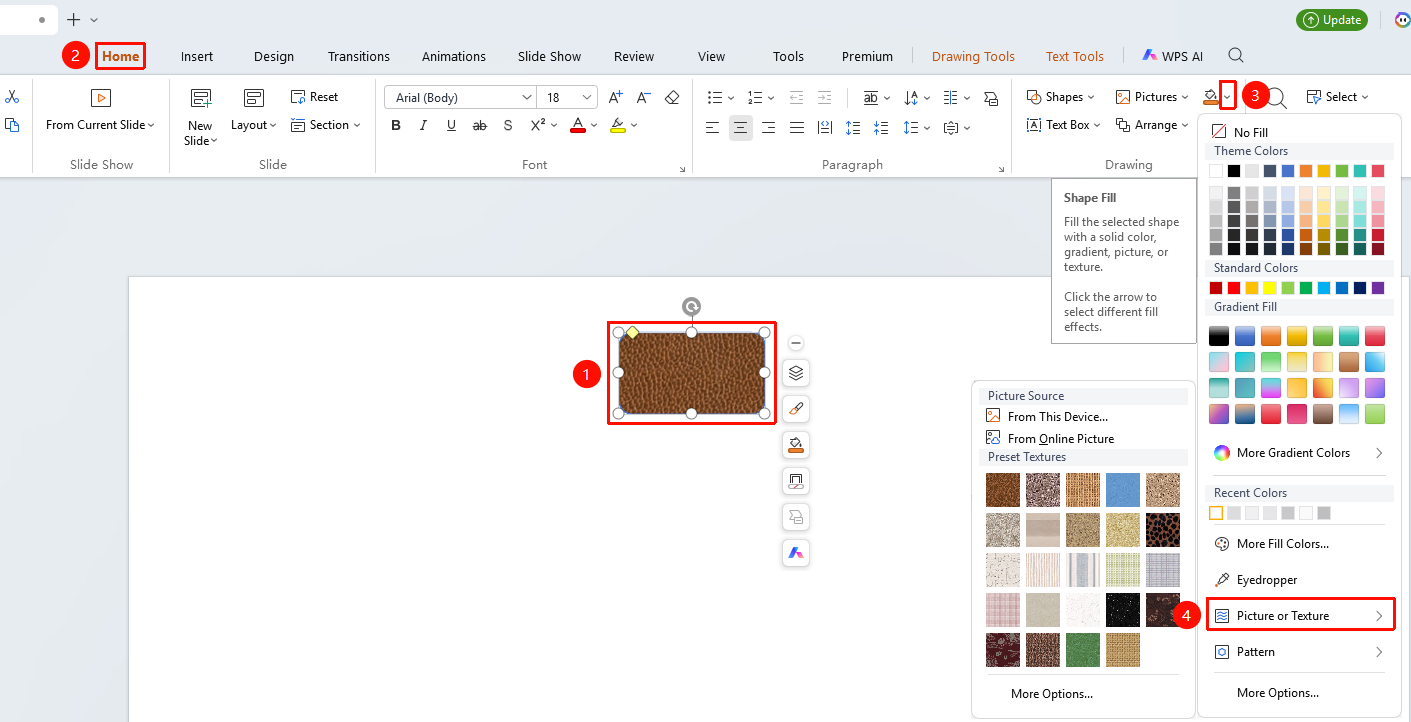
Settings via the "Home" Tab
Feature Entry
"Home" tab → Shape area → "Shape Fill"
- Select the shape you want to fill with a picture or texture
- Click the top "Home" tab
- Find and click the "Shape Fill" button
- Select "Picture or Texture"
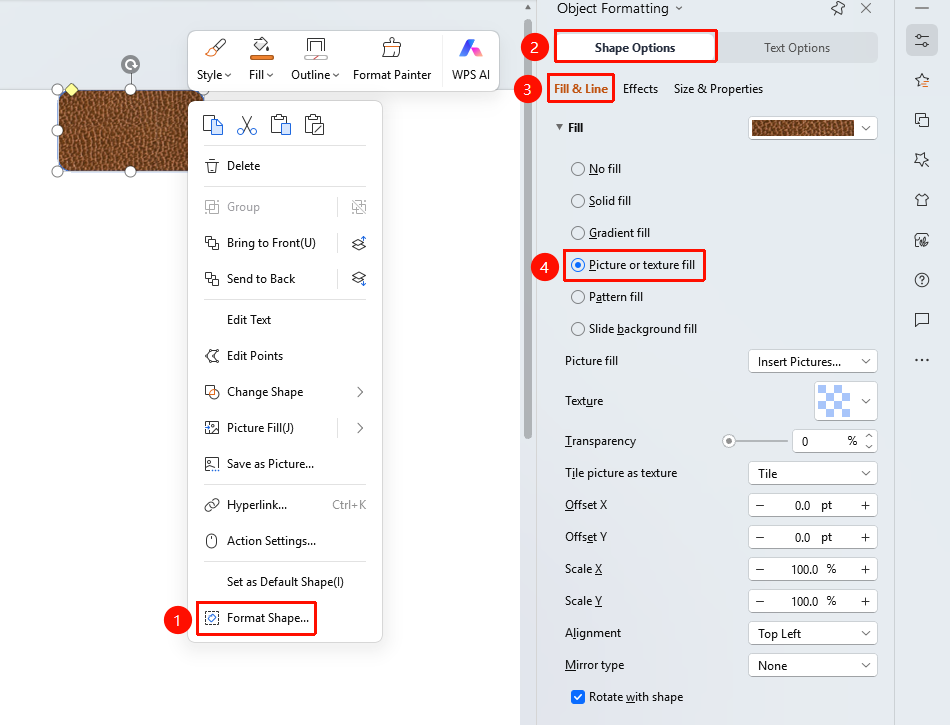
Settings via the Right-Click Menu
Feature Entry
Shape right-click menu → "Format Object"
- Select the shape you want to fill with a picture or texture
- Right-click the shape
- Select "Format Object"
- Set the picture or texture fill style in the "Object Properties" sidebar on the right
Settings via the Side Task Pane
Feature Entry
Side "Task Pane" → "Properties"
- Select the shape you want to fill with a picture or texture
- Click the side "Properties" button
- Set the picture or texture fill style in the "Object Properties" sidebar
Notes
- Picture fill stretches or tiles the picture into the shape
- Texture fill offers multiple preset textures to choose from
- You can precisely position the picture by adjusting the offset values