Feature Summary
The shape picture fill feature is used to fill a shape with a picture. You can use a local picture or an AI-generated picture to give the shape a unique picture fill effect.
Feature Description
| Feature Dimension | Description |
|---|---|
| Membership Restriction | Includes some Premium features |
| Version Restriction | No version restriction |
Steps
Fill with Picture
Feature Entry
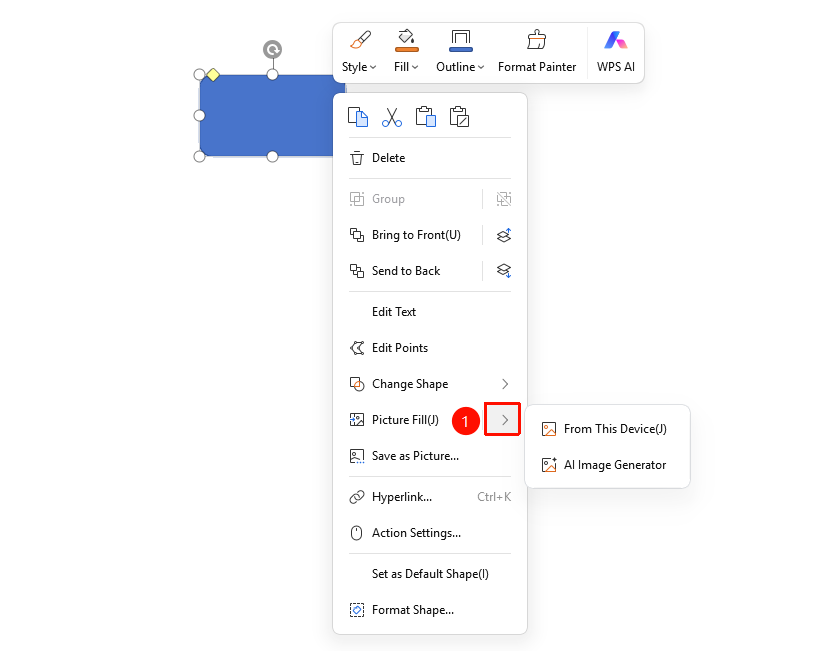
Shape right-click menu → "Picture Fill"
- Select the shape you want to fill with a picture
- Right-click the shape
- Select "Picture Fill" from the right-click menu
- Choose one of the following options
- "Local Picture": Select a picture file from your local device to fill
- "AI Image Generator": Use an AI-generated picture to fill
- After selecting a picture, it will be automatically filled into the shape
FAQ
Q1: How to change the filled picture
- Solution: Right-click the shape, select "Picture Fill" again, and choose a new picture to replace it.
Q2: Does AI Image Generator require a membership?
- Solution: Yes, "AI Image Generator" is a Premium feature. You need to subscribe to a membership to use it.
Notes
- Picture fill will stretch or tile the picture into the shape