Feature Summary
The Shape Size feature is used to adjust the height and width of a shape. It can be quickly set via the ribbon or precisely configured in the object properties, including parameters such as rotation, scaling, and locking the aspect ratio.
Feature Description
| Feature Dimension | Description |
|---|---|
| Membership Restriction | No membership restriction |
| Version Restriction | No version restriction |
Steps
Quickly Adjust Shape Size
Feature Entry
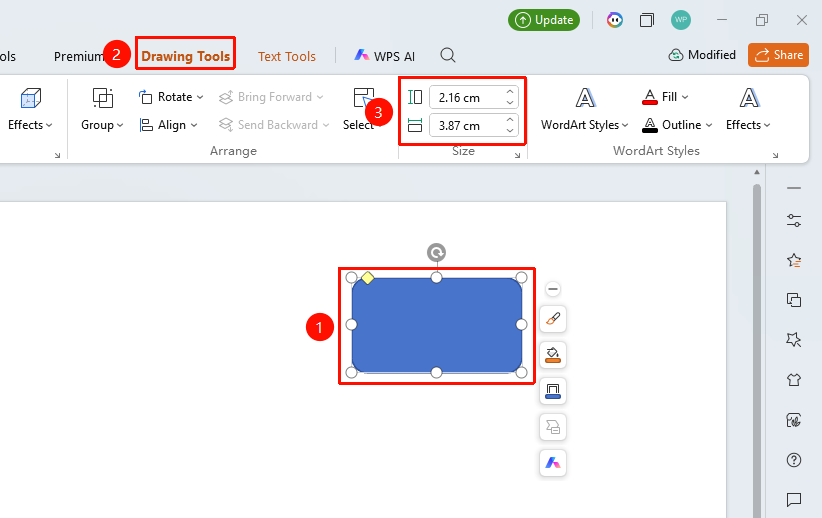
"Drawing Tools" tab → Size area
- Select the shape you want to resize
- Click the top "Drawing Tools" tab
- Enter the height and width values directly in the Size area
- Press Enter to confirm and apply
- Use the buttons for fine-tuning; each click increases/decreases by 0.1 cm
Precise Shape Sizing
Feature Entry
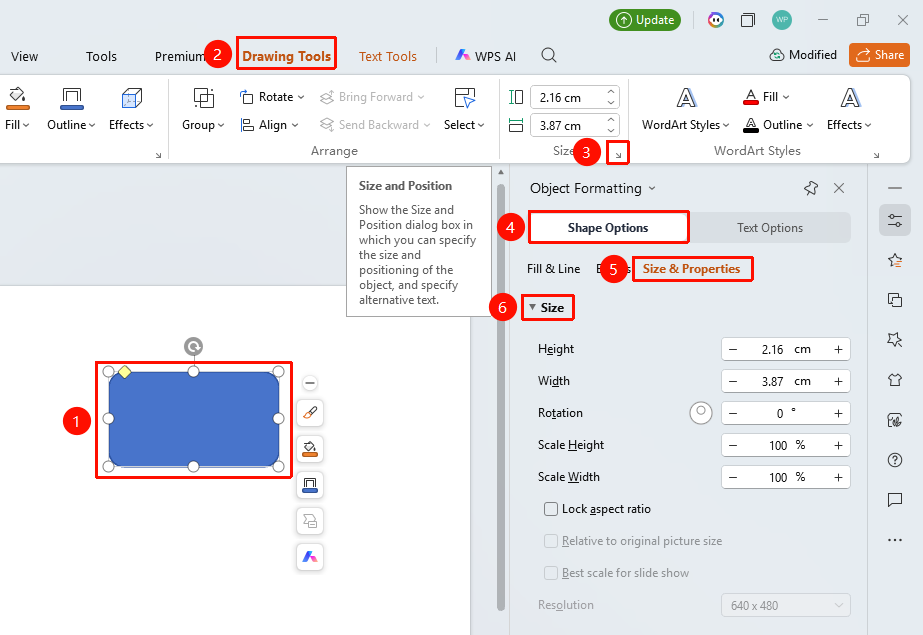
"Drawing Tools" tab → Size feature group → Expand button → "Object Properties" → "Size & Properties"
- Select the shape you want to resize
- Click the "Drawing Tools" tab
- Locate the Size feature group, click the expand button to open the "Object Properties" sidebar on the right
- Under the "Size & Properties" tab, configure the following parameters
- "Size"
- "Height": Set the shape height
- "Width": Set the shape width
- "Rotation": Set the rotation angle (0°~360°)
- "Scale Height": Set the height scaling ratio
- "Scale Width": Set the width scaling ratio
- "Lock Aspect Ratio": When checked, width and height scale proportionally
- Preview the effect in real time, click a blank area to apply
FAQ
Q1: How to maintain the shape's proportion when resizing
- Solution: Check "Lock Aspect Ratio"; when adjusting height or width, the other dimension will automatically adjust proportionally.
Q2: How to precisely set the rotation angle
- Solution: Enter the rotation angle value directly in the object properties, or drag the rotation handle to adjust.
Notes
- The ribbon can only quickly set height and width; detailed settings require expanding the object properties
- Locking the aspect ratio can keep the shape's proportions unchanged