Summary
The 3D Rotation feature is used to rotate the three-dimensional angle of a shape, giving the shape a 3D visual effect from different angles.
Feature Description
| Feature Dimension | Description |
|---|---|
| Membership Restriction | No membership restriction |
| Version Restriction | No version restriction |
Steps
Apply 3D Rotation Effect
Feature Entry
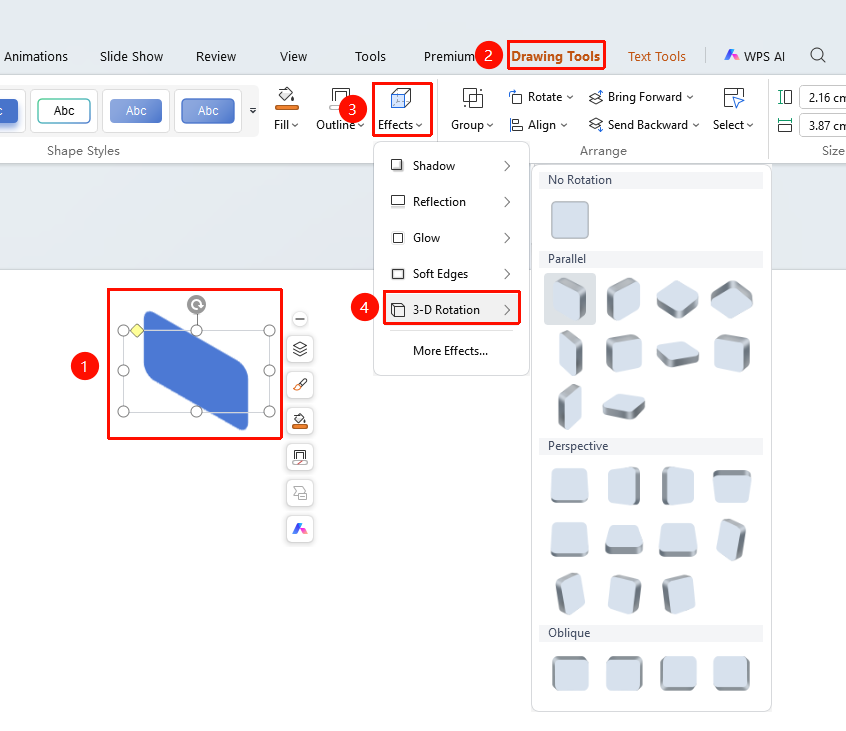
"Drawing Tools" tab → Shape Styles area → "Effects" → "3D Rotation"
Select the shape you want to add 3D rotation to
Click the top "Drawing Tools" tab
Find and click the "Effects" button
Select "3D Rotation" to expand and choose from the following styles
- "Parallel": Select a parallel 3D rotation preset style
- "Perspective": Select a perspective 3D rotation preset style
- "Oblique": Select an oblique 3D rotation preset style
Click the desired 3D rotation style to apply it to the shape
Click "More Settings" to expand the effects settings panel
Customize 3D Rotation Effect
Feature Entry
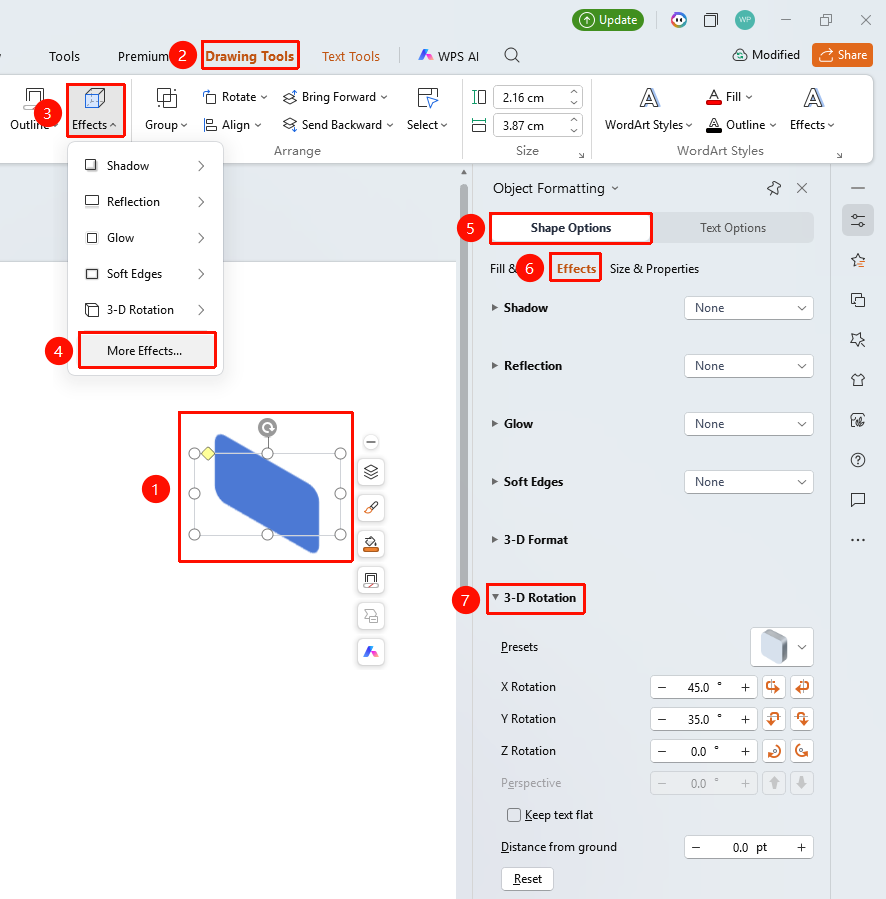
"Drawing Tools" tab → Shape Styles area → "Effects" → "More Settings" → "Object Properties" → "3D Rotation"
Select the shape you want to add 3D rotation to
Click the "Drawing Tools" tab
Click the "Effects" button
Select "More Settings" to expand the "Object Properties" sidebar on the right
Configure the following parameters in the "3D Rotation" settings
- "Preset": Select a preset 3D rotation style
- "X Rotation": Set the X-axis rotation angle (0°~360°)
- "Y Rotation": Set the Y-axis rotation angle (0°~360°)
- "Z Rotation": Set the Z-axis rotation angle (0°~360°)
- "Perspective": Set the perspective effect
- "Keep Text Flat": When checked, text does not rotate with the shape
- "Distance from Ground": Set the distance from the ground
Preview the effect in real time, click a blank area to apply
Right-Click Menu Settings
Feature Entry
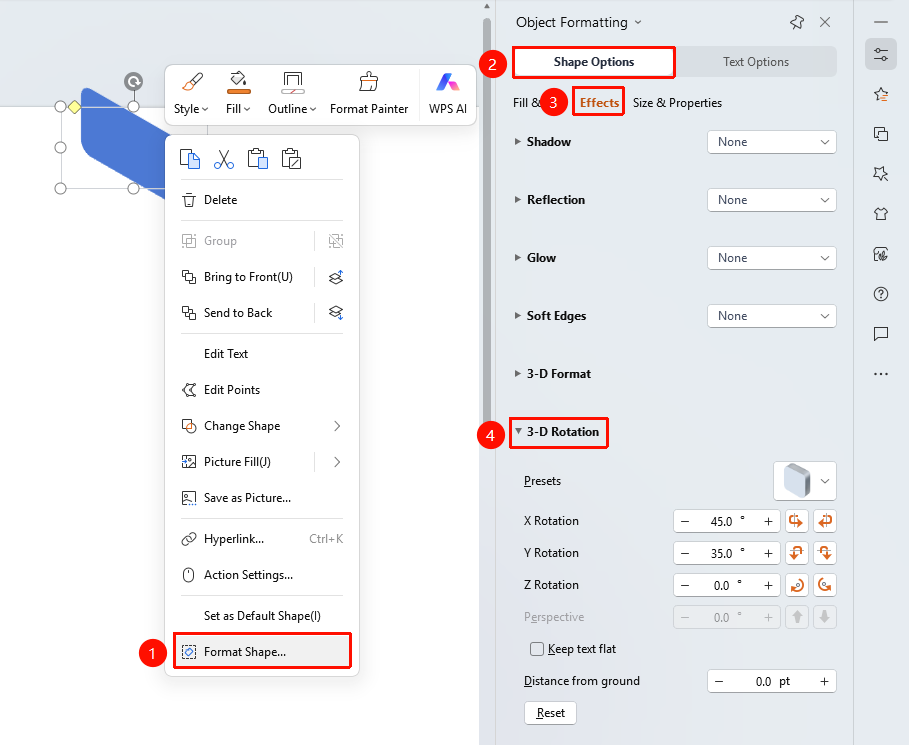
Shape right-click menu → "Format Object"
- Select the shape you want to add 3D rotation to
- Right-click the shape
- Select "Format Object"
- Set the 3D rotation effect in the "Object Properties" sidebar on the right
Side Task Pane Settings
Feature Entry
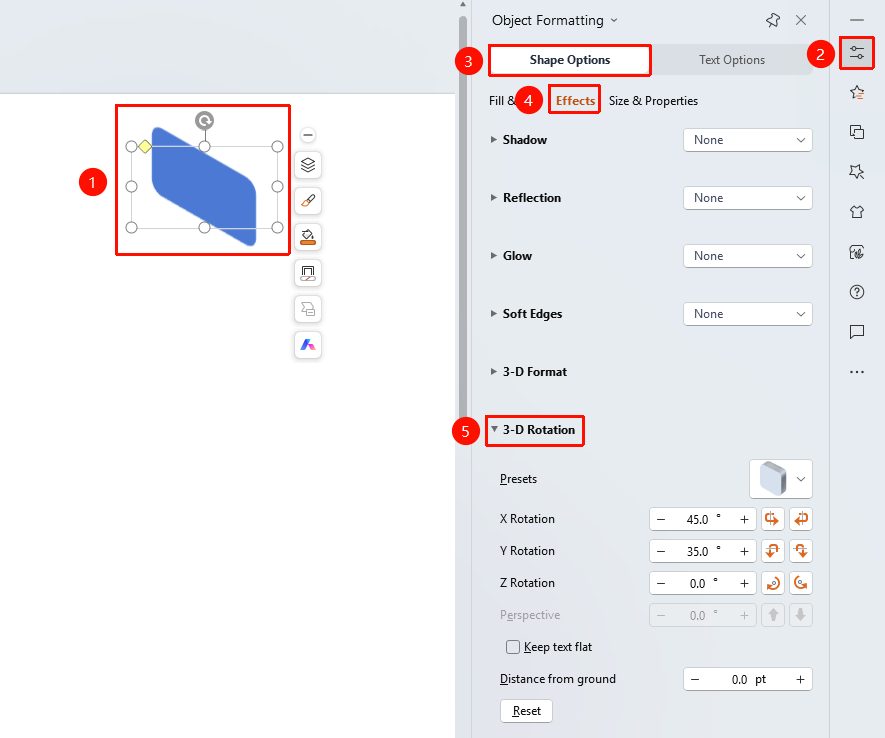
Side "Task Pane" → "Object Properties"
- Select the shape you want to add 3D rotation to
- Click the side "Object Properties" button
- Set the 3D rotation effect in the "Object Properties" sidebar
FAQ
Q1: How to adjust the 3D rotation angle
- Solution: In the 3D rotation settings, drag the X/Y/Z axis sliders or enter values to adjust the rotation angle.
Q2: How to remove the 3D rotation effect
- Solution: Select "No Rotation" in the preset styles, or set all X/Y/Z axis angles to 0°.
Notes
- 3D rotation gives shapes a three-dimensional visual effect from different angles
- X/Y/Z axis rotations can be combined to create more complex rotation effects
- The perspective effect affects the sense of depth and distance of the shape