Feature Summary
The reflection effect feature is used to add a reflection to a shape, giving it a mirror-like visual effect.
Feature Description
| Feature Dimension | Description |
|---|---|
| Membership Restriction | No membership restriction |
| Version Restriction | No version restriction |
Steps
Applying Reflection Effect
Feature Entry
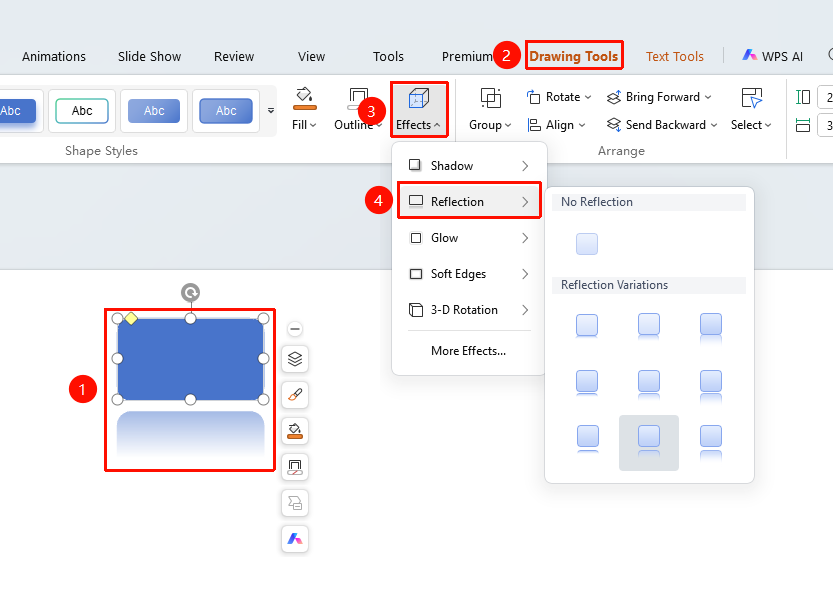
"Drawing Tools" tab → Shape Styles area → "Effects" → "Reflection"
- Select the shape you want to add a reflection to
- Click the top "Drawing Tools" tab
- Find and click the "Effects" button
- Select "Reflection" to expand and view reflection variants
- Click the desired reflection variant style to apply it to the shape with one click
- Click "More Settings" to expand the effects settings panel
Customize Reflection
Feature Entry
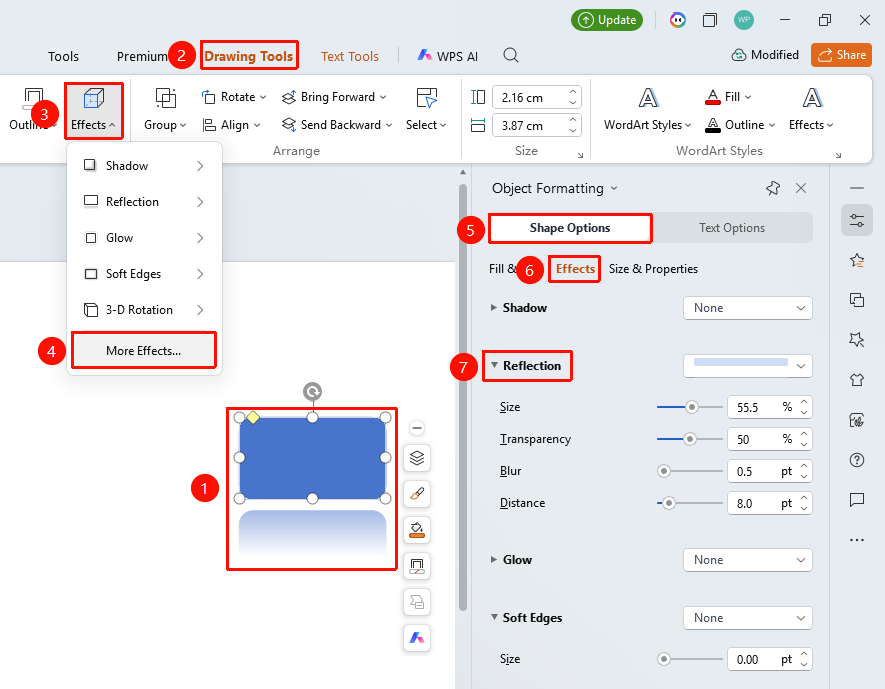
"Drawing Tools" tab → Shape Styles area → "More Settings" → "Object Properties" → "Reflection"
- Select the shape you want to add a reflection to
- Click the "Drawing Tools" tab
- Click the "Effects" button
- Select "More Settings" to expand the right "Object Properties" sidebar
- Configure the following parameters in the "Reflection" settings
- "Presets": Select a preset reflection style
- "Transparency": Set the reflection transparency (0%–100%)
- "Size": Set the reflection size (0%–100%)
- "Distance": Set the reflection distance (0 pt–100 pt)
- "Blur": Set the reflection blur level (0 pt–100 pt)
- Preview the effect in real time, click a blank area to apply
Right-Click Menu Settings
Feature Entry
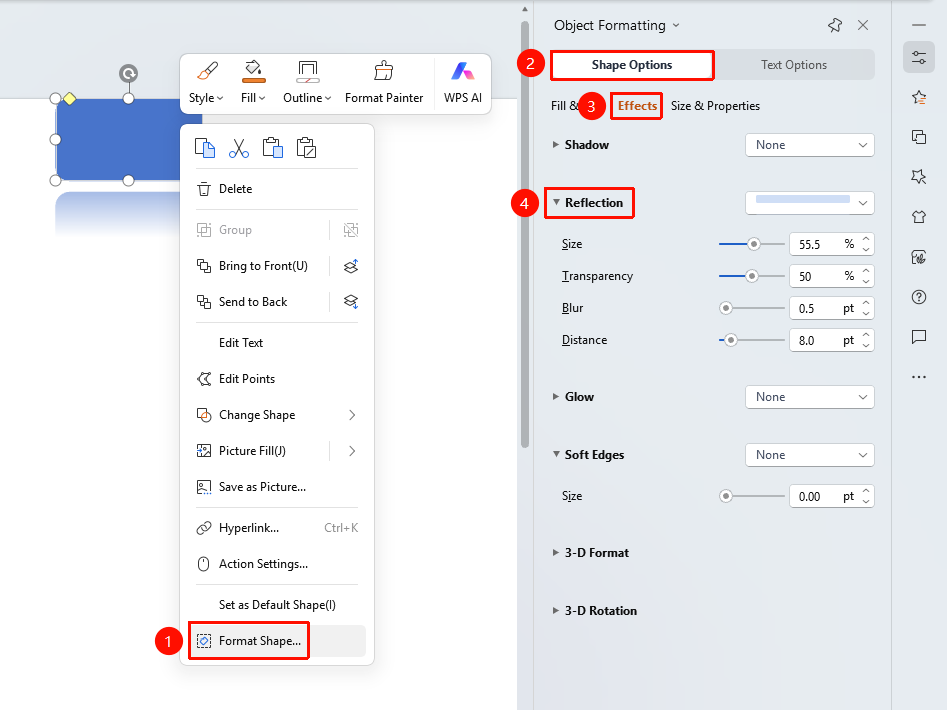
Shape right-click menu → "Format Object"
- Select the shape you want to add a reflection to
- Right-click the shape
- Select "Format Object"
- Set the reflection effect in the right "Object Properties" sidebar
Side Task Pane Settings
Feature Entry
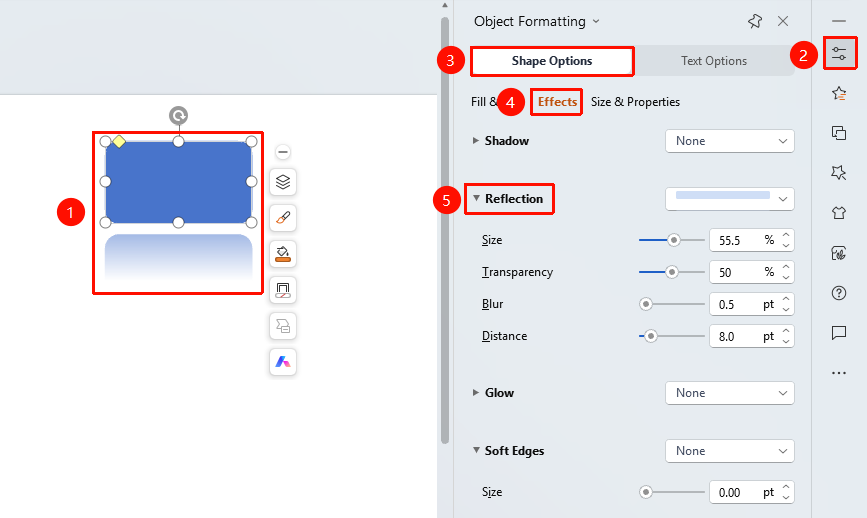
Side "Task Pane" → "Object Properties"
- Select the shape you want to add a reflection to
- Click the side "Object Properties" button
- Set the reflection effect in the "Object Properties" sidebar
FAQ
Q1: How to adjust the size of the reflection
- Solution: In the reflection settings, drag the size slider or enter a value. The larger the value, the larger the reflection.
Q2: How to make the reflection more transparent
- Solution: In the reflection settings, drag the transparency slider. The larger the value, the more transparent the reflection.
Q3: How to remove the reflection effect
- Solution: Select "No Reflection" in the preset styles, or turn off reflection in the object properties.
Notes
- Reflection gives the shape a mirror-like visual effect
- The size and distance of the reflection will affect the visual effect
- You can control the clarity of the reflection by adjusting transparency and blur