Summary
The shape style feature is used to quickly apply preset styles to shapes. You can apply preset shape styles with one click, allowing shapes to instantly achieve a professional visual effect.
Feature Description
| Feature Dimension | Description |
|---|---|
| Membership Restriction | No membership restriction |
| Version Restriction | No version restriction |
Steps
Applying a Shape Style
Feature Entry
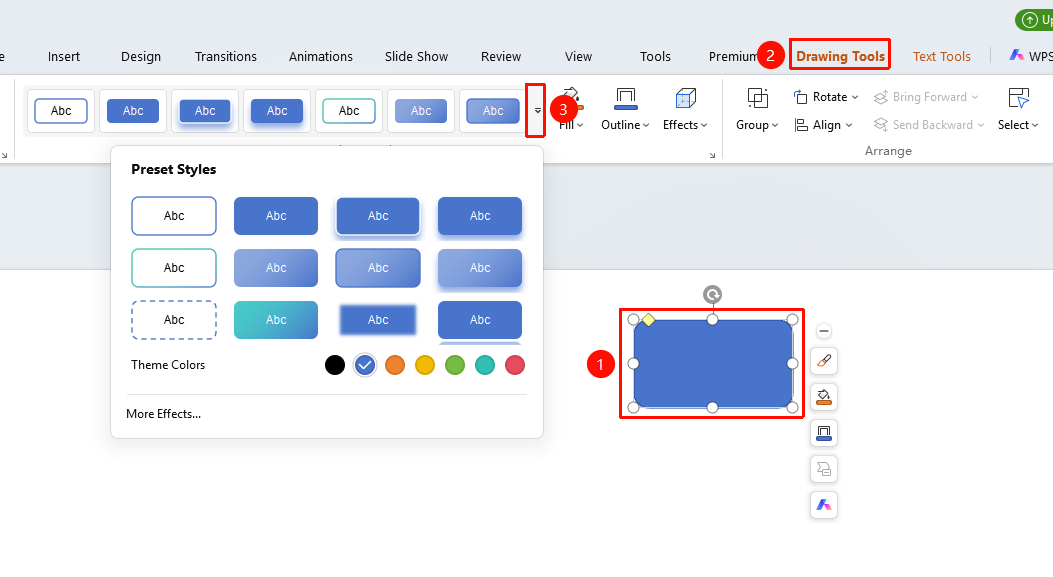
Drawing Tools tab → Shape Styles right-side dropdown button
- Select the shape you want to style
- Click the top Drawing Tools tab
- In the Shape Styles area, click a preset style to quickly apply it
- Theme Colors: Click to switch preset theme colors
- More Settings: Expand the right-side object properties panel for detailed settings
Customizing a Shape Style
Feature Entry
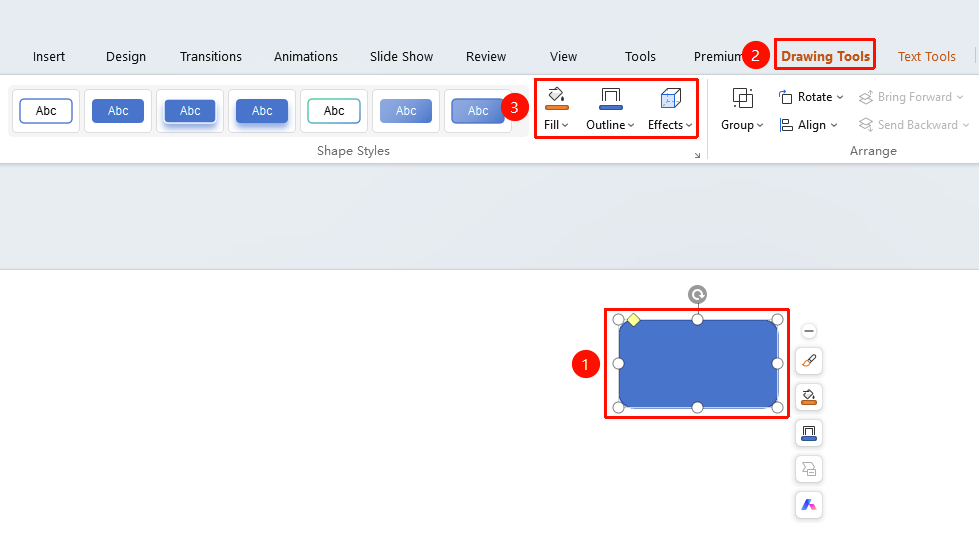
Drawing Tools tab → Shape Styles area → Shape Fill / Shape Outline / Effects
- Select the shape you want to style
- Click the Drawing Tools tab
- Click the Shape Fill, Shape Outline, and Effects buttons respectively for detailed settings
FAQ
Q1: How to quickly apply a professional style
- Solution: Click a preset style in the Shape Styles area to apply a professional visual effect with one click.
Q2: How to customize a shape style
- Solution: Set the shape fill, shape outline, and effects individually to customize a unique style.
Q2: How to customize a shape style
- Solution: Set the shape fill, shape outline, and effects individually to customize a unique style.
Notes
- Preset styles can quickly apply professional visual effects
- You can make custom adjustments on top of a preset style
- Right-click a shape to Set as Default Shape Style for the current shape style