Summary
The shape gradient fill feature is used to apply gradient color fill effects to shapes. You can customize parameters such as gradient style, angle, and color stop position to give shapes rich color transition effects.
Feature Description
| Feature Dimension | Description |
|---|---|
| Membership Restriction | Some fill styles require you to subscribe to a membership to use |
| Version Restriction | No version restriction |
Steps
Apply Gradient Fill
Feature Entry
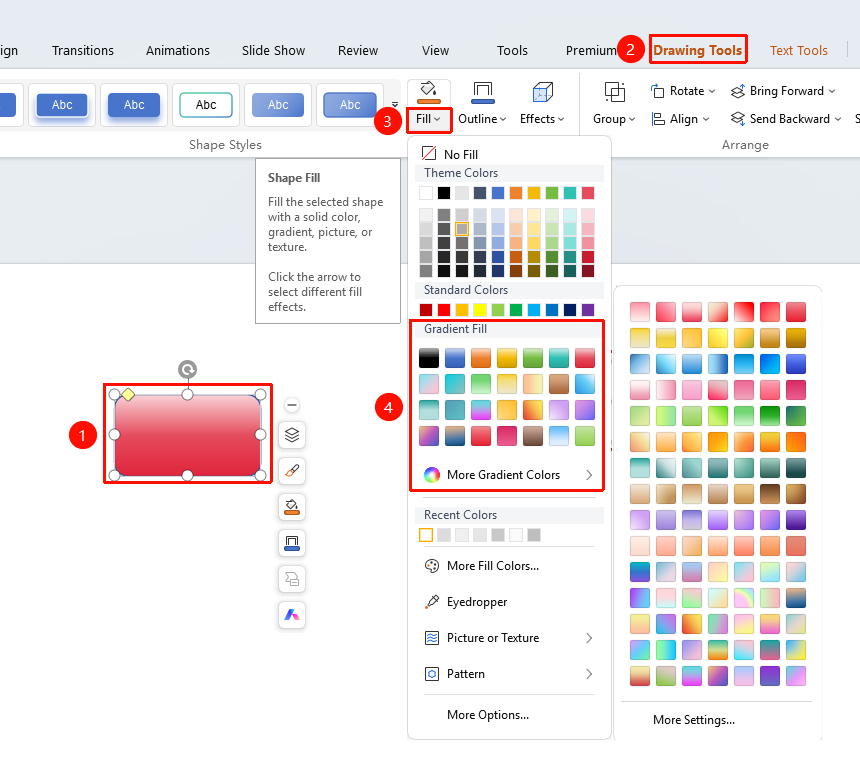
"Drawing Tools" tab → Shape Styles area → "Shape Fill"
- Select the shape you want to fill with a gradient color
- Click the top "Drawing Tools" tab
- Find and click the "Shape Fill" button to expand and set the following options
- "Theme Colors": Click a theme-based preset color to apply a solid fill
- "Gradient Fill": Click Gradient Fill or a preset color under More Fill Colors to quickly set a gradient fill
- "More Fill Colors": Customize the color
- Click the desired gradient style to apply it to the shape instantly
- Click "More Settings" to expand the Shape Fill panel
Custom Gradient Fill
Feature Entry
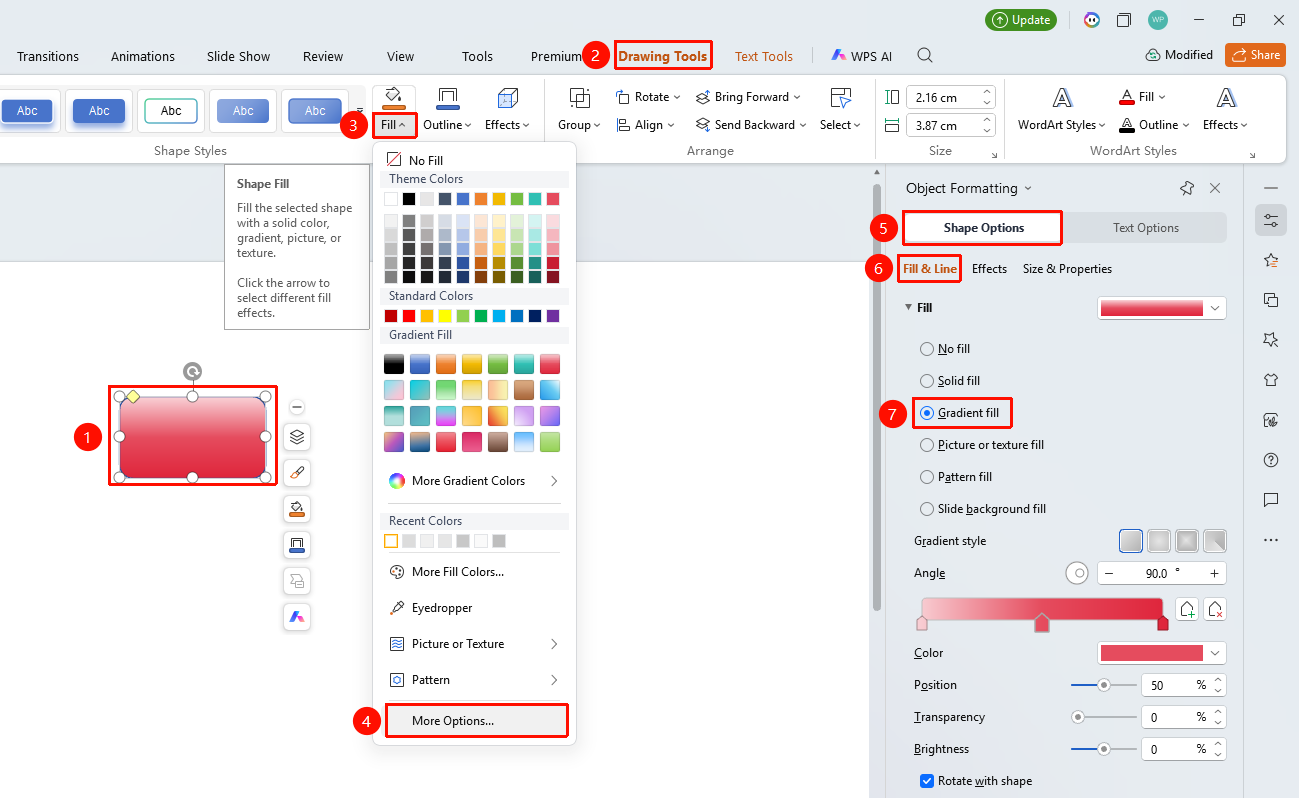
"Drawing Tools" tab → Shape Styles area → "Shape Fill" → "More Settings" → "Object Properties" → "Fill"
- Select the shape you want to fill with a gradient color
- Click the "Drawing Tools" tab
- Click the "Shape Fill" dropdown button to expand the dropdown menu
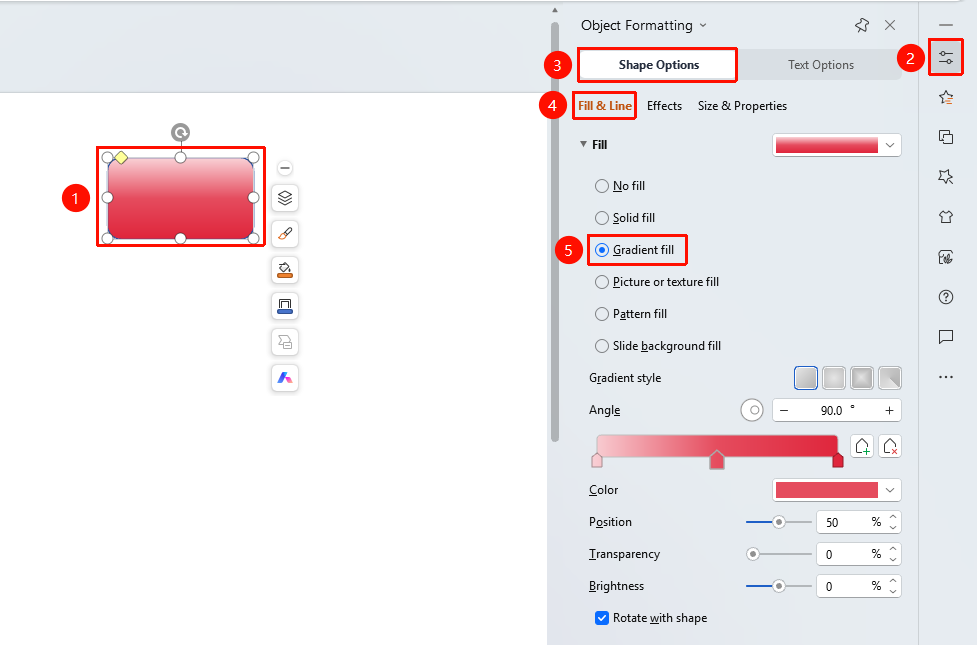
- Find and click "More Settings" in the dropdown menu to expand the right-side "Object Properties" sidebar
- Under the "Fill & Line" tab, click "Fill" to expand the fill list
- Select "Gradient fill" and set the following options:
- "Gradient style": Select the gradient style
- "Angle": Set the gradient angle
- "Color stop color": Set the color stop color
- "Position": Set the color stop position (0%–100%)
- "Transparency": Set the color stop transparency (0%–100%)
- "Brightness": Set the color stop brightness (0%–100%)
- "Rotate with shape": When checked, the gradient rotates with the shape
- Preview the effect in real time, and click a blank area to apply after adjustment
Settings via the "Home" Tab
Feature Entry
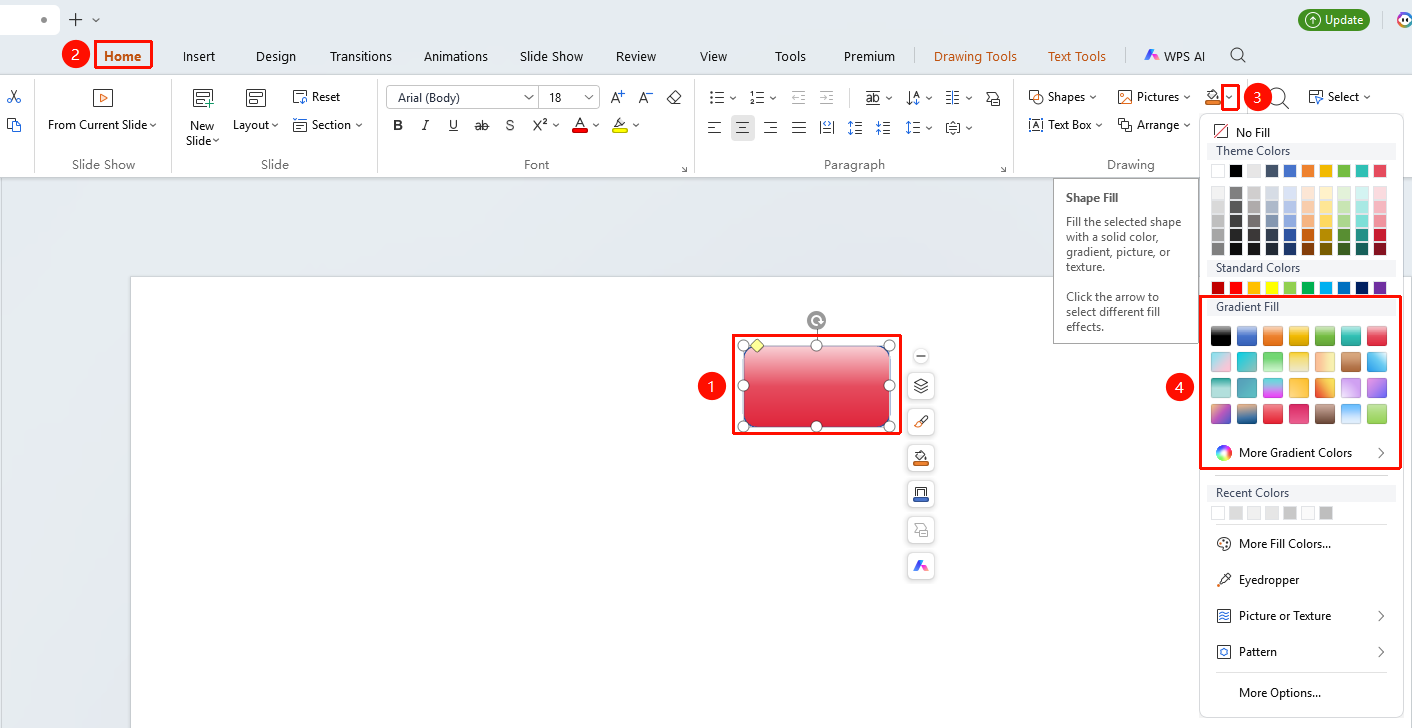
"Home" tab → Shape area → "Shape Fill"
- Select the shape you want to fill with a gradient color
- Click the top "Home" tab
- Find and click the "Shape Fill" button
- Select the gradient fill style
Settings via the Right-Click Menu
Feature Entry
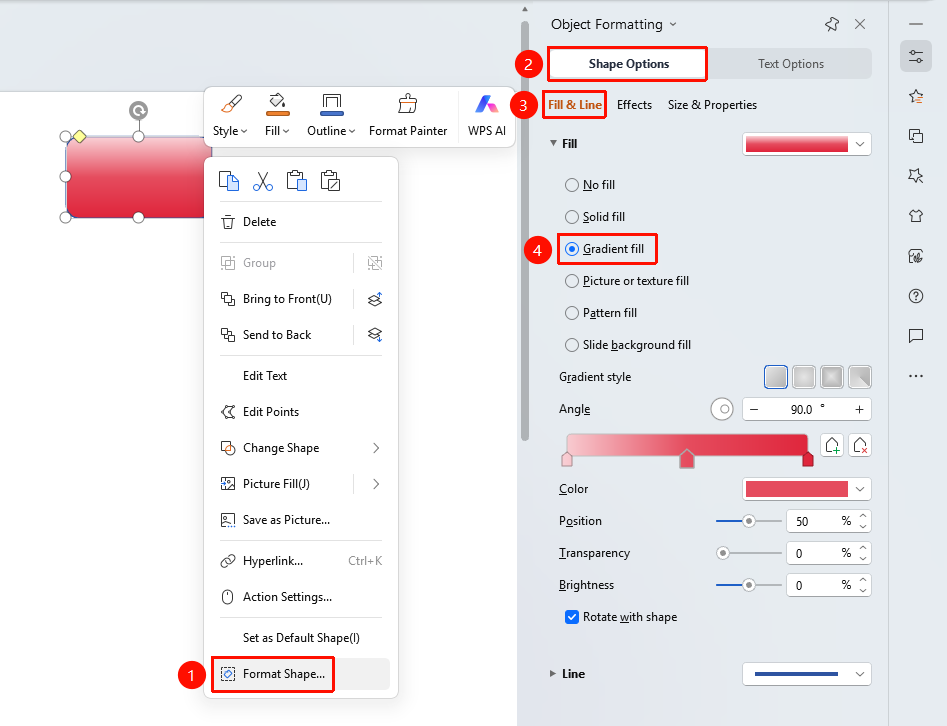
Shape right-click menu → "Format Object"
- Select the shape you want to fill with a gradient color
- Right-click the shape
- Select "Format Object"
- Set the gradient fill style in the right-side "Object Properties" sidebar
Settings via the Side Task Pane
Feature Entry
Side "Task Pane" → "Properties"
- Select the shape you want to fill with a gradient color
- Click the side "Properties" button
- Set the gradient fill style in the "Object Properties" sidebar
FAQ
Q1: How to adjust the gradient angle
- Solution: In the gradient fill settings, drag the angle slider or enter a value to adjust the gradient angle.
Q2: How to add more color stops
- Solution: Click on the color stop bar to add a new color stop, then set the color and position for each color stop.
Q3: How to set a linear gradient or radial gradient
- Solution: Select different gradient types such as linear, radial, or rectangular in the gradient style options.
Notes
- Gradient fill gives shapes rich color transition effects
- You can control color distribution by adjusting the color stop position
- Multiple color stops can create complex gradient effects