Feature Summary
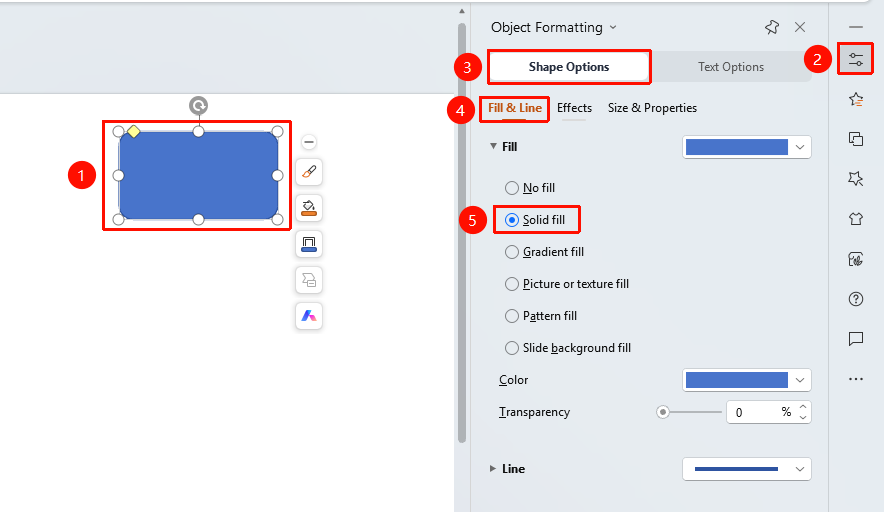
The shape solid fill feature is used to fill a shape with a single color. You can adjust the color transparency to give the shape a clean and clear visual effect.
Feature Description
| Feature Dimension | Description |
|---|---|
| Membership Restriction | No membership restriction |
| Version Restriction | No version restriction |
Operation Steps
Apply Solid Fill
Feature Entry
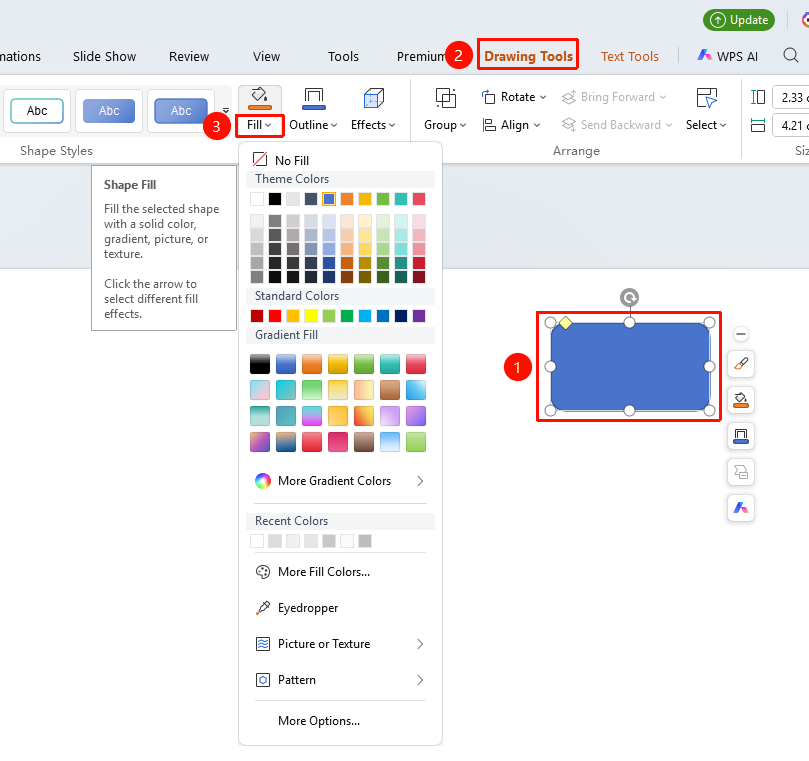
"Drawing Tools" tab → Shape Format group → "Shape Fill"
- Select the shape you want to fill with color
- Click the top "Drawing Tools" tab
- Find and click the "Shape Fill" button to expand and set the following options
- "Theme Colors": Click a preset color to quickly set a solid fill
- "Standard Colors": Select a standard color
- "More Fill Colors": Expand the standard/RGB color palette to get more preset color options
- "Recent Colors": Quickly select a recently used color
- Click the desired color to apply it to the shape with one click
- Click "More Settings" to expand the shape fill panel
Solid Fill Settings
Feature Entry
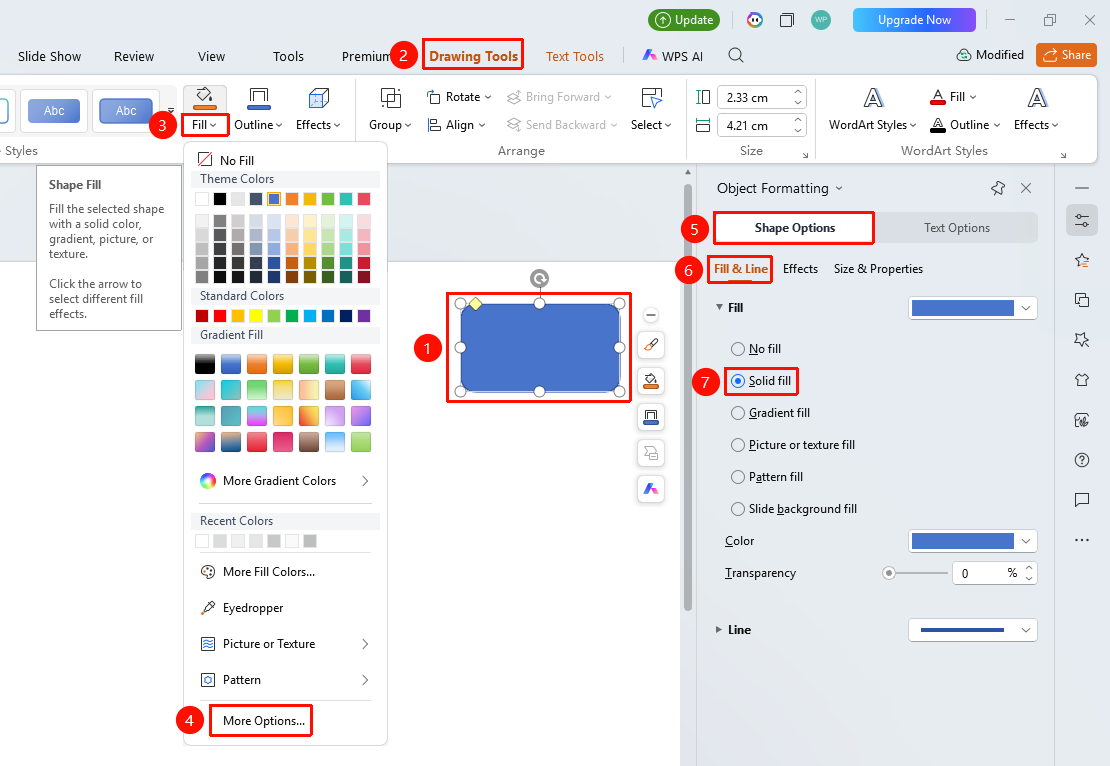
"Drawing Tools" tab → Shape Format group → "Shape Fill" → "More Settings" → "Object Properties" → "Fill"
- Select the shape you want to fill with color
- Click the "Drawing Tools" tab
- Click the "Shape Fill" drop-down button to expand the drop-down menu
- Find and click "More Settings" in the drop-down menu to expand the "Object Properties" sidebar on the right
- Under the "Fill & Line" tab, click "Fill" to expand the fill list
- Select "Solid Fill" and set the following options:
- "Color": Select the fill color
- "Transparency": Set the fill transparency (0%~100%)
- Preview the effect in real time, and click a blank area to apply
Settings via the "Home" Tab
Feature Entry
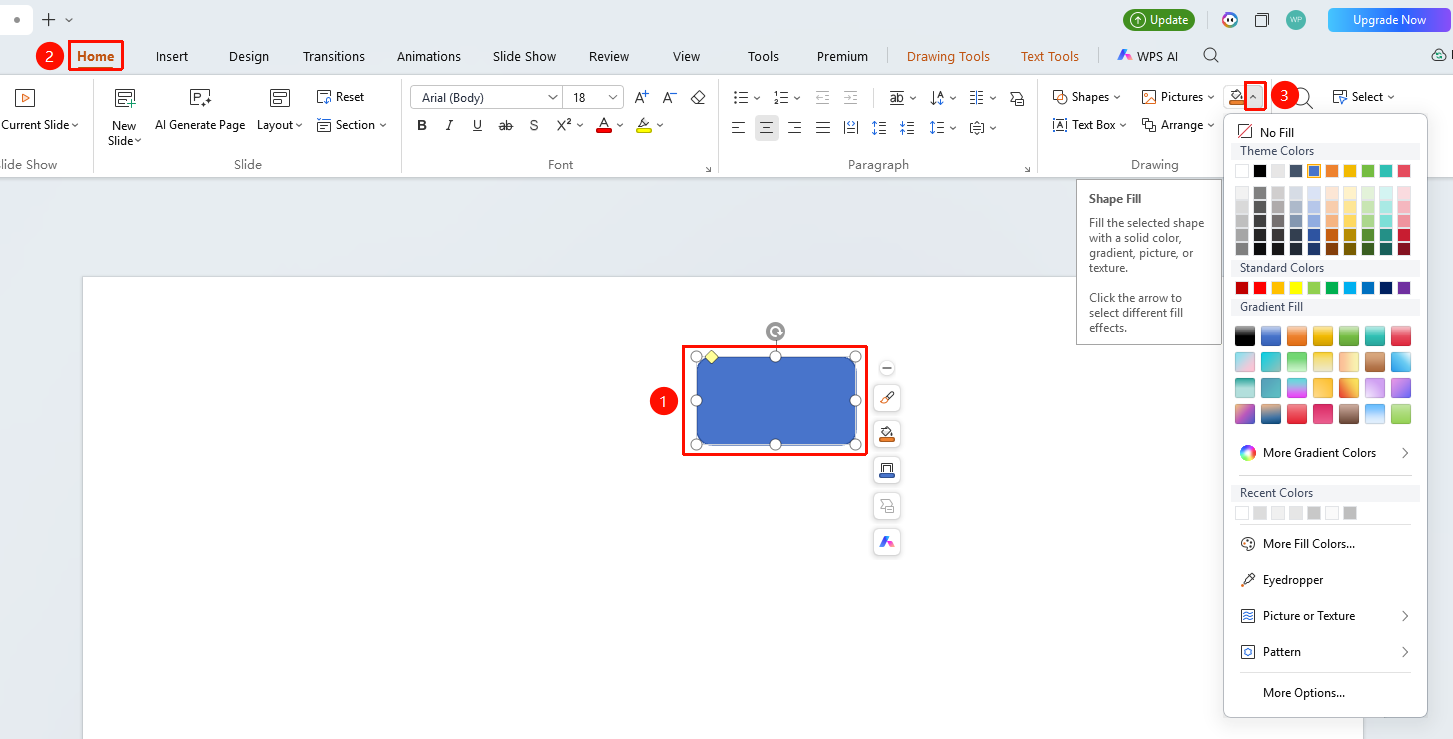
"Home" tab → Shape area → "Shape Fill"
- Select the shape you want to fill with color
- Click the top "Home" tab
- Find and click the "Shape Fill" button
- Select the desired color
Settings via Right-Click Menu
Feature Entry
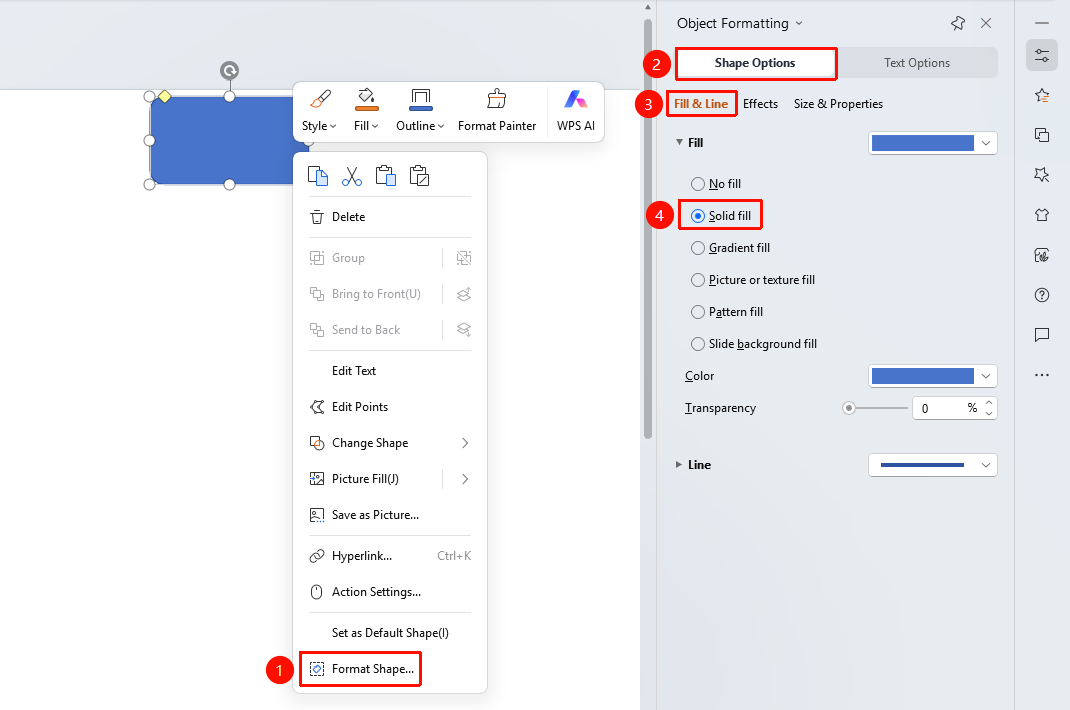
Shape right-click menu → "Format Object"
- Select the shape you want to fill with color
- Right-click the shape
- Select "Format Object"
- Set the fill style in the "Object Properties" sidebar on the right
Settings via Side Task Pane
Feature Entry
Side "Task Pane" → "Properties"
- Select the shape you want to fill with color
- Click the side "Properties" button
- Set the fill style in the "Object Properties" sidebar
FAQ
Q1: How to adjust the transparency of the fill color
- Solution: In the solid fill settings, drag the transparency slider or enter a percentage value to adjust the transparency.
Q2: How to restore the default fill of a shape
- Solution: Select "No Fill" in the fill options, or use Ctrl+Z to undo the operation.
Q3: How to select a custom color
- Solution: Click "More Fill Colors" in the color picker to view the standard/RGB color palette for more color options.
Notes
- Solid fill affects the overall appearance of the shape
- Semi-transparent effects can be achieved by adjusting the transparency
- Color selection affects the readability of the shape