Feature Summary
The Insert WPSArt feature is used to insert WPSArt into slides, expressing information relationships in an intuitive way. It includes various types of complex graphics such as lists, processes, and cycles.
Feature Description
| Feature Dimension | Description |
|---|---|
| Membership Restriction | No membership restriction |
| Version Restriction | No version restriction |
Operation Steps
Insert WPSArt
Feature Entry
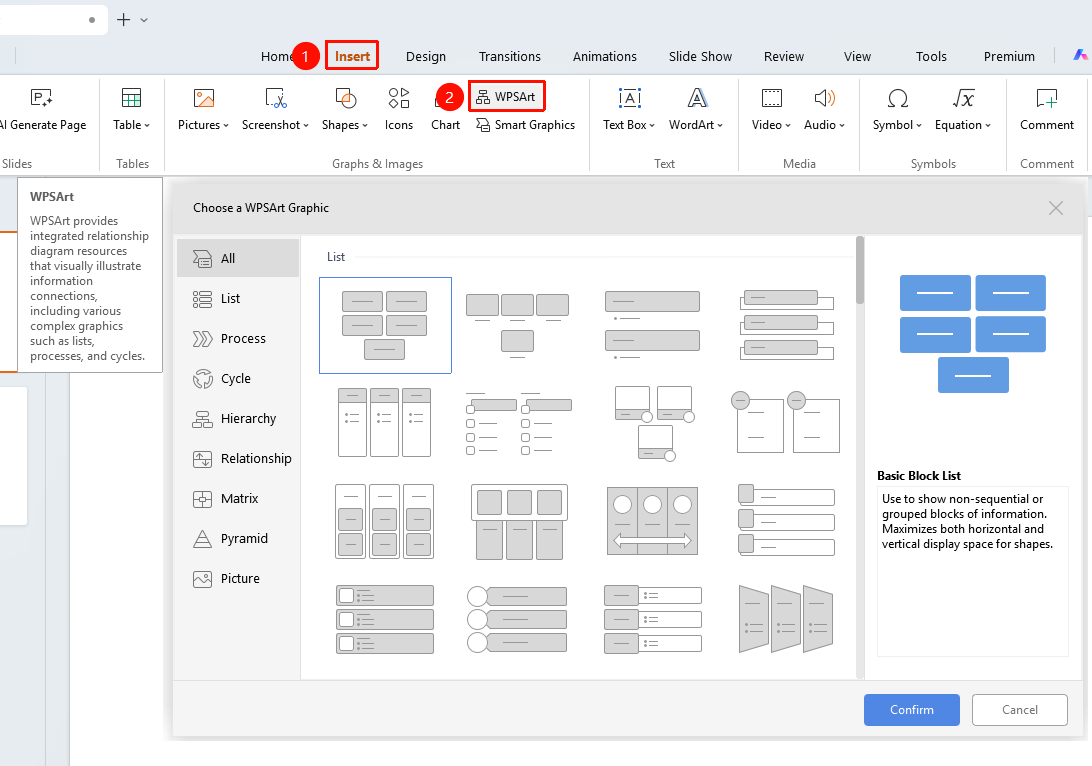
"Insert" tab → "WPSArt"
- Click the top "Insert" tab
- Locate and click the "WPSArt" button
- Select the desired WPSArt layout in the pop-up panel
- Click "OK" to insert the graphic
- Enter content in the text box
Frequently Asked Questions
Question 1: What is the relationship between WPSArt and SmartArt
- Solution: WPSArt is a Smart Graphics feature in WPS similar to SmartArt, used to create diagrams with hierarchical structures.
Question 2: What should I do if I find the layout unsuitable after insertion
- Solution: You can switch the layout in the "Design" tab, or press Ctrl+Z to undo and then reselect.
Notes
- WPSArt automatically adjusts the layout based on the content
- After insertion, detailed settings can be made in the top "Design" and "Format" tabs