Feature Summary
The Docs Direction feature is used to control the arrangement direction of text within slide text boxes, supporting horizontal, vertical, rotated 90°/270°, and stacked arrangements to meet various layout and design needs.
Feature Description
| Feature Dimension | Description |
|---|---|
| Membership Restriction | No membership restriction |
| Version Restriction | No version restriction |
Steps
Setting Text Direction
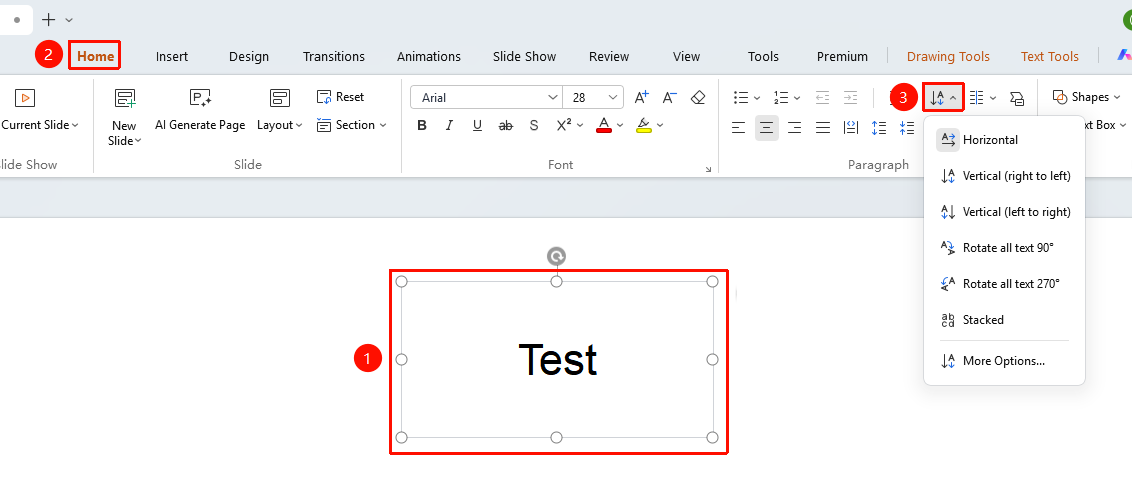
Feature Entry 1
"Home"tab → "Paragraph" group → "Docs Direction" button → Drop-down menu
- Double-click the text box on the slide to enter Read Mode, then select the text box or text for which you want to adjust the text direction.
- Click the "Home" tab on the top menu bar.
- In the "Paragraph" group, click the drop-down arrow of the "Docs Direction" button.
- Select the desired text direction from the pop-up drop-down menu:
- Horizontal Text: Text is arranged horizontally from left to right (default mode).
- Vertical Text: Text is arranged vertically from top to bottom.
- Rotate All Text 90°: All text is rotated 90 degrees clockwise, reading from top to bottom.
- Rotate All Text 270°: All text is rotated 270 degrees clockwise, reading from bottom to top.
- Stacked Text: Individual characters are stacked vertically, with each character on its own line.
- After selection, the text direction in the text box updates immediately.
Feature Entry 2
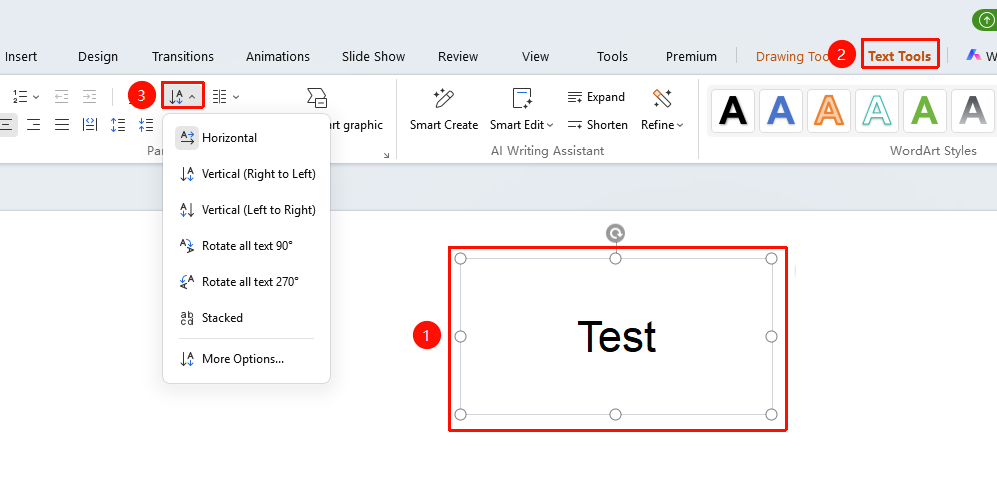
"Text Tools" tab → "Paragraph" group → "Docs Direction" button → Drop-down menu
- Double-click the text box on the slide to enter Read Mode, then select the text box or text for which you want to adjust the text direction.
- Click the "Text Tools" tab on the top menu bar.
- In the "Paragraph" group, click the drop-down arrow of the "Docs Direction" button.
- Select the desired text direction from the pop-up drop-down menu:
- Horizontal Text: Text is arranged horizontally from left to right (default mode).
- Vertical Text: Text is arranged vertically from top to bottom.
- Rotate All Text 90°: All text is rotated 90 degrees clockwise, reading from top to bottom.
- Rotate All Text 270°: All text is rotated 270 degrees clockwise, reading from bottom to top.
- Stacked Text: Individual characters are stacked vertically, with each character on its own line.
- After selection, the text direction in the text box updates immediately.
FAQ
Q1: Will the text box size adjust automatically after setting the text direction?
- Solution: Yes. After selecting a vertical or rotated direction, the width and height of the text box may automatically switch to accommodate the new text arrangement direction. You can manually adjust the text box size as needed.
Q2: Can I set different text directions for parts of the text within the same text box?
- Solution: No. The text direction setting applies to the entire text box. You cannot set different text directions for different paragraphs within the same text box. If mixed arrangement is needed, it is recommended to use multiple independent text boxes.
Notes
- The text direction setting applies to the entire text box, not to individual paragraphs or characters.
- After setting the text direction, the existing alignment and indentation settings may automatically adjust according to the new direction.
- In vertical and rotated modes, some fonts may display abnormally. It is recommended to choose fonts that support vertical layout.