Feature Summary
The AutoFit Text feature is used to control the relationship between the text inside a text box and the size of the text box, helping users flexibly manage the layout and display effect of text boxes.
Feature Description
| Feature Dimension | Description |
|---|---|
| Membership Restriction | No membership restriction |
| Version Restriction | No version restriction |
Steps
Set Text Margins via Task Pane
Feature Entry
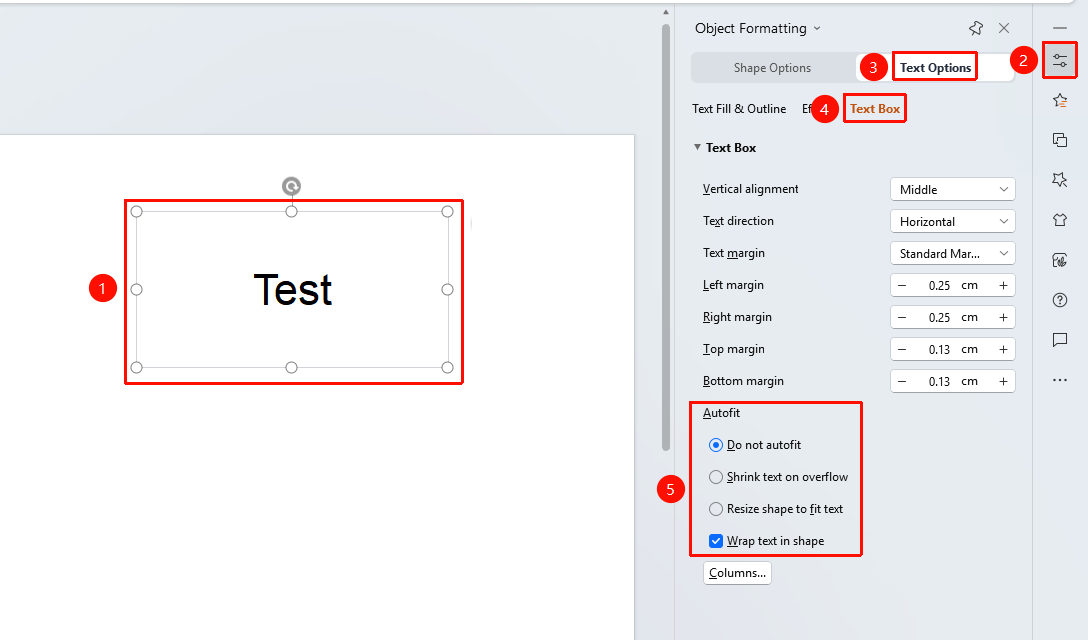
"Object Properties" tab → "Text Options" tab → "Text Box"
- Select the text box or the text inside it for which you want to set text margins
- Click the "Object Properties" tab in the sidebar Task Pane
- Switch to the "Text Options" tab → "Text Box" option
- In the "AutoFit Text" section, select the desired adjustment mode:
- "Do not AutoFit": The text box size is fixed, and overflowing text will be partially hidden
- "Shrink text on overflow": When there is too much text, the font size is automatically reduced to fit the text box
- "Resize shape to fit text": The text box automatically adjusts its size to fit the text content
- Check or uncheck the "Wrap text in shape" option as needed (When checked, text within the text box will automatically wrap when it reaches the text box boundary. When unchecked, text will not wrap automatically and may extend beyond the text box area.)
Set AutoFit Text via Right-Click Menu
Feature Entry
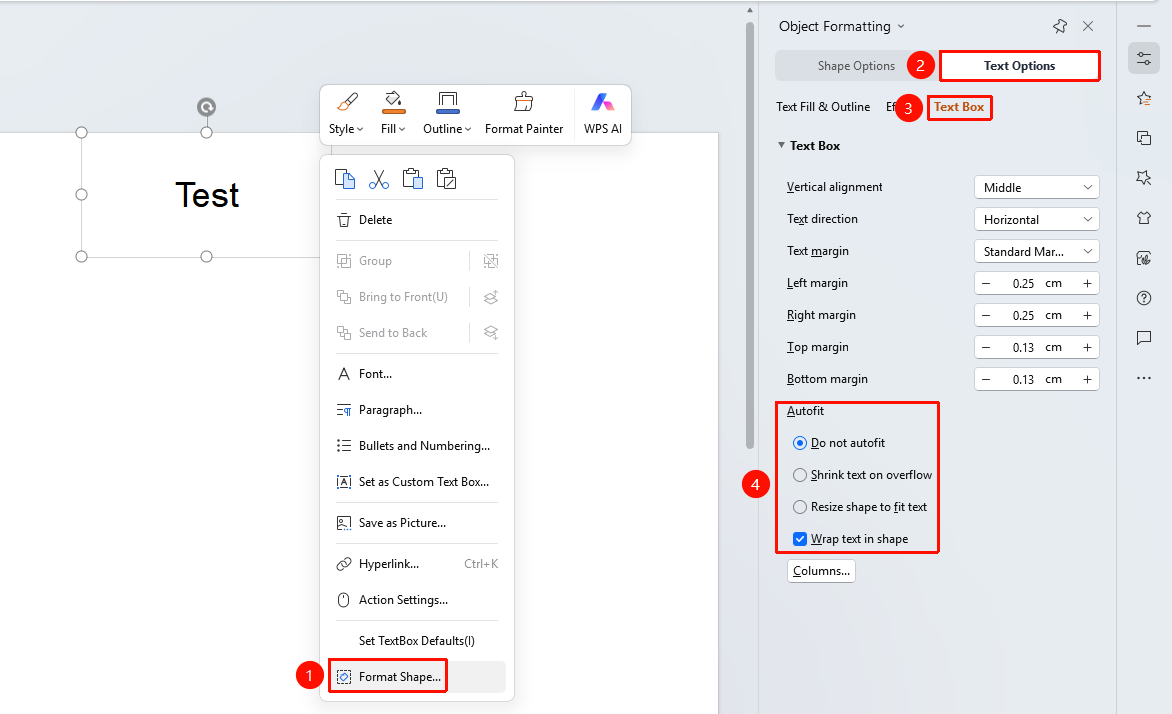
"Right-click" menu → "Format Object" → "Text Options" tab → "Text Box"
- Select the text box or the text inside it for which you want to set text margins
- Right-click to bring up the context menu and select "Format Object"
- In the pop-up "Object Properties" menu, switch to the "Text Options" tab → "Text Box" option
- In the "AutoFit Text" section, select the desired adjustment mode
- Check or uncheck the "Wrap text in shape" option
- Click the "OK" button to apply the settings
FAQ
Q1: What is the relationship between the AutoFit Text feature and text margins?
- Solution: AutoFit Text controls the relationship between the text and the overall size of the text box, while text margins control the specific distance between the text and the edges of the text box. Both can be set simultaneously; text margins will further fine-tune the text position based on the auto-fit settings.
Notes
- Different adjustment modes are suitable for different usage scenarios; it is recommended to choose based on actual needs
- In "Shrink text on overflow" mode, text may become very small, affecting readability
- It is recommended to use the same auto-fit mode for similar types of text boxes within the same presentation