Feature Summary
The Text Margin feature is used to adjust the distance between the text inside a text box and the edges of the text box. By setting the top, bottom, left, and right margins, you can precisely control the position and layout of the text within the text box, making the text layout more aesthetically pleasing and professional.
Feature Description
| Feature Dimension | Description |
|---|---|
| Membership Restriction | No membership restriction |
| Version Restriction | No version restriction |
Steps
Setting Text Margin via the Task Pane
Feature Entry
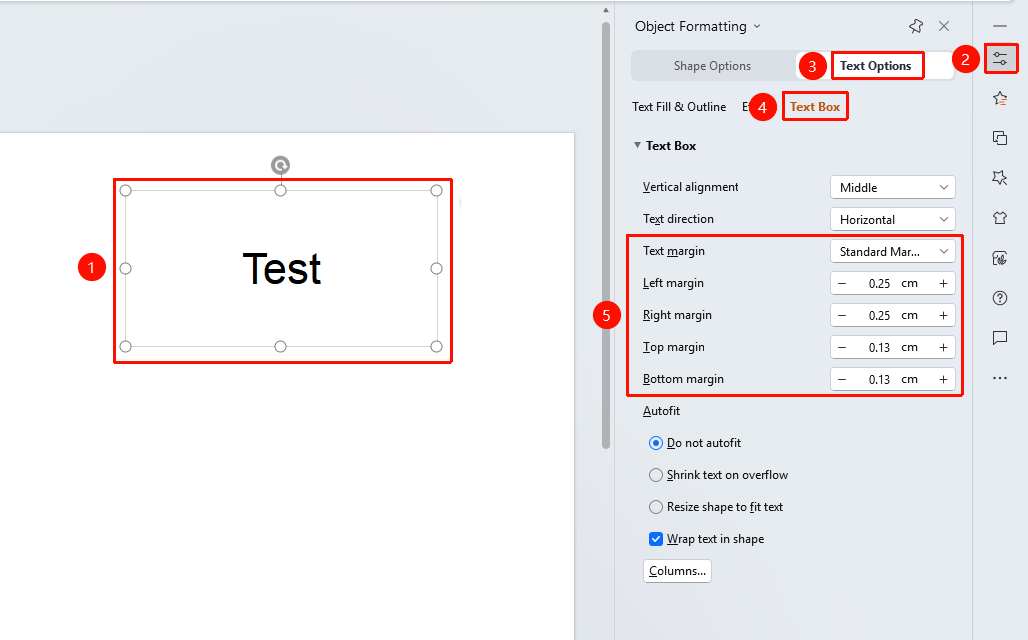
"Object Properties" tab → "Text Options" tab → "Text Box"
- Select the text box or the text within the box for which you want to set the docs margin
- Click the "Object Properties" tab in the side Task Pane
- Switch to the "Text Options" tab → "Text Box" option
- Click the "Text Margin" dropdown menu and choose from the following options
- "No Margin" : No spacing between the text inside the box and the text box
- "Narrow Margin" : Narrow margin between the text and the text box, default (0.13 cm)
- "Standard Margin" : Standard margin between the text and the text box, default (left and right margins 0.25 cm, top and bottom margins 0.13 cm)
- "Wide Margin" : Wide margin between the text and the text box, default (0.38 cm)
- "Extra Wide Margin" : Wide margin between the text and the text box, default (left and right margins 0.75 cm, top and bottom margins 0.38 cm)
- "custom Margin" : Set the values for "Left Margin" , "Right Margin" , "Top Margin" , and "Bottom Margin" individually below
- Once set, the text inside the text box will automatically rearrange according to the new margins
Setting Text Margin via the Right-Click Menu
Feature Entry
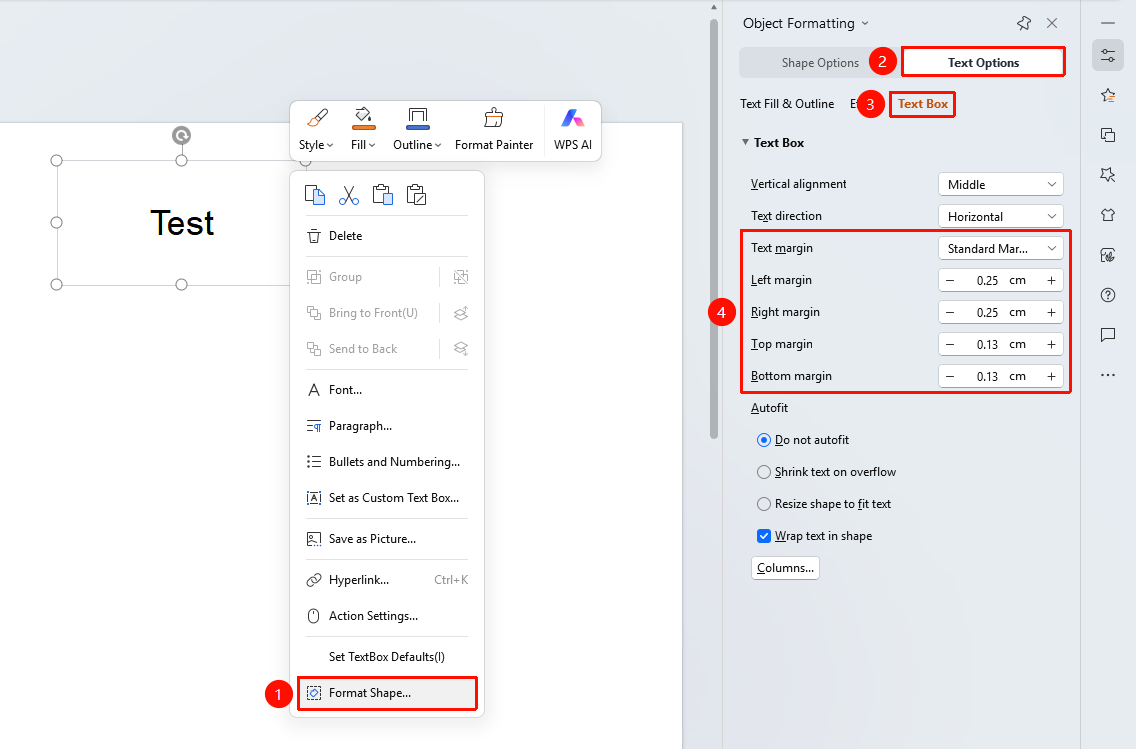
"Right-click" menu → "Format Object" → "Text Options" tab → "Text Box"
- Select the text box or the text within the box for which you want to set the docs margin
- Right-click to bring up the context menu and select "Format Object"
- In the pop-up "Object Properties" menu, switch to the "Text Options" tab → "Text Box" option
- Locate the "Text Margin" settings area
- Set the desired values for the top, bottom, left, and right margins
- Click the "OK" button to apply the settings
FAQ
Q1: How do I restore the default values after setting the docs margin?
- Solution: select the ‘Standard’ preset option from the "Text Margin" dropdown menu, or manually set the margins to the default values (top and bottom margins 0.13 cm, left and right margins 0.25 cm). You can also delete the text box and recreate it; the new text box will use the default margins.
Q2: Can different text boxes have different Text Margin?
- Solution: Yes. The Text Margin for each text box is set independently, allowing you to set different margin values for different text boxes. Simply select the corresponding text box and set it individually in the Object Properties panel.
Notes
- The unit for docs margin is centimeters
- Margin settings affect the layout of all text within the text box, including titles, body text, etc.
- It is recommended to keep the margin settings consistent for similar text boxes within the same slides to maintain visual uniformity