Feature Summary
The New Window feature is used to create a new window copy of the current presentation, allowing you to view and edit different parts of the same document simultaneously in separate windows.
Feature Description
| Feature Dimension | Description |
|---|---|
| Membership Restriction | No membership restriction |
| Version Restriction | No version restriction |
Steps
New Window
Feature Entry
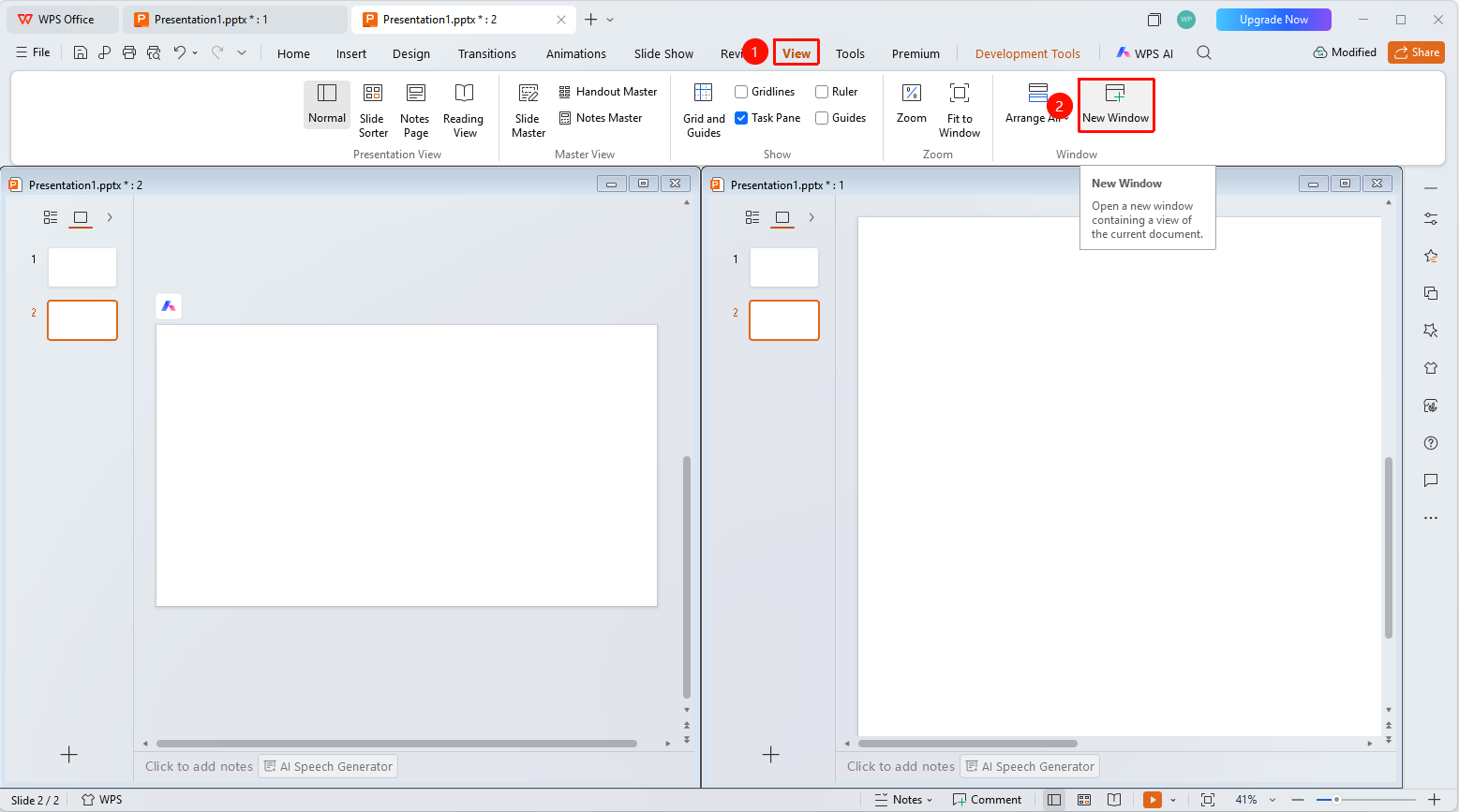
"View" tab → "New Window"
- Click the top "View" tab
- Find and click the "New Window" button
- The system will create a new window copy of the current document:
- The window title will display the document name and a sequence number (e.g., Presentation1:1, Presentation1:2)
- Editing in either window will be synchronized to the other window
- You can use "Arrange Windows" to view multiple windows simultaneously
FAQ
Q1: What is the use of New Window
- Solution: It allows you to edit at different locations within the same document, making it convenient to compare and reference different parts of the document.
Q2: Will the content of the two windows be synchronized
- Solution: Yes, they will be synchronized. Any edits made in either window will be updated in real-time in the other window because it is the same document.
Notes
- New Window only creates a window copy and does not duplicate the document
- Closing one of the windows will not delete the document content