Feature Summary
The Zoom feature is used to adjust the magnification of the slide editing area, allowing you to zoom in or out to view details or the overall layout.
Feature Description
| Feature Dimension | Description |
|---|---|
| Membership Restriction | No membership restriction |
| Version Restriction | No version restriction |
Steps
Adjusting Zoom
Feature Entry
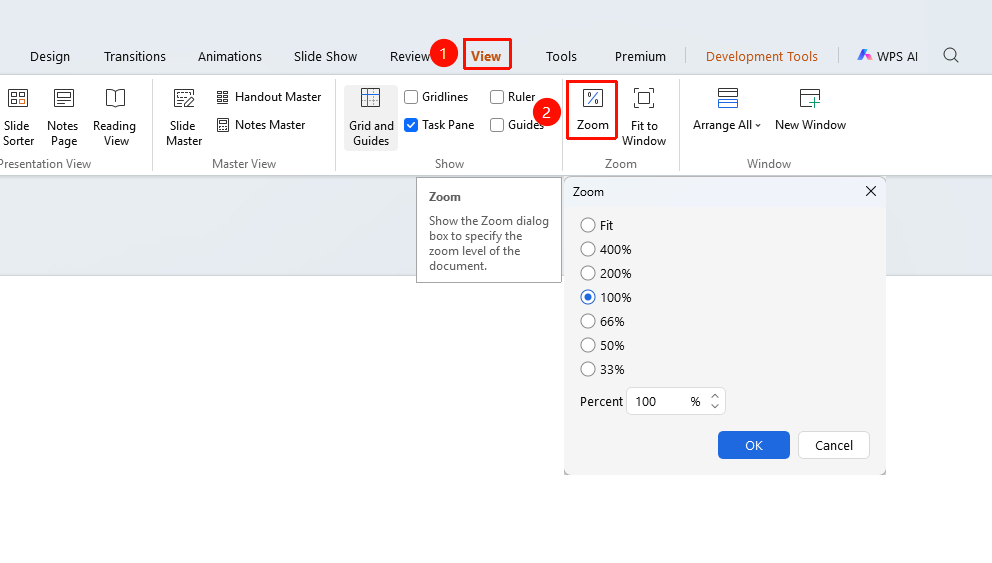
"View" tab → "Zoom"
- Click the top "View" tab
- Find and click the "Zoom" button
- In the pop-up dialog, select a preset zoom ratio or enter a custom zoom ratio
- Click OK to apply
Quick Zoom Adjustment
Feature Entry
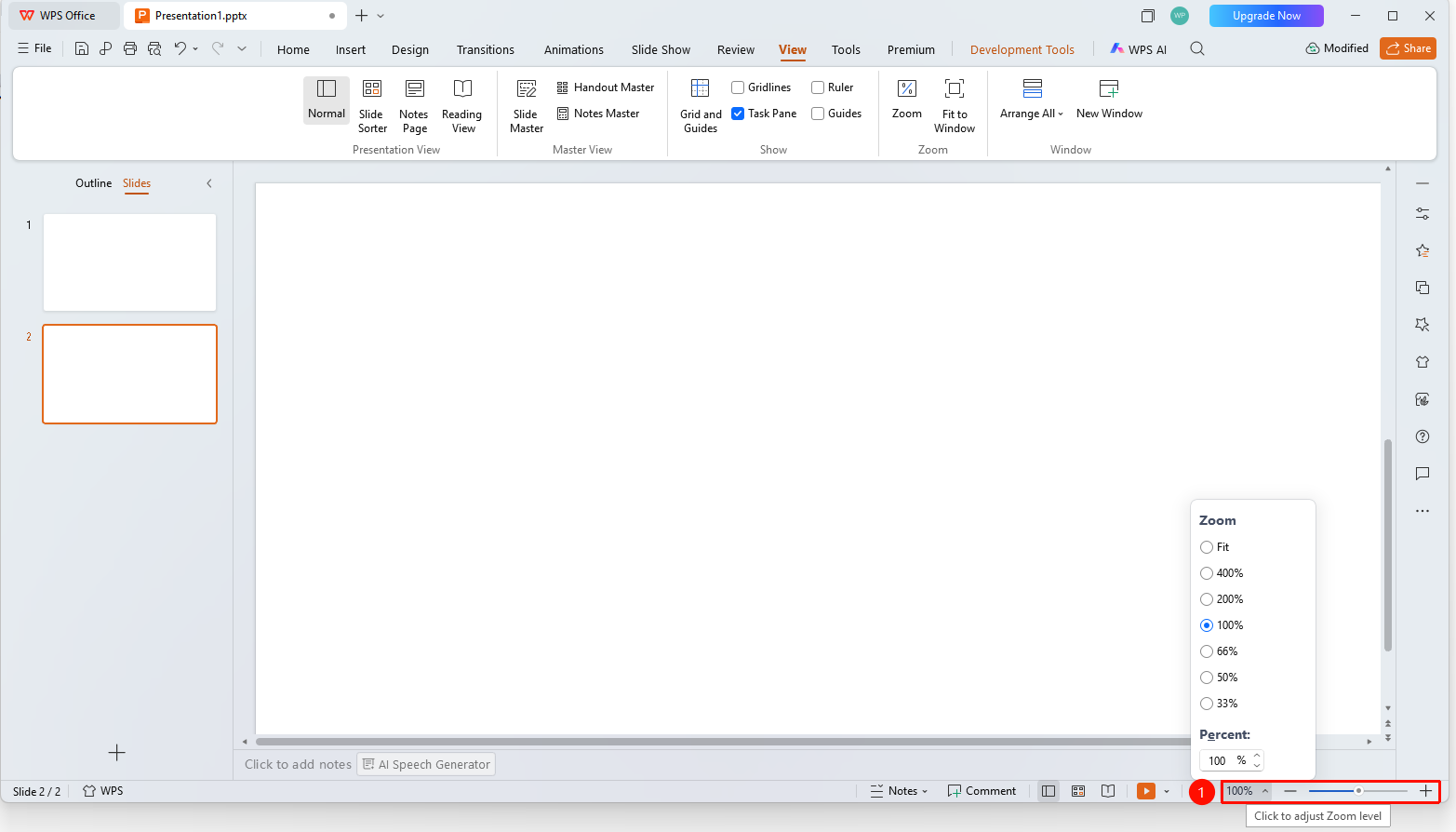
Status bar at the bottom of the screen
- On the status bar at the bottom of the screen, you can find the following
- "Zoom Slider": There is a zoom slider on the bottom status bar. Slide it or use the "+" / "-" buttons to adjust the zoom ratio.
- "Zoom Level": Click to expand the zoom level window, enter the desired zoom ratio, or use a preset zoom ratio.
- "Shortcut": Hold down the Ctrl key and scroll the mouse wheel
Notes
- The zoom ratio only affects the editing view and does not affect actual printing or presentation playback.