Feature Summary
The Normal View feature is used to switch to the default editing view of the presentation, allowing you to view the slide thumbnails and editing area simultaneously. It is the primary view mode for daily editing.
Feature Description
| Feature Dimension | Description |
|---|---|
| Membership Restriction | No membership restriction |
| Version Restriction | No version restriction |
Steps
Switch to Normal View
Feature Entry
"View" tab → "Normal View"
- Click the top "View" tab
- Find and click the "Normal View" button
- Switch to the normal editing view
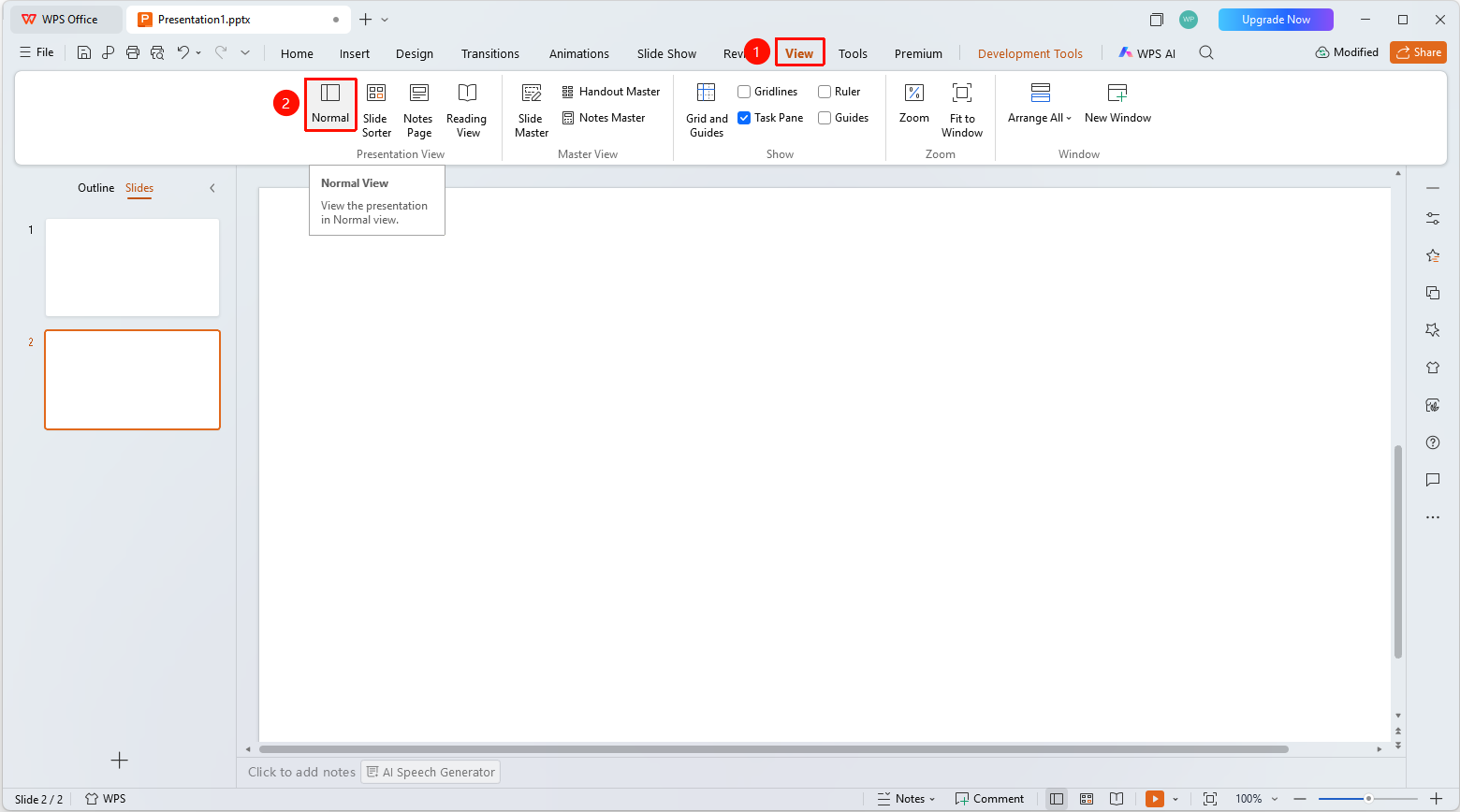
Normal View Layout
- "Left": Slide thumbnail panel
- "Center": Slide editing area
- "Bottom": Notes area (optional) and status bar
FAQ
Q1: What are the characteristics of Normal View?
- Solution: Normal View is the default editing view, allowing you to see all slide thumbnails while editing the current slide.
Q2: How to return to Normal View from other views?
- Solution: Click the top "View" tab → "Normal View" to switch back.
Notes
- Normal View is the most commonly used editing view
- Suitable for editing and formatting slide content