Feature Summary
The ruler feature displays horizontal and vertical rulers in the slide editing area, helping users precisely measure and position objects to improve layout accuracy.
Feature Description
| Feature Dimension | Description |
|---|---|
| Membership Restriction | No membership restriction |
| Version Restriction | No version restriction |
Operation Steps
Show/Hide Ruler
Feature Entry ①
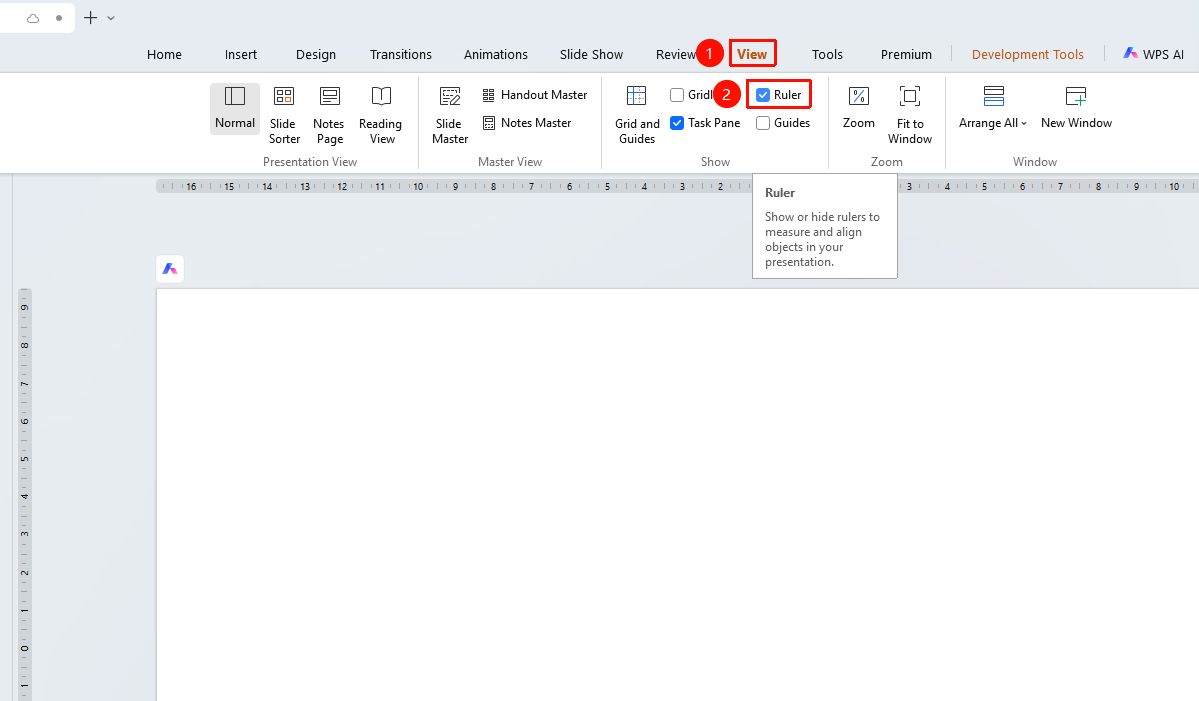
"View" tab → "Ruler"
- Click the top "View" tab
- Find and click to enable "Ruler"
- The ruler will be displayed at the top and left of the editing area:
- "Horizontal Ruler": Displayed at the top of the editing area, used to measure horizontal position
- "Vertical Ruler": Displayed on the left side of the editing area, used to measure vertical position
- "Zero Point Position": The ruler zero point defaults to the center of the slide
Feature Entry ②
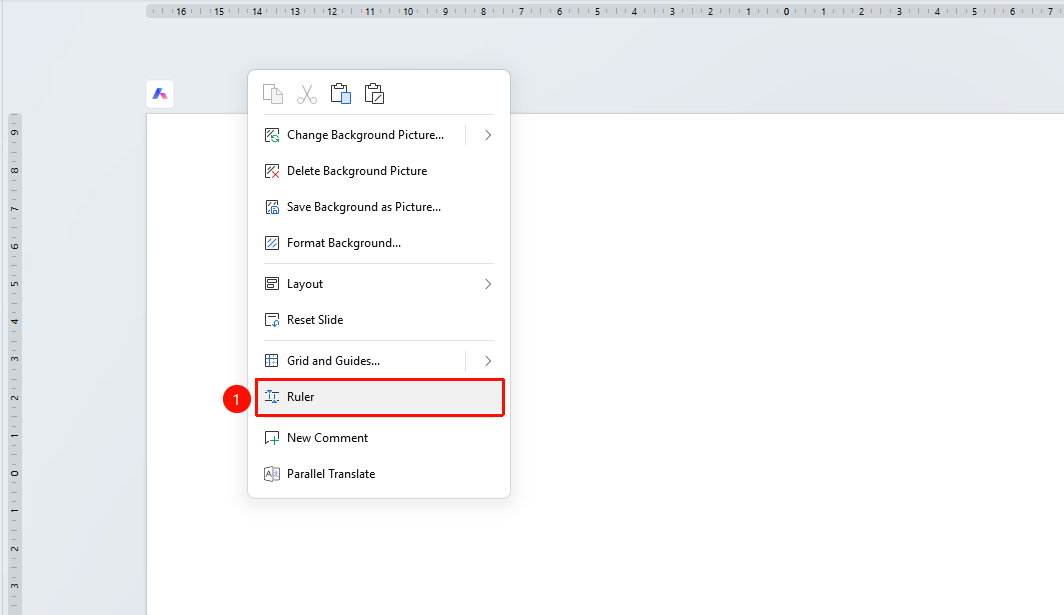
Right-click menu on blank slide area → "Ruler"
- Right-click on a blank area of the slide
- Find and click the "Ruler" button to show/hide the ruler
Show/Hide Vertical Ruler
Feature Entry
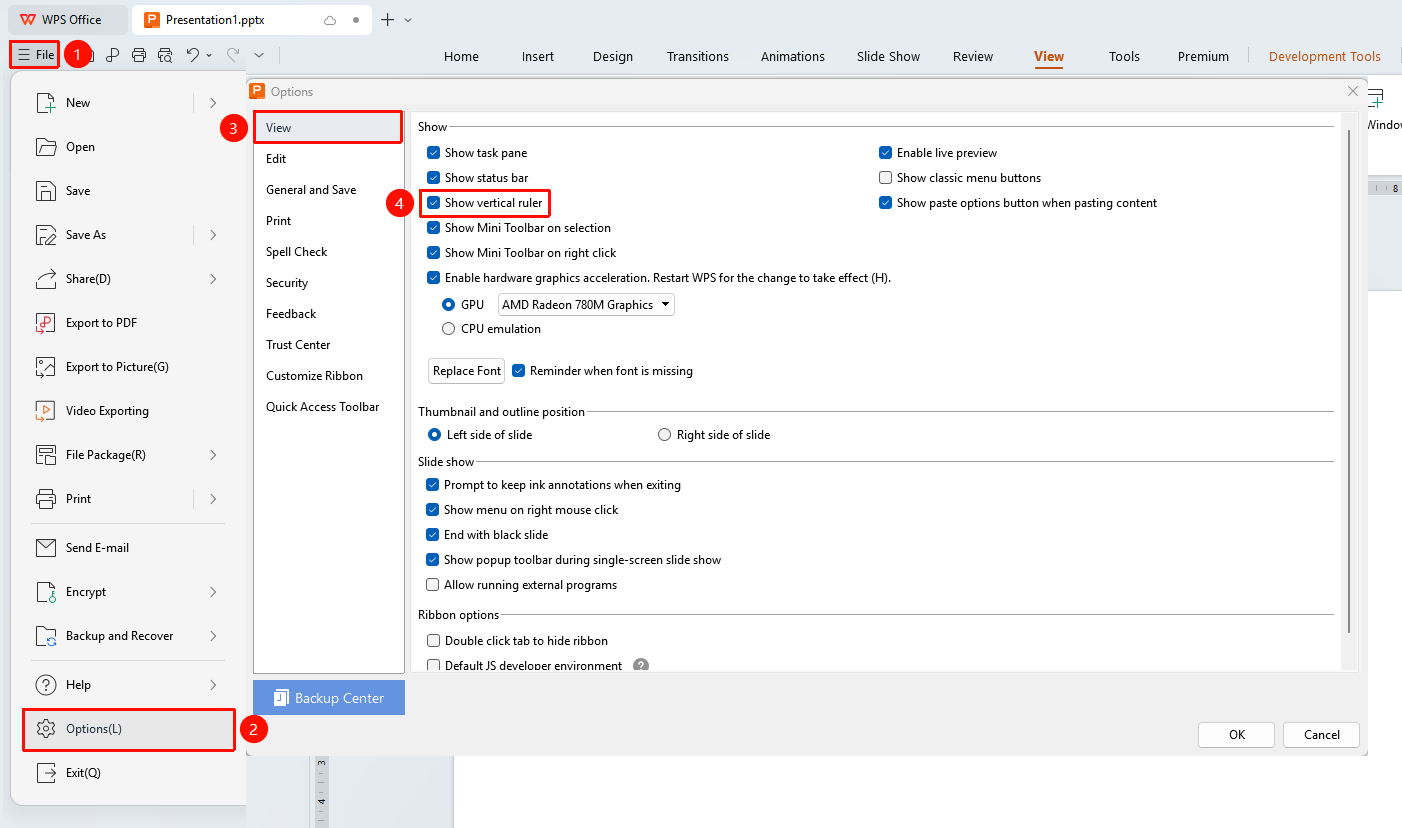
"File" tab → "Options" → "View" → "Vertical Ruler"
- Click the top-left "File" tab
- Find and click "Options" to expand the options panel
- Switch to the "View" section, and enable/disable "Vertical Ruler"
- Click "OK" to apply the settings
Notes
- The ruler is only displayed in Normal view
- Helps precisely measure and position objects