Feature Summary
The Group Shapes feature is used to combine multiple shapes into a single object for easier unified moving, resizing, or applying styles. You can also ungroup a combined shape to restore the individual shapes.
Feature Description
| Feature Dimension | Description |
|---|---|
| Membership Restriction | No membership restriction |
| Version Restriction | No version restriction |
Steps
Group Shapes
Feature Entry
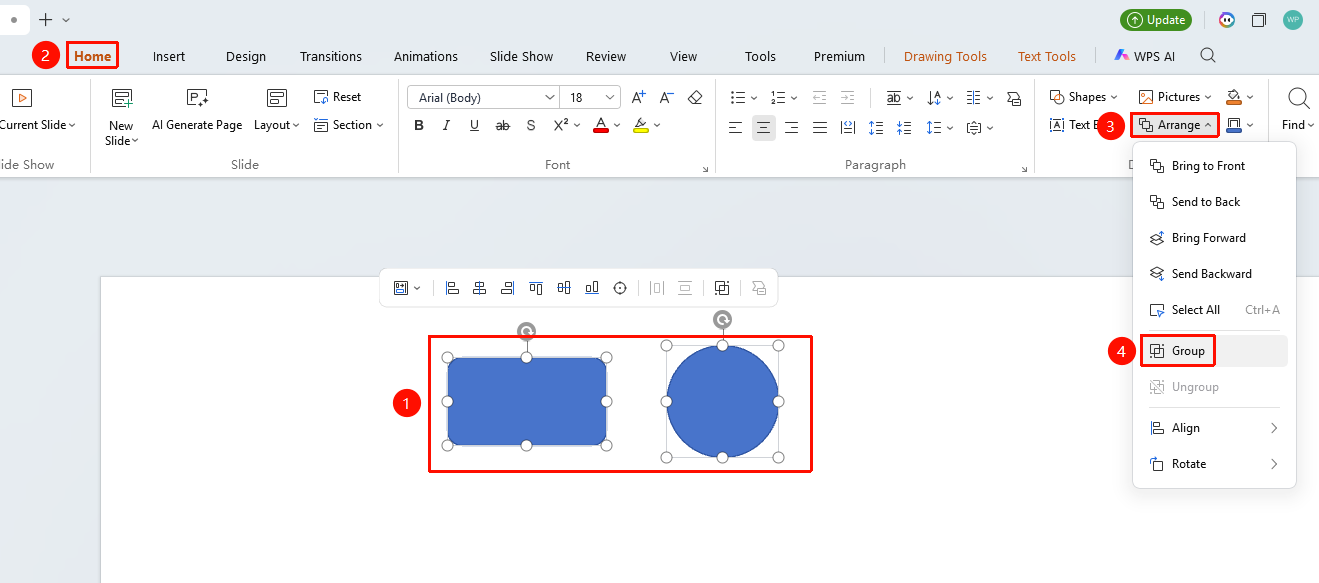
"Home" tab → Arrange → "Group"
- Select the multiple shapes you want to group
- Click the top "Home" tab
- Find and click the "Arrange" button
- Select "Group" from the drop-down menu
- The multiple shapes will be merged into a single object
Ungroup Shapes
Feature Entry
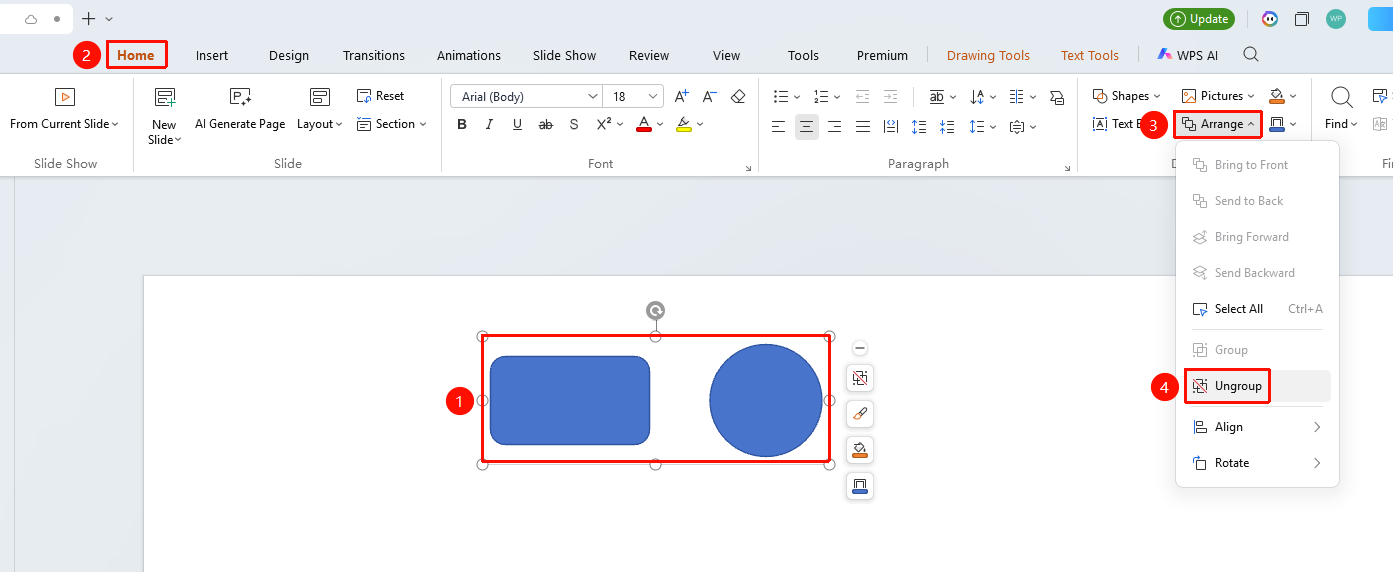
"Home" tab → Arrange → "Ungroup"
- Select the grouped shape
- Click the top "Home" tab
- Find and click the "Arrange" button
- Select "Ungroup" from the drop-down menu
- The grouped shape will be restored to individual shapes
Floating Toolbar Settings
Feature Entry
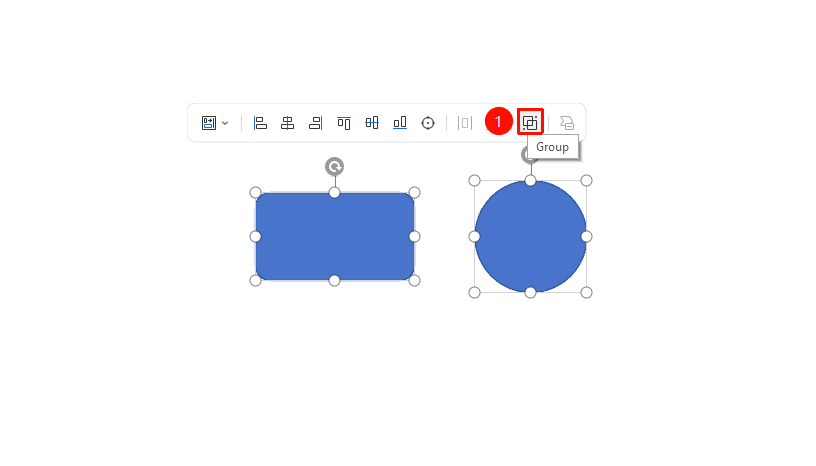
Floating toolbar → "Group"
- Select the multiple shapes you want to group
- Click the "Group" button on the floating toolbar
- The multiple shapes will be merged into a single object
- Click the "Ungroup" button on the floating toolbar to ungroup the shapes that have been set as a group
Right-Click Menu Settings
Feature Entry
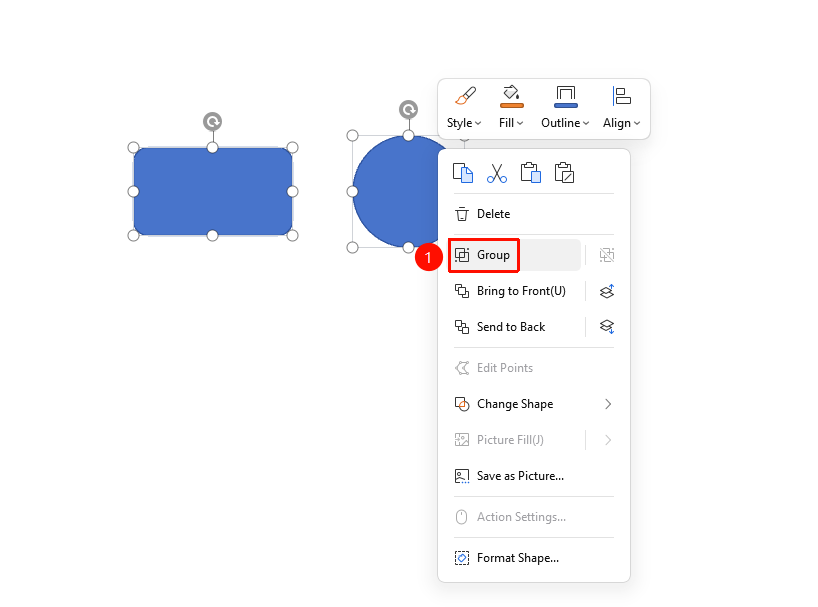
Shape right-click menu → "Group"
- Select the multiple shapes you want to group
- Right-click the selected shapes
- Select "Group" / "Ungroup" from the right-click menu
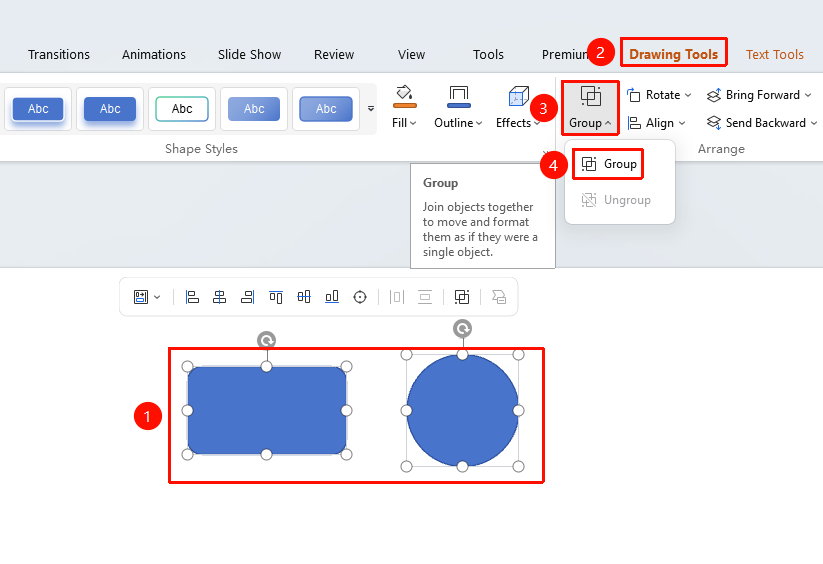
"Drawing Tools" Tab Settings
Feature Entry
"Drawing Tools" tab → "Group"
- Select the multiple shapes you want to group
- Click the top "Drawing Tools" tab
- Find and click the "Group" button
- Select "Group" or "Ungroup" from the drop-down menu
FAQ
Q1: How to select multiple shapes for grouping
- Solution: Hold down the Ctrl key and click the shapes you want to group one by one, or use the mouse to drag a selection box around multiple shapes.
Q2: How to edit a single shape after grouping
- Solution: Double-click the grouped shape to enter Read Mode, then select a single shape to edit it.
Q3: What is the difference between grouping and merging shapes
- Solution: Grouping simply combines shapes into a single object while preserving their individual shape characteristics; merging shapes fuses multiple shapes into one shape.
Notes
- Grouped shapes can be moved, resized, and have styles applied uniformly
- After grouping shapes, individual shapes can still be edited independently