Feature Summary
The grid and guide feature is used to display auxiliary grids and guides on slides, helping users precisely align and position objects, improving layout efficiency and accuracy.
Feature Description
| Feature Dimension | Description |
|---|---|
| Membership Restriction | No membership restriction |
| Version Restriction | No version restriction |
Operation Steps
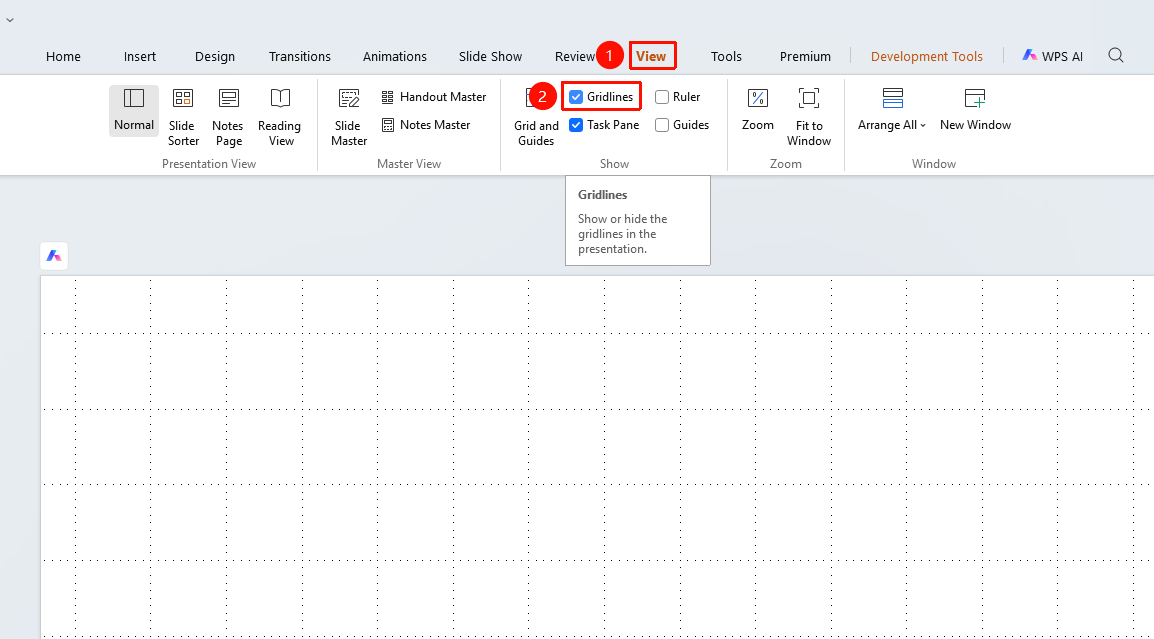
Show/Hide Gridlines
Feature Entry
"View" tab → "Gridlines"
- Click the top "View" tab
- Find the "Gridlines" checkbox
- Check to display the grid, uncheck to hide the grid
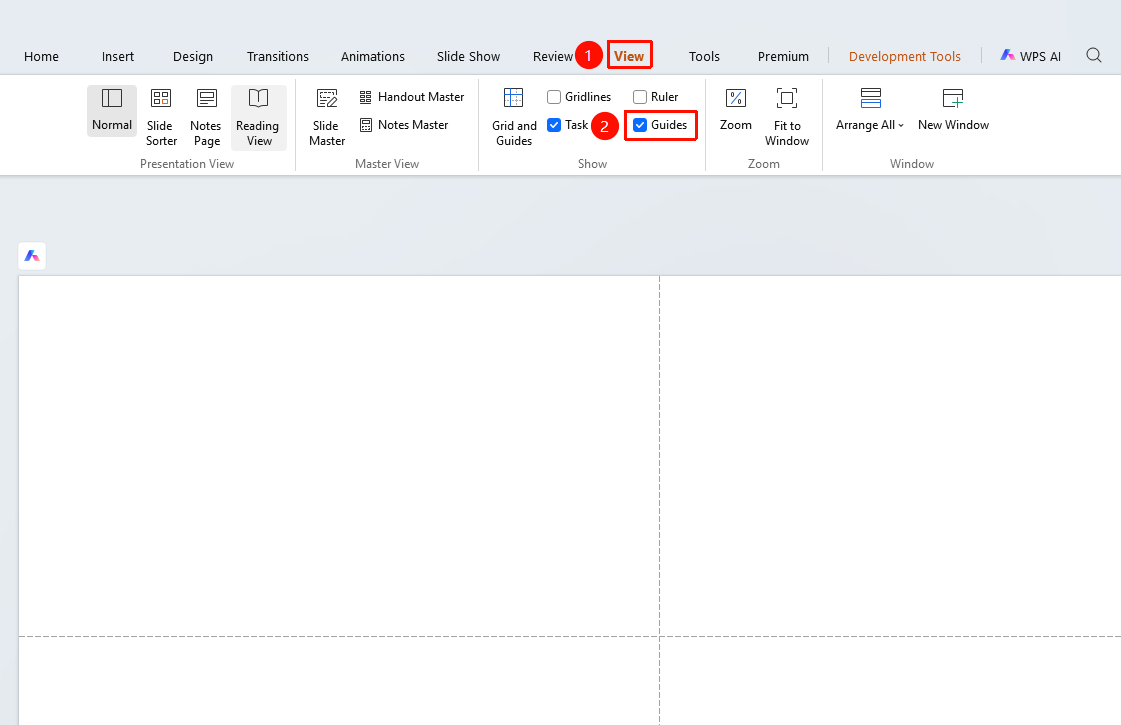
Show/Hide Guidelines
Feature Entry
"View" tab → "Guidelines"
- Click the top "View" tab
- Find the "Guidelines" checkbox
- Check to show guidelines; clear to hide
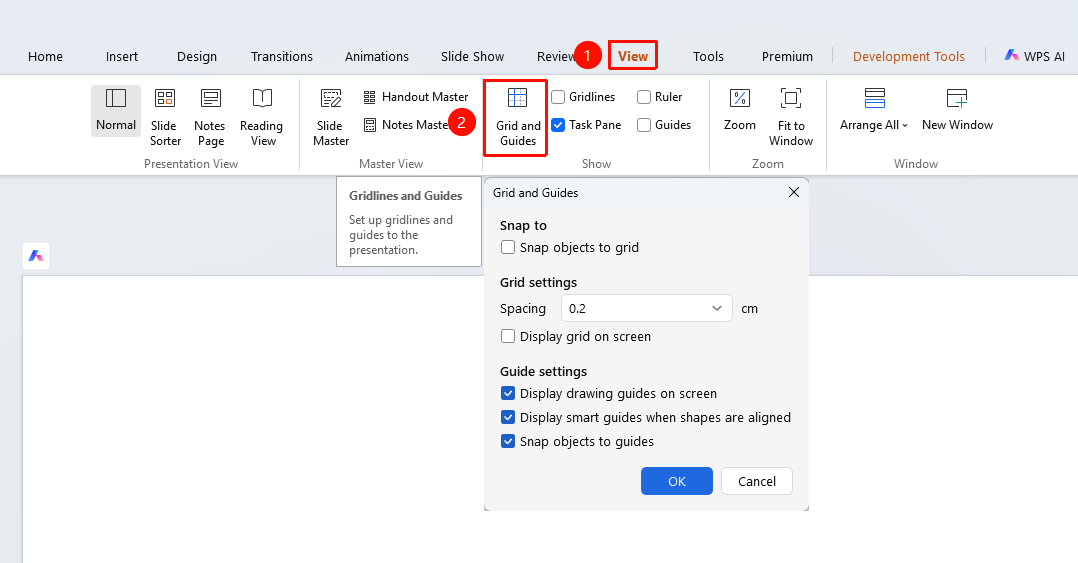
Grid and Guide Detailed Settings
Feature Entry
"View" tab → "Show" → "Grid and Guides"
- Click the top "View" tab
- Click the "Grid and Guides" button
- Set the following options in the pop-up dialog box
- "Snap objects to grid"
- "Spacing": Set the distance between grid points (unit: cm)
- "Display grid on screen": Check to display grid points
- "Display drawing guides on screen": Check to display guides
- "Display smart guides when shapes are aligned": Display smart auxiliary lines when aligning
- "Objects move with guides": Objects will move along with guides
- Click "OK" to save settings
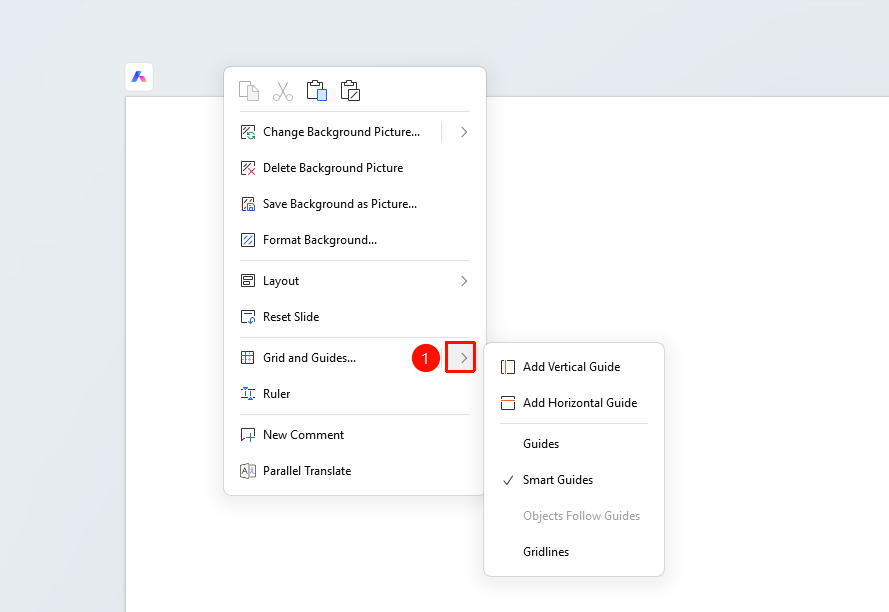
Right-click to Add Grid and Guides
Feature Entry
Right-click menu on blank area of slide → "Grid and Guides"
- Right-click on a blank area of the slide
- Find and click the arrow on the right side of the "Grid and Guides" button to expand the drop-down menu
- Enable/disable the following options in the pop-up dialog box
- "Add Vertical Guide"
- "Add Horizontal Guide"
- "Guides"
- "Smart Guides"
- "Add Vertical Guide"
- "Gridlines"
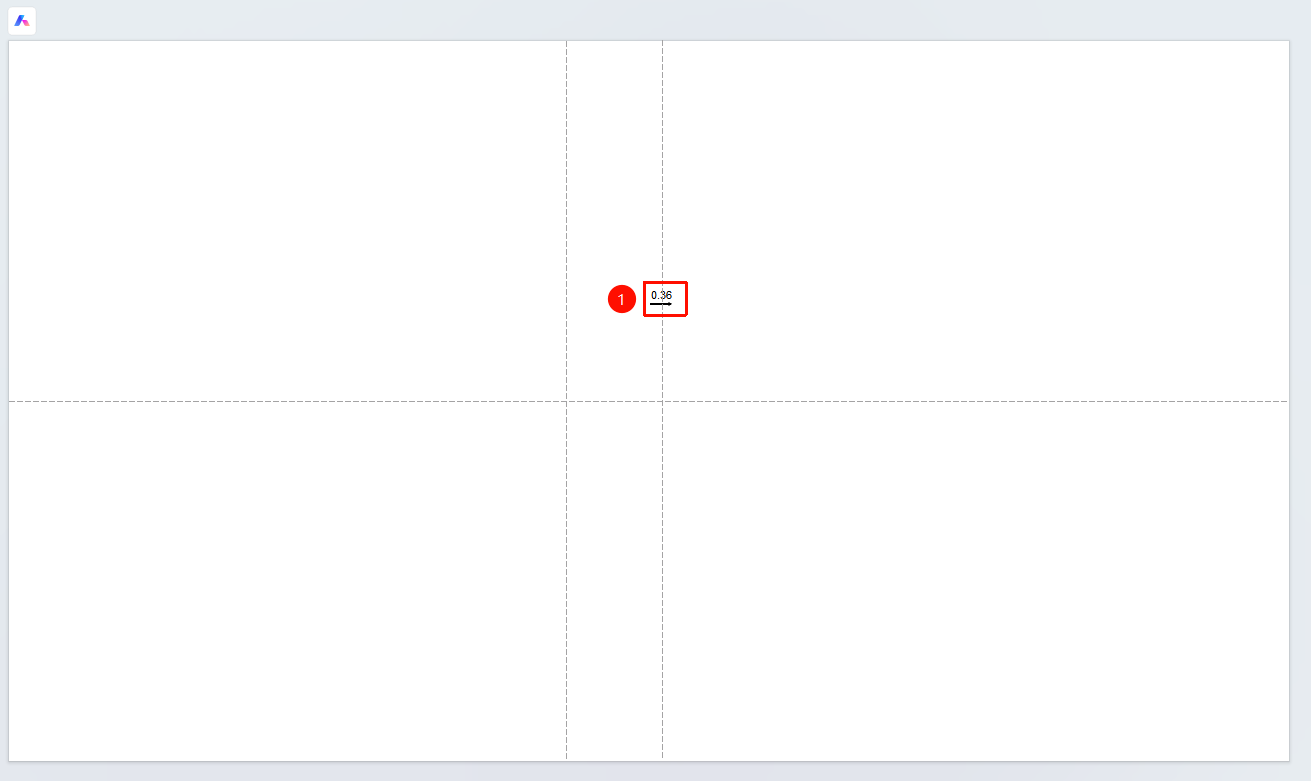
Drag Guides
- After displaying guides, hover the mouse over the guide
- When the mouse changes to a double-headed arrow, drag the guide
- You can move the guide to the desired position
Notes
- Grids and guides are displayed only in Edit Mode and will not appear during slide show