Feature Summary
The Background Save as Picture feature is used to export the background of a slide as a separate image file, making it easy to save and reuse.
Feature Description
| Feature Dimension | Description |
|---|---|
| Membership Restriction | No membership restriction |
| Version Restriction | No version restriction |
Steps
Save Background as Picture
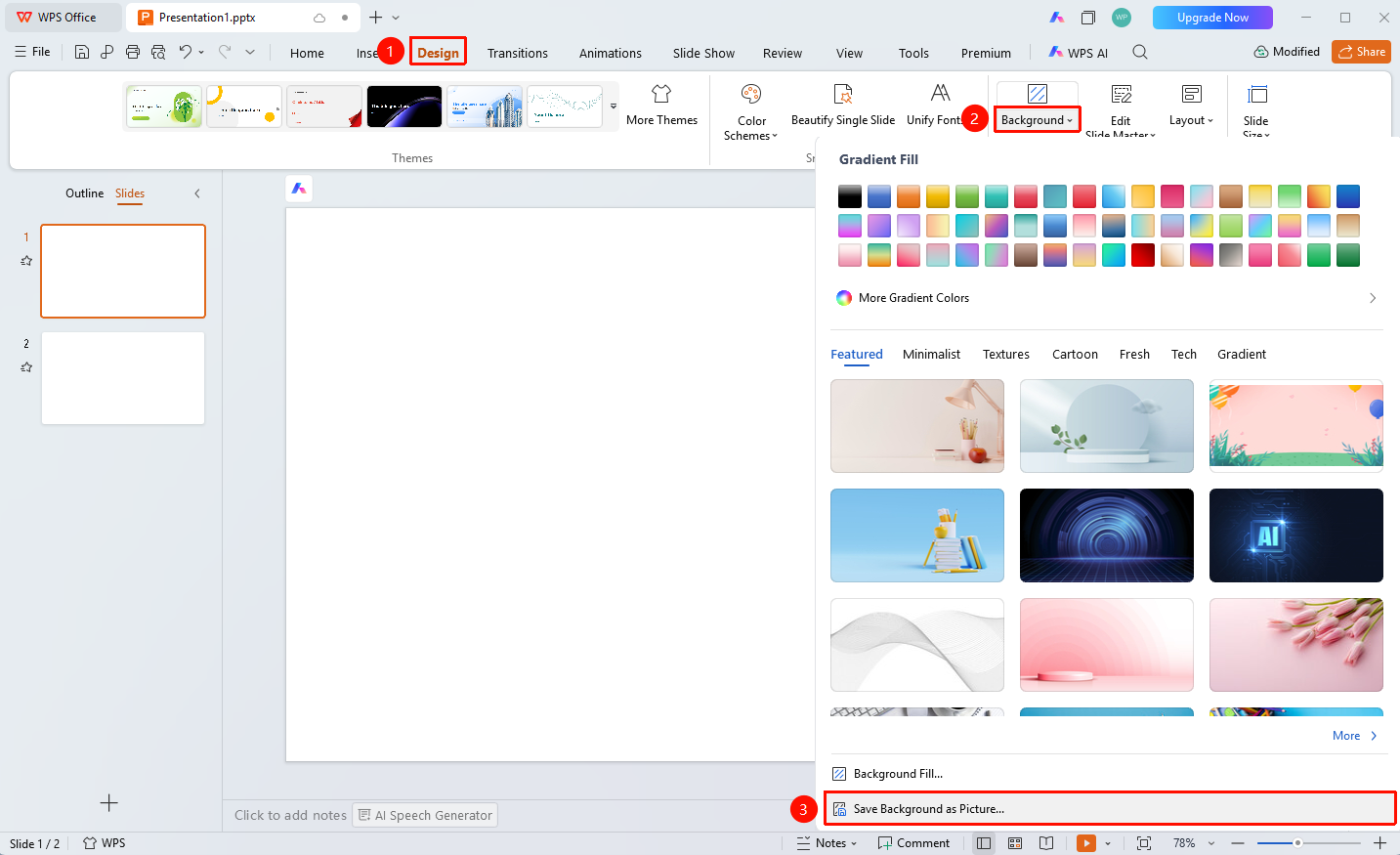
Feature Entry ①
"Design" tab → "Background" → "Save Background as Picture"
- Select the slide whose background you want to export
- Click the "Design" tab at the top
- Click the "Background" drop-down button
- Select the "Save Background as Picture" option
- In the pop-up dialog, set the save location
- Enter the file name and select the save format
- Click "Save" to complete the export
Feature Entry ②
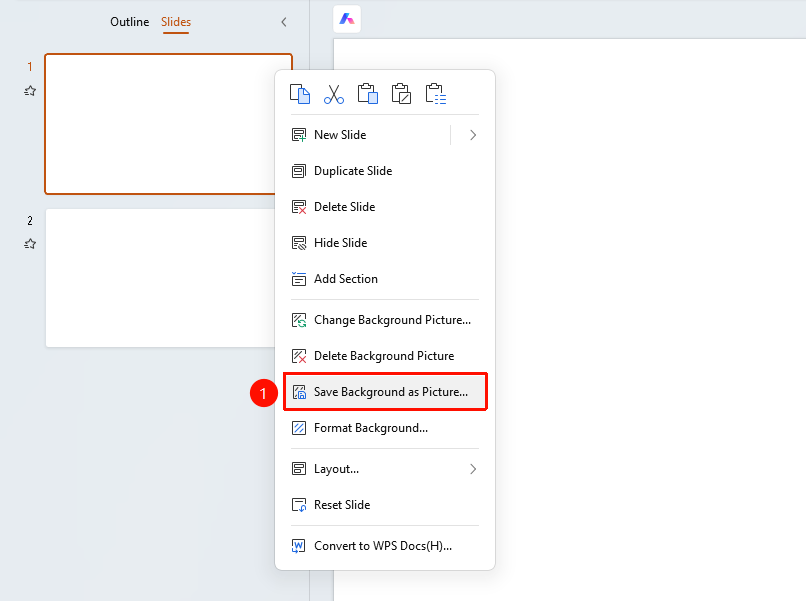
Right-click menu on the left slide thumbnail → "Save Background as Picture"
- In the left slide thumbnail pane, right-click the slide whose background you want to export
- Select the "Save Background as Picture" option
- In the pop-up dialog, set the save location
- Click "Save" to complete the export
Feature Entry ③
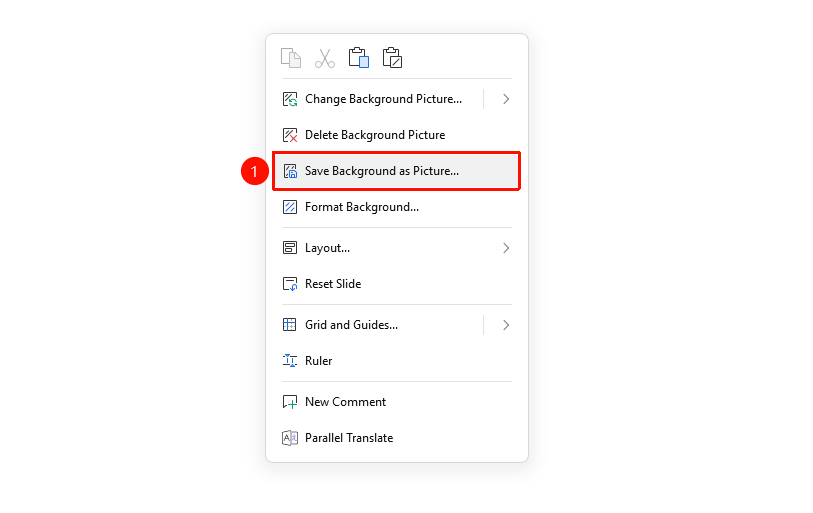
Right-click menu in the slide editing area → "Save Background as Picture"
- Right-click on a blank area in the slide editing area
- Select the "Save Background as Picture" option
- In the pop-up dialog, set the save location
- Click "Save" to complete the export
Notes
- What is saved is the background of the current slide, excluding other objects
- The exported image contains only the background content