Feature Summary
The background pattern fill feature is used to set a pattern as the slide background, offering a variety of preset pattern styles to choose from.
Feature Description
| Feature Dimension | Description |
|---|---|
| Membership Restriction | No membership restriction |
| Version Restriction | No version restriction |
Operation Steps
Setting a Pattern Background
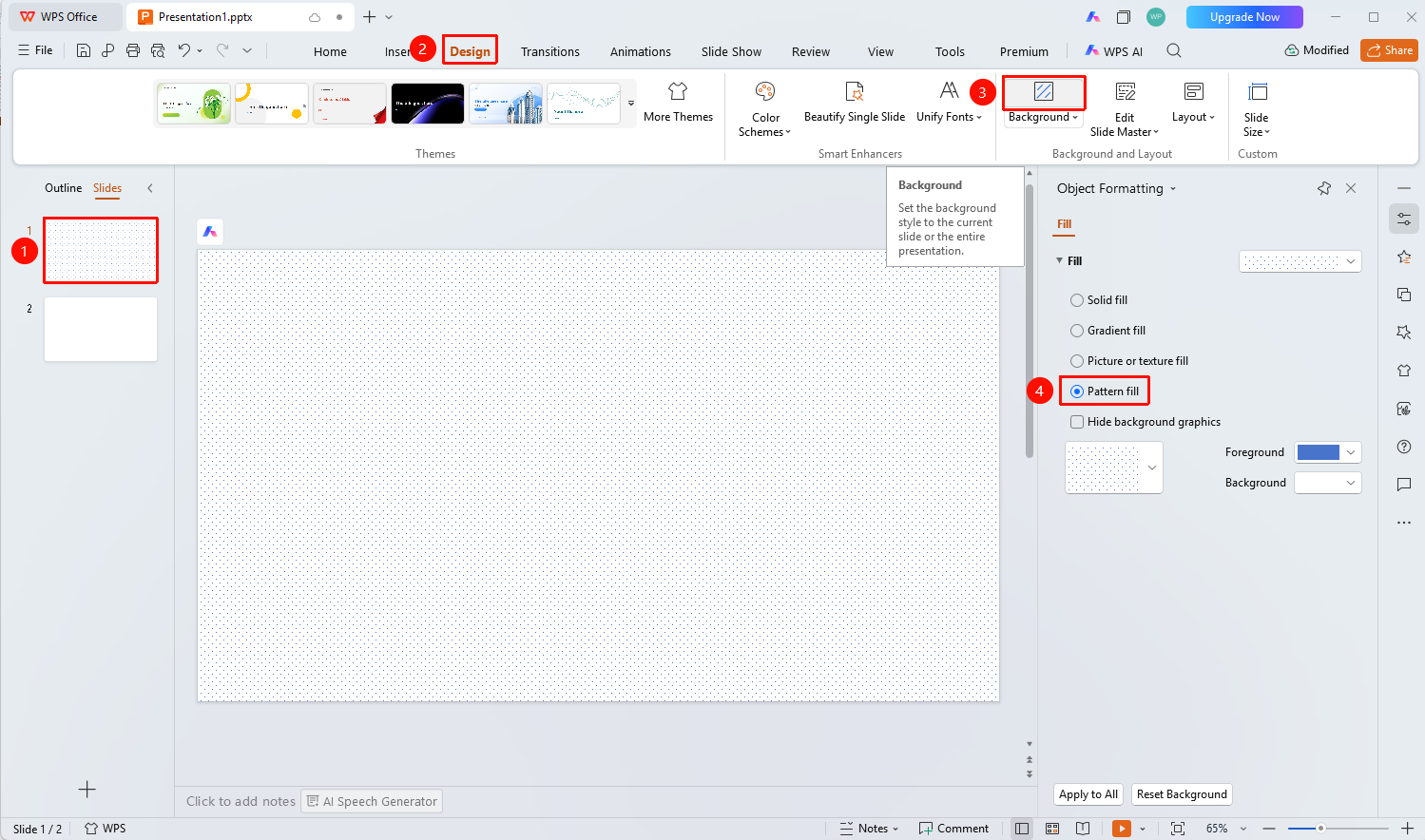
Feature Entry ①
"Design" tab → "Background" button
- Select the slide you want to set the background for
- Click the top "Design" tab
- Click the "Background" button to expand the 'Format Pane' on the right
- In the right-side Object Properties panel, select "Pattern Fill"
- Choose the desired pattern style from the pattern library
- Set the foreground color and background color of the pattern
Feature Entry ②
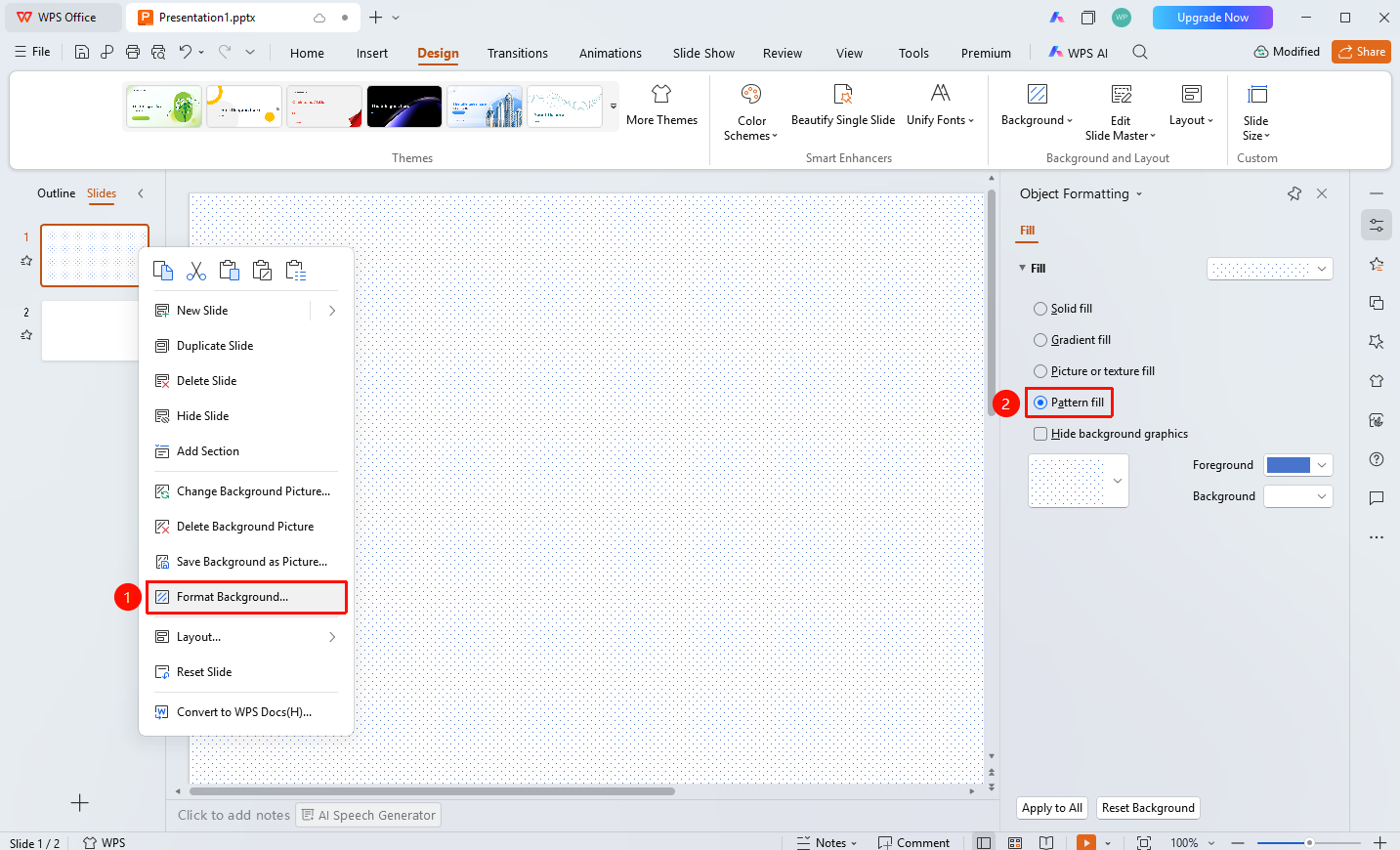
Right-click menu on the left slide thumbnail pane → "Format Background"
- In the left slide thumbnail pane, right-click the slide you want to set the background for
- Select the "Format Background" option
- The 'Format Pane' will pop up on the right, select "Pattern Fill"
- Set the pattern parameters
Feature Entry ③
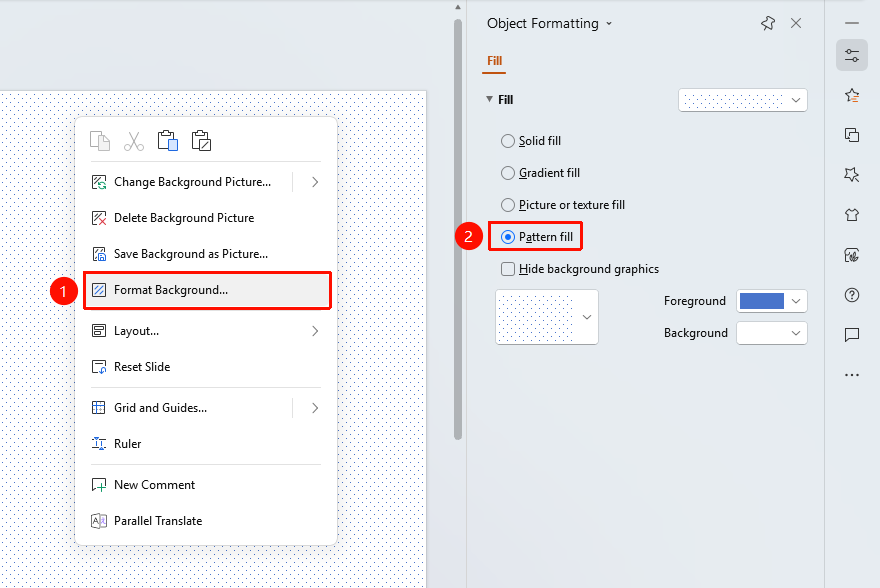
Right-click menu in the slide editing area → "Format Background"
- Right-click on a blank area in the slide editing area
- Select the "Format Background" option
- The 'Format Pane'will pop up on the right, select "Pattern Fill"
- Set the pattern parameters
FAQ
Q1: How to modify the pattern color
- Solution: After selecting a pattern, click the "Foreground Color" and "Background Color" buttons to set the colors respectively.
Q2: What preset patterns are available
- Solution: The pattern library includes various styles such as diagonal lines, grids, dot matrices, and bricks, which can be selected as needed.
Notes
- Pattern fill is suitable for occasions requiring a simple background
- To apply the fill to all slides, click the "Apply to All" button at the bottom of the 'Format Pane'