Feature Summary
The background image feature is used to quickly set preset background images for slides, offering a variety of style categories to choose from, and applying professional backgrounds with one click.
Feature Description
| Feature Dimension | Description |
|---|---|
| Membership Restriction | Some images require you to subscribe to WPS Premium |
| Version Restriction | No version restriction |
Operation Steps
Apply Background Image
Feature Entry
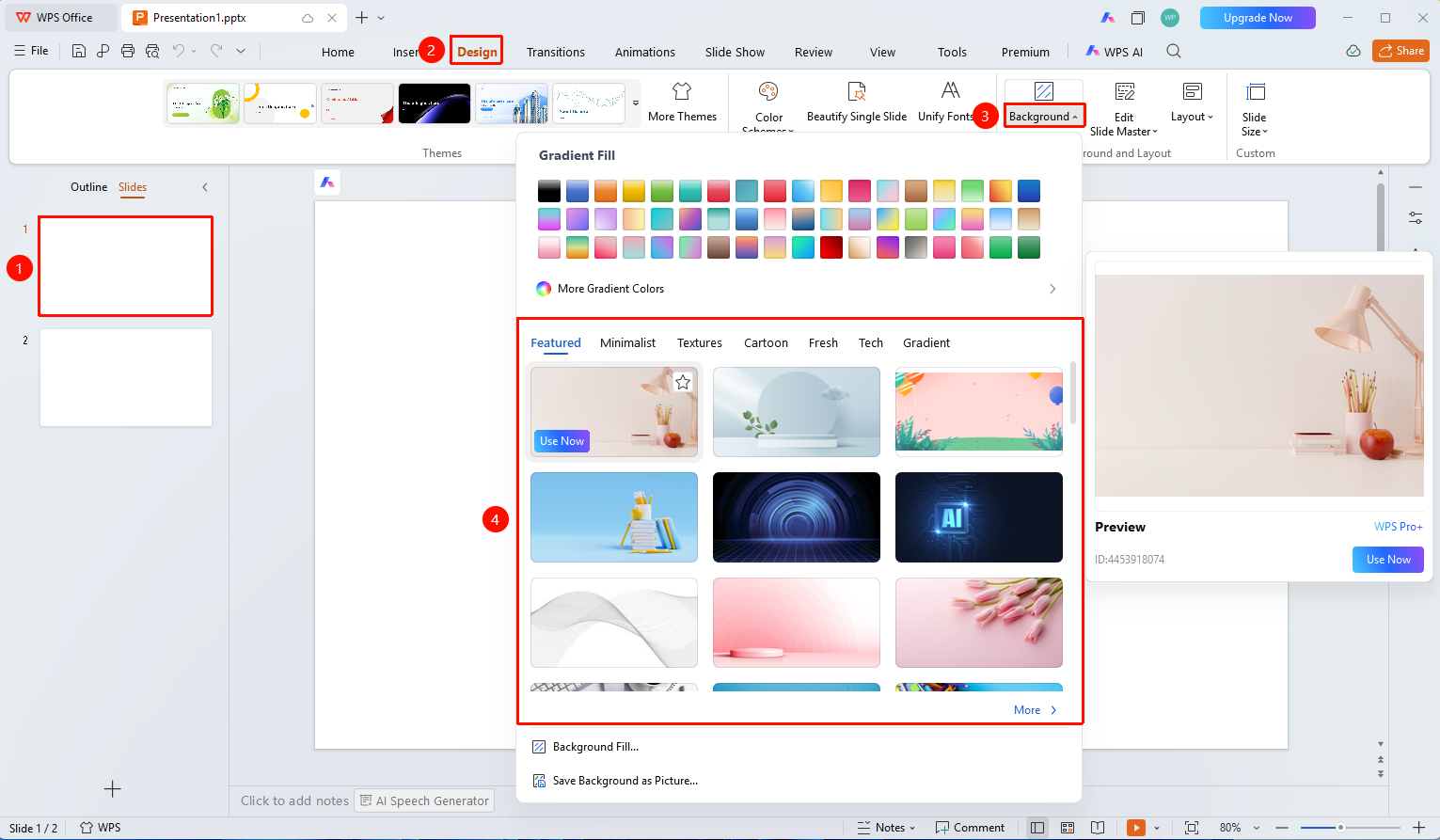
"Design" tab → "Background" dropdown button
- Select the slide you want to set a background for
- Click the top "Design" tab
- Click the "Background" button
- Select the desired category from the tabs
- Hover over a background image to preview it
- Select the desired image and click to apply
For more images, click the "More Images" button at the bottom of the background image area to expand the Docer gallery
Change Background Image
Feature Entry ①
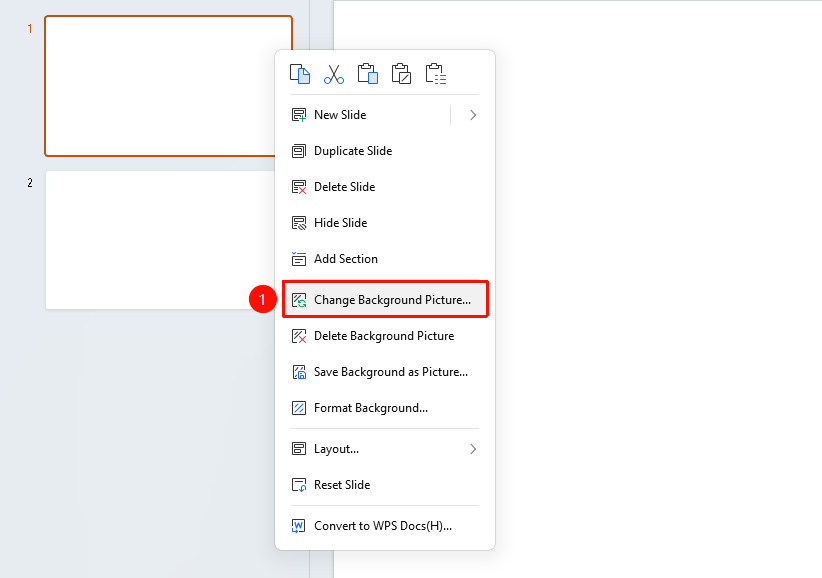
Right-click menu on the left slide thumbnail → "Change Background Image"
- Right-click the slide whose background you want to change in the left slide thumbnail pane
- Select the "Change Background Image" option
- Select a new image file in the pop-up dialog box
- Click "Open" to complete the change
Change Background Image
Feature Entry ②
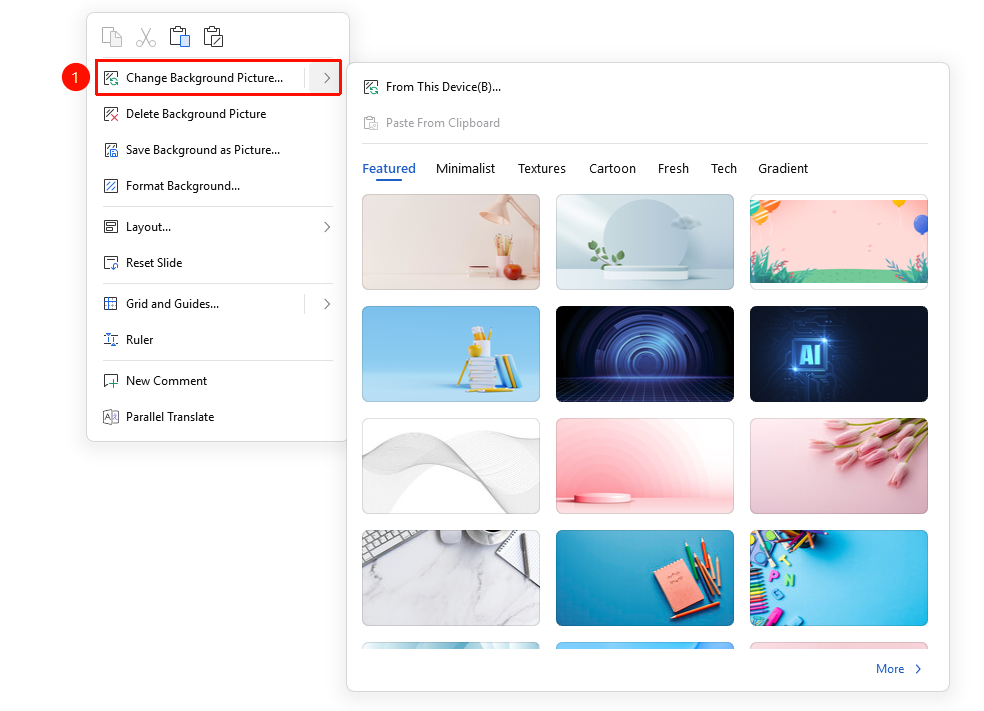
Right-click menu in the slide editing area → "Change Background Image"
- Right-click on a blank area in the slide editing area
- Select the "Change Background Image" option
- Select a new image file in the pop-up dialog box
- Click "Open" to complete the change
FAQ
Q1: How to use a local image as a background
- Solution: Right-click the slide and select "Change Background Image", then choose a local image.
Notes
- Using high-definition images as backgrounds may increase file size